Discover 10 essential tips for creating engaging developer tutorials through video editing. Learn how to improve audio quality, use screen recording effectively, make smart cuts, add text overlays, optimize video length, enhance visuals, and more.
Here's a quick guide to make your developer tutorials more engaging through video editing:
- Prioritize audio quality
- Use screen recording effectively
- Make smart cuts and transitions
- Add text overlays and annotations
- Optimize video length and pacing
- Enhance visuals with color grading
- Use picture-in-picture for demos
- Create engaging intros and outros
- Use jump cuts to shorten videos
- Add keyboard shortcut displays
Quick Comparison:
| Tip | Purpose | Key Benefit |
|---|---|---|
| Audio quality | Clear sound | Better understanding |
| Screen recording | Show work clearly | Easy to follow |
| Smart cuts | Keep video moving | Maintains interest |
| Text overlays | Highlight key points | Reinforces learning |
| Video pacing | Optimal length | Keeps viewers engaged |
| Color grading | Improve visuals | More professional look |
| Picture-in-Picture | Multiple views | Clearer demonstrations |
| Intros/Outros | Set tone, wrap up | Stronger viewer connection |
| Jump cuts | Remove unnecessary parts | Faster-paced content |
| Keyboard displays | Show key presses | Easier to replicate steps |
These tips will help you create more effective and engaging developer tutorials, improving viewer learning and retention.
Related video from YouTube
1. Prioritize Audio Quality
Good audio is key for developer tutorials. Bad sound can distract viewers and make it hard to learn. Here's how to improve your audio:
Get a good microphone:
- USB mics like Rode NT-USB or Blue Yeti X are better than built-in computer mics
- For higher quality, try an XLR mic like Shure SM7B with an audio interface (e.g., Focusrite Scarlett 2i2)
Reduce background noise:
- Find a quiet place to record
- Use acoustic screens or noise reduction tools
Here's a quick comparison of microphone options:
| Microphone Type | Pros | Cons |
|---|---|---|
| Built-in computer mic | Free, easy to use | Low quality |
| USB mic | Good quality, simple setup | Limited options |
| XLR mic with interface | Best quality, more control | More expensive, complex setup |
2. Use Screen Recording Effectively
Good screen recording is key for developer tutorials. Here's how to do it well:
Plan Your Content
Before you start:
- Write down what you'll cover
- Make a list of steps to follow
- This helps you stay on track and not miss important points
Keep It Clean and Quiet
When recording:
- Find a quiet place
- Turn off phone and computer alerts
- Use a plain desktop background
- Remove extra icons from your desktop
This helps viewers focus on what's important.
Learn Your Tools
Get to know your screen recording software:
- Check out all the settings
- Try different options
- Learn keyboard shortcuts
This can make your work faster and easier.
| Do | Don't |
|---|---|
| Plan your content | Start without a plan |
| Record in a quiet place | Record with background noise |
| Use a clean desktop | Leave distracting icons visible |
| Learn software features | Ignore helpful tools |
3. Make Smart Cuts and Transitions
Good cuts and transitions can make your developer tutorials easier to watch and understand. Here's how to use them well:
Plan Your Cuts
Before you edit:
- Watch your video
- Note the main points
- Find parts you can remove
This helps you make a clear, short video.
Use Transitions Wisely
Transitions can help your video flow, but don't overuse them. Use them to:
- Show a new topic
- Add some visual interest
Avoid flashy transitions that might distract viewers.
Show Helpful Visuals
Cut to things like code snippets or diagrams to:
- Explain hard ideas
- Make your video more interesting
This can help break up long screen recordings.
| Do | Don't |
|---|---|
| Plan your cuts | Start editing without a plan |
| Use simple transitions | Use too many or flashy transitions |
| Show relevant visuals | Stay on one screen too long |
| Keep your video short and clear | Include unnecessary content |
4. Add Text Overlays and Annotations
Text overlays and annotations can make your developer tutorials clearer and more engaging. They help explain complex ideas and highlight key points.
Text Overlays
Text overlays are words added on top of your video. They're useful for:
- Showing credits
- Listing topics
- Highlighting important points
To add text overlays:
- Use a video editor with text options
- Choose where to put the text in your video
- Type in your text
- Adjust the style and position
Many online tools can help. For example, "online-video-cutter.com/add-text-to-video" lets you add text to videos easily.
Annotations
Annotations let you draw on your screen while recording. This helps explain complex ideas. You can use them to:
- Point out important code
- Draw attention to diagrams
- Show key parts of your screen
Some tools, like Wondershare DemoCreator, have built-in drawing features. These often include:
| Tool | Use |
|---|---|
| Pen | Free drawing |
| Highlight | Mark important areas |
| Shapes | Add circles, rectangles, etc. |
| Arrows | Point to specific items |
5. Optimize Video Length and Pacing
Making your video the right length and speed is key for good developer tutorials. A well-paced video keeps viewers interested. Here's how to do it:
Check Pacing with Video Optimizer
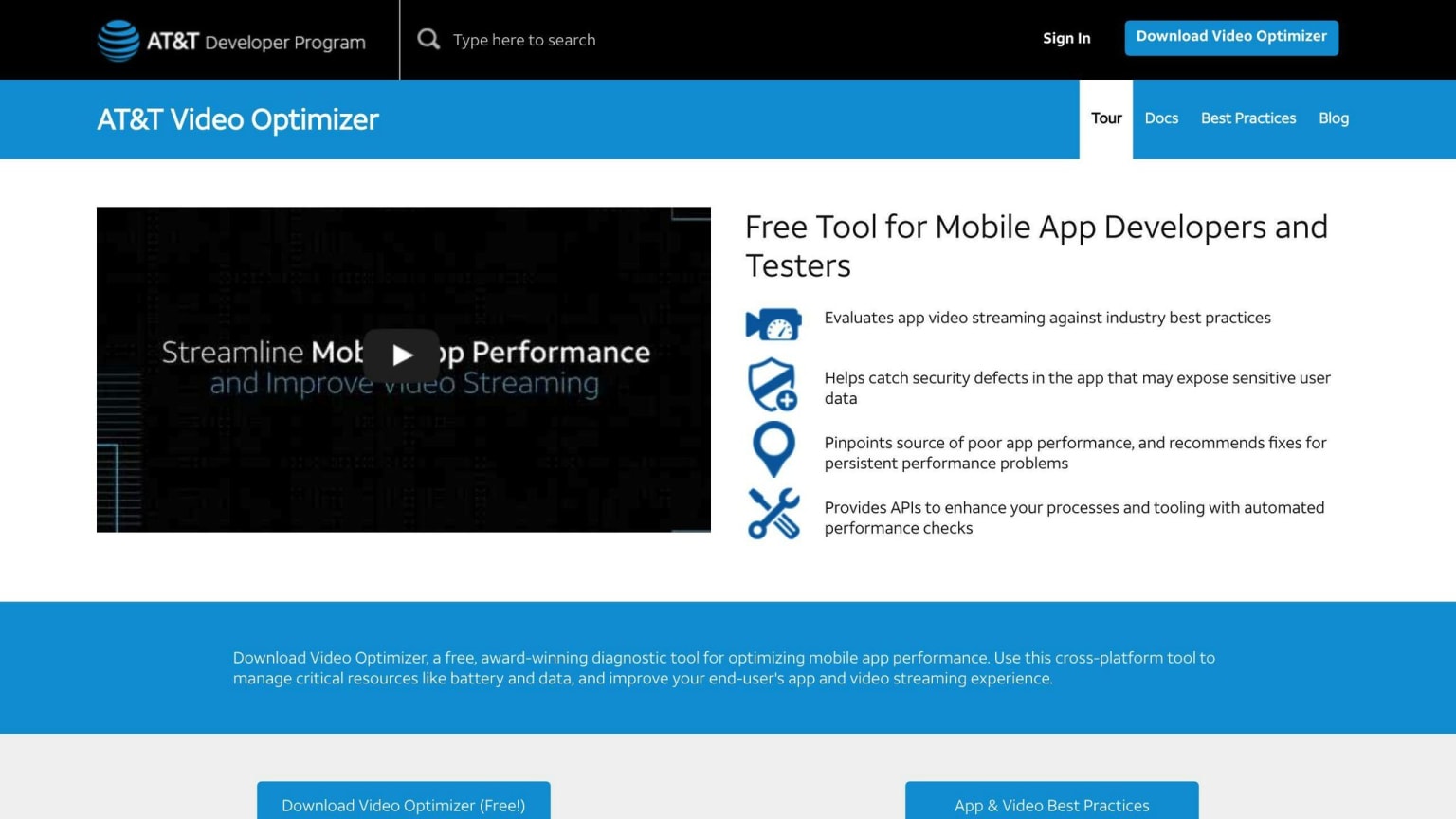
Video Optimizer helps you check how fast your video moves. Use it to:
- See how different parts of your video flow
- Find the best speed for your content
- Make changes to improve your video
Adjust Video Speed
Check how full your video buffer is:
| Buffer Status | What to Do |
|---|---|
| Always full | Speed up the video |
| Often empty | Slow down the video |
This helps your video play smoothly for viewers.
Watch How Video Parts Arrive
In Video Optimizer:
- Go to the View drop-down menu
- Pick Video View under Options
- Look at the Diagnostic tab
This shows you how video parts are coming in. Use this info to set the best speed for your video.
6. Make Your Video Look Better with Color Changes
Changing colors in your video can make your developer tutorials look better. This can help keep viewers interested and make it easier for them to learn.
What are LUTs?
LUTs (Lookup Tables) are files that change colors in your video. They can:
- Change how colors look
- Make your video feel different
There are different types of LUTs:
| LUT Type | What it Does |
|---|---|
| Creative | Adds a special look |
| Film-like | Makes video look like film |
| Log | Fixes flat-looking video |
Picking the Right LUT
Think about how you want your video to feel:
- For serious topics, use LUTs that make colors darker
- For lighter topics, use LUTs that make colors brighter
Try different LUTs to see what works best.
Tips for Using LUTs
To get good results:
- Start with good quality video
- Try many different LUTs
- Pick a LUT that fits your video's mood
- Keep learning about color changes
7. Use Picture-in-Picture for Better Demos
Picture-in-Picture (PiP) can make your developer tutorials easier to understand. It lets you show two video streams at once, which is great for demos.
Here's how PiP can help:
- Show code and its output side by side
- Display a coding window next to a live app preview
- Make complex ideas clearer by showing multiple views
To use PiP well in your tutorials:
| Tip | Description |
|---|---|
| Keep layout simple | Make sure viewers can easily follow what's happening |
| Pick the right size | Try different PiP sizes to find what works best |
| Match sound and video | Make sure audio lines up with what's on screen |
8. Create Engaging Intros and Outros
Good intros and outros can make your developer tutorials better. They help set the mood and get viewers to do things. A good outro can help turn viewers into subscribers or customers.
What Makes a Good Outro?
A good outro should:
- Sum up what you talked about
- Show your brand
- Tell viewers what to do next
It's important to have a clear call-to-action (CTA) that tells viewers what to do, like visit your website or subscribe to your channel.
How to Make a Good Outro
Here's how to make a good outro:
| Do | Don't |
|---|---|
| Keep it short | Make it too long |
| Use a clear CTA | Use a vague CTA |
| Use your brand's look and feel | Use different styles |
| Tell viewers what to do next | Leave viewers unsure |
9. Use Jump Cuts to Make Videos Shorter
Jump cuts can help make your developer tutorials shorter and more interesting. They let you remove parts you don't need, making your video move faster and keeping viewers interested.
What are Jump Cuts?
Jump cuts are when you take out a part of a video, making the action "jump" from one point to another. This can:
- Show time passing
- Skip boring parts
- Focus on important points
Why Use Jump Cuts?
Jump cuts have many good points:
| Benefit | How it Helps |
|---|---|
| Shorter videos | Removes extra parts |
| More interesting | Keeps things moving |
| Clearer points | Focuses on what's important |
| Faster pace | Makes video feel quick |
How to Use Jump Cuts
To use jump cuts well:
- Watch your video
- Find parts you can remove
- Cut out those parts
- Make sure the cuts look smooth
Remember, don't overuse jump cuts. Too many can make your video hard to follow.
10. Add Keyboard Shortcut Displays
When making developer tutorials, it's helpful to show which keys you're pressing. This makes it easier for viewers to follow along. One way to do this is by adding keyboard shortcut displays.
What are Keyboard Shortcut Displays?
These are on-screen images that show which keys you're pressing. They're useful for people making screen recordings or YouTube videos who want to give clear tutorials.
How to Add Keyboard Shortcut Displays
You can use tools to add keyboard shortcut displays:
| Tool | Platform | Features |
|---|---|---|
| ScreenKey | Ubuntu | Free, open-source |
| Screenflick | Mac, Windows | Paid, more options |
These tools show key presses on screen as you type.
Why Use Keyboard Shortcut Displays?
Adding keyboard shortcut displays can make your tutorials better:
- Viewers can see exactly which keys you're pressing
- It's easier to follow along with the tutorial
- People can learn faster
Conclusion
By using these 10 video editing tips, you can make better developer tutorials. These tips will help you explain complex ideas clearly and keep viewers interested.
Here's a quick summary of what we covered:
| Tip | What it does |
|---|---|
| 1. Good audio | Makes your video easy to hear |
| 2. Screen recording | Shows your work clearly |
| 3. Smart cuts | Keeps your video moving |
| 4. Text overlays | Highlights key points |
| 5. Video length | Keeps viewers watching |
| 6. Color changes | Makes your video look good |
| 7. Picture-in-Picture | Shows multiple views |
| 8. Intros and outros | Sets the mood and wraps up |
| 9. Jump cuts | Makes videos shorter |
| 10. Keyboard displays | Shows which keys you press |
To make good tutorials:
- Plan your video before you start
- Record carefully
- Edit your video well
Try these tips in your next tutorial. With practice, you'll get better at making videos that teach and interest your viewers.
FAQs
How to edit video to make it more engaging?
To make your video more engaging:
- Keep it flowing smoothly
- Use cuts and transitions wisely
- Mix up different types of shots
- Stay up-to-date with current trends
Here's a breakdown of these tips:
| Tip | How to do it |
|---|---|
| Smooth flow | Avoid long, static shots |
| Use cuts and transitions | Add them to keep the video moving |
| Mix shot types | Switch between different views |
| Follow trends | Look at what's popular in video editing |