Keep a lean, reliable developer toolkit to code, test, and secure projects without extra noise.
If I had to keep just 8 developer tools in 2026, I’d keep these: VS Code, JetBrains or Neovim when needed, WezTerm, zsh or fish, Docker, Git CLI, GitKraken, Postman, 1Password or Bitwarden, and daily.dev.
Here’s the short version: I’d use VS Code as the default editor, WezTerm as the terminal, Docker Compose for local services, Git CLI for daily version control, GitKraken for branch cleanup, Postman for API testing, a password manager for secrets, and daily.dev to keep up with security news and tool changes. The point is simple: use a small stack that helps you code, test, ship, and stay secure without extra noise.
A few facts from the article stand out:
- Bitwarden Premium costs $10/year
- 1Password includes SSH agent support and secret injection with
op run - daily.dev offers a free personalized feed and browser extension
- Docker Compose keeps team setup in one file
- Git CLI should come first, with GitKraken added for visual branch work
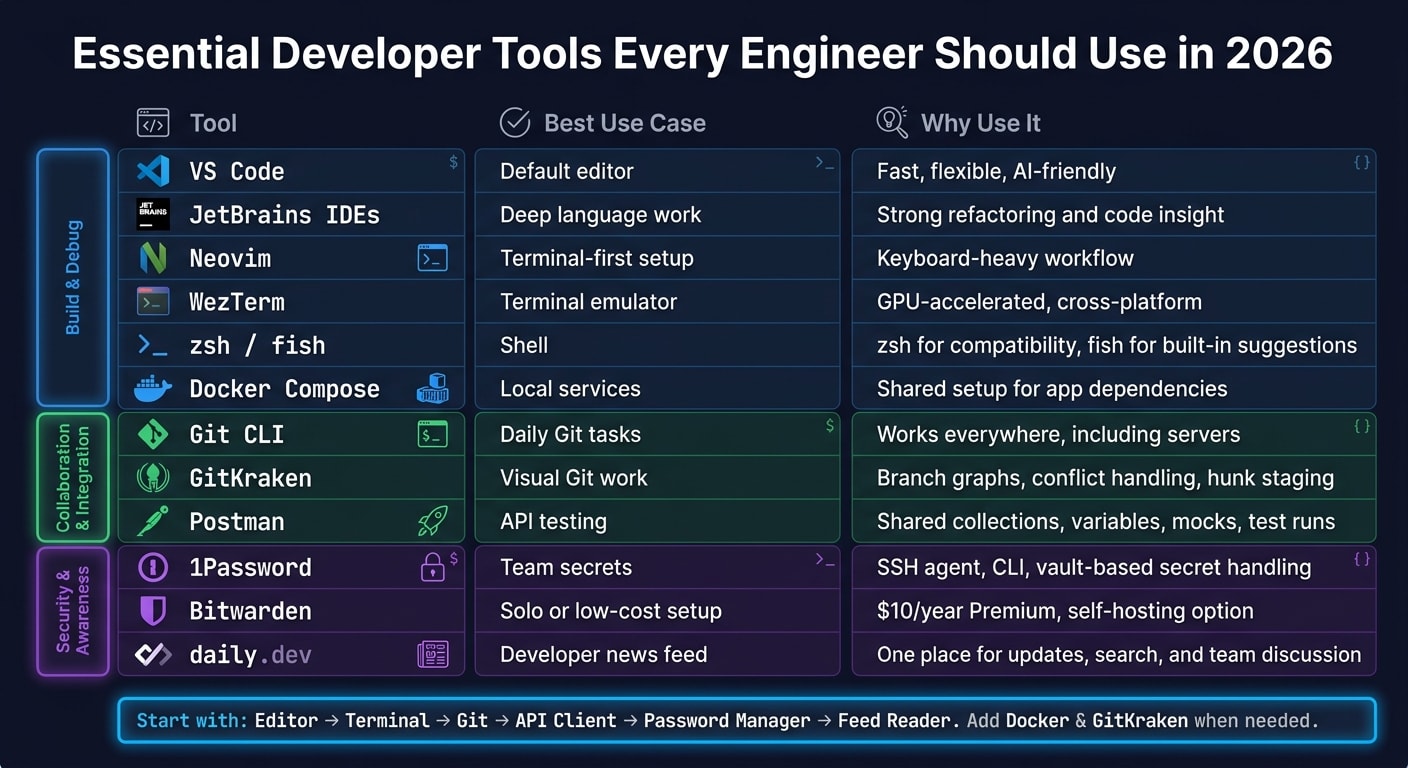
Quick Comparison
| Tool | Best use | Why I’d use it |
|---|---|---|
| VS Code | Default editor | Fast, flexible, AI-friendly |
| JetBrains IDEs | Deep language work | Strong refactoring and code insight |
| Neovim | Terminal-first setup | Keyboard-heavy workflow |
| WezTerm | Terminal | GPU-accelerated, cross-platform |
| zsh / fish | Shell | zsh for compatibility, fish for built-in suggestions |
| Docker Compose | Local services | Shared setup for app dependencies |
| Git CLI | Daily Git tasks | Works everywhere, including servers |
| GitKraken | Visual Git work | Branch graphs, conflict handling, hunk staging |
| Postman | API testing | Shared collections, variables, mocks, test runs |
| 1Password | Team secrets | SSH agent, CLI, vault-based secret handling |
| Bitwarden | Solo or low-cost setup | $10/year Premium, self-hosting option |
| daily.dev | Developer news feed | One place for updates, search, and team discussion |
If you want the short answer, this is it: start with the editor, terminal, Git, API client, password manager, and feed reader; add Docker and GitKraken when your work calls for them.
The core build-and-debug toolkit
Code editor: Visual Studio Code by default, JetBrains IDEs or Neovim when needed
Visual Studio Code is the default in 2026. It’s fast, flexible, and easy to extend. It also works well with modern AI-assisted editing. Using various AI tools for developers can further streamline this process.
That makes it the go-to choice for general use. You can shape it around almost any stack without much hassle.
When VS Code isn’t the right fit, two other options stand out. JetBrains IDEs like IntelliJ, PyCharm, and GoLand are a strong pick for deeper language awareness and stronger refactoring. Neovim fits a keyboard-driven, terminal-first workflow that many developers swear by.
The simple way to think about it:
- VS Code for general use
- JetBrains for deep language work
- Neovim for terminal-first workflows
Once the editor is set, the terminal becomes the next daily workspace.
Terminal and shell: WezTerm with zsh or fish
A fast terminal matters. Tests, deployment scripts, SSH sessions, container logs, and Git operations all run through it. If your terminal feels slow, you feel it all day.
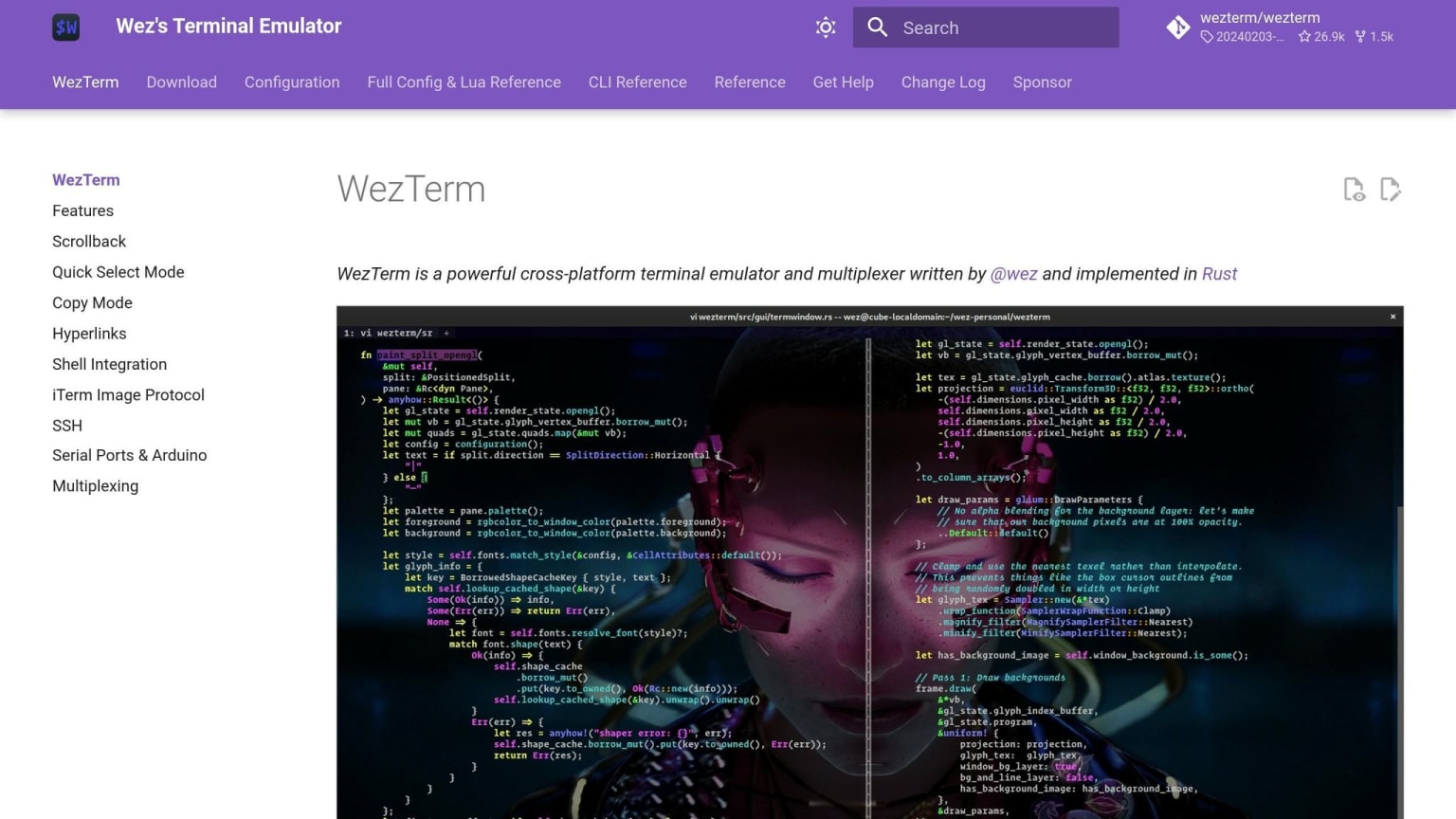
WezTerm is the recommended pick for 2026. It’s GPU-accelerated, works well across Windows, macOS, and Linux, and uses Lua for all configuration. Use zsh if you want broad compatibility, or fish if you want built-in autosuggestions out of the box. Add the Starship prompt to see Git status and language versions at a glance without slowing things down.
From there, Docker keeps local services and dependencies in sync.
Containers: Docker for local services and reproducible environments
Docker keeps local services aligned with CI and production. It’s the standard choice for local services, and the practical place to start is Docker Compose.
With Compose, you define your app’s services in one file, and anyone on the team can run the full stack without a long setup dance. The VS Code Docker extension also helps by letting you manage containers and inspect logs without leaving the editor.
With the build stack in place, the next priority is collaboration and integration.
The collaboration and integration toolkit
Git: learn the CLI first, then use GitKraken for visual work
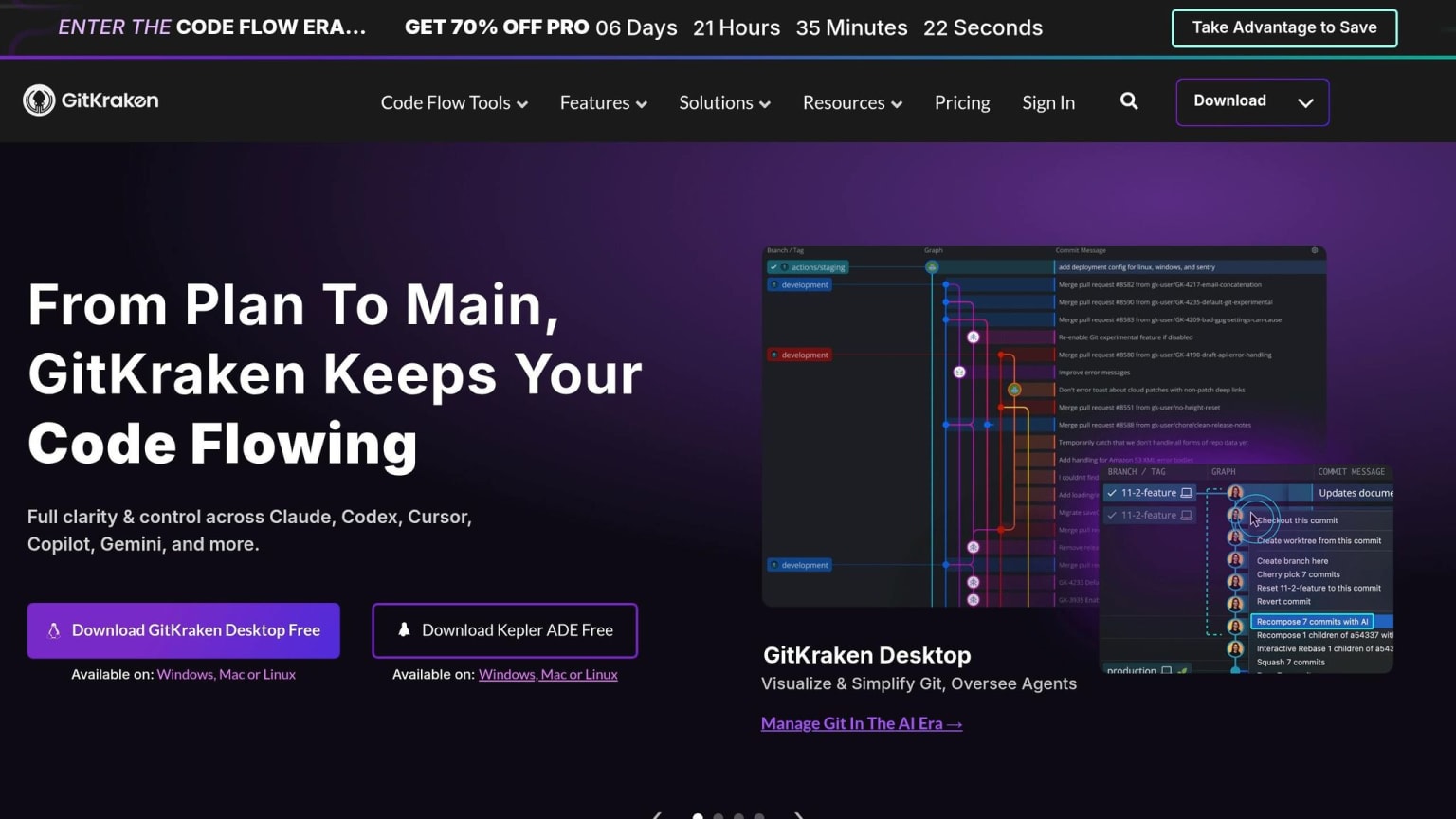
Git CLI is nonnegotiable. It’s the base layer for everything else. If you only know Git through a GUI, you’ll hit a wall the second you SSH into a server or need to script part of your workflow. Start with the CLI so you know what Git is doing under the hood. Then add visual tools on top.
For day-to-day work, the CLI is usually the best fit. But when branch history gets messy, visual tools can save time and mental effort. GitKraken does this well. You get clear branch graphs, easier conflict resolution, and hunk-level staging without having to piece together the right git flags from memory.
A simple split works well:
- Use the CLI for
add,commit,push,pull, andgh pr create - Switch to GitKraken for visual branch work
Once Git feels natural, the next tool most engineers touch every day is the API client.
API client: Postman as the default for modern API work
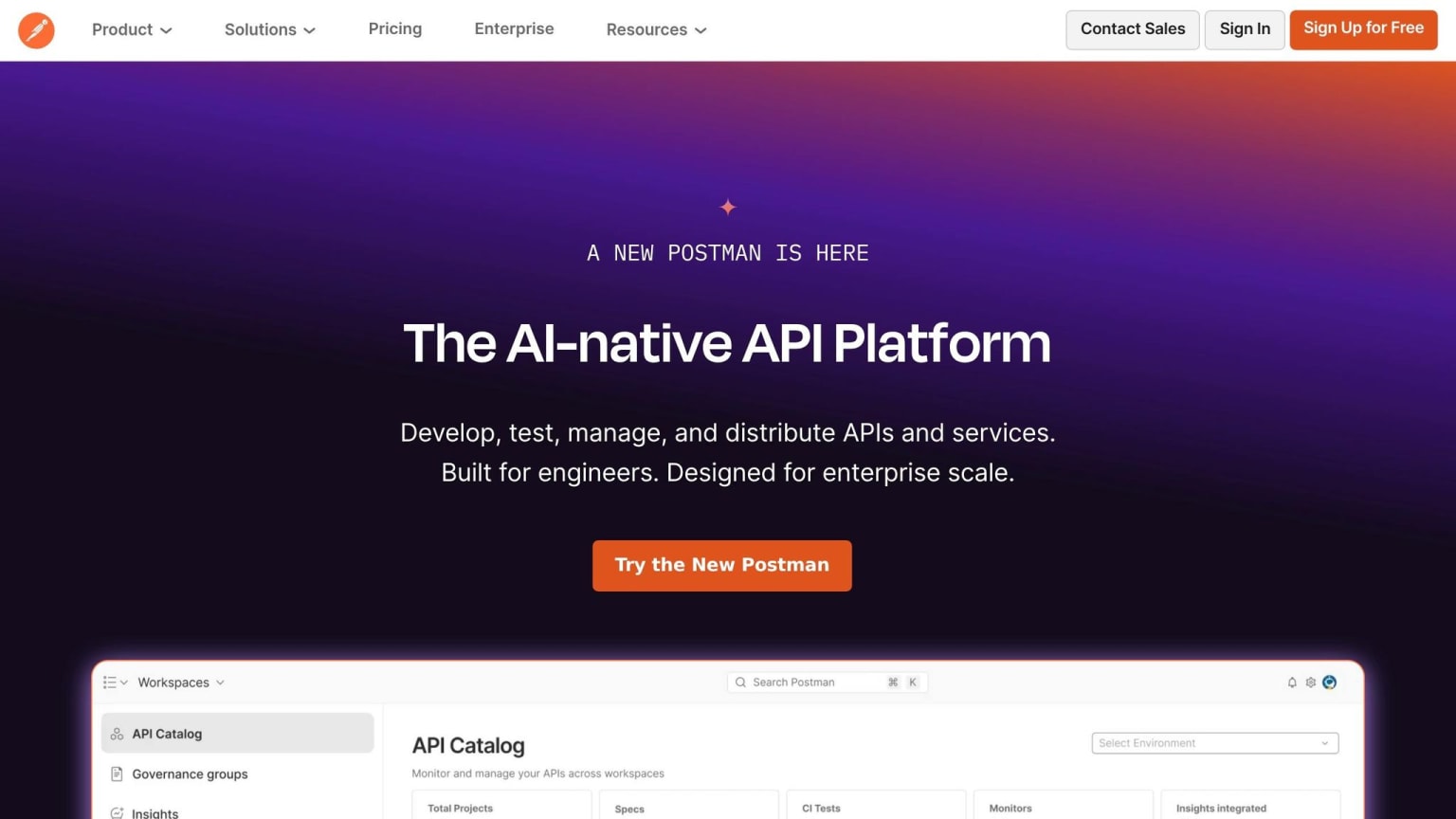
After Git, API testing is usually the next integration task engineers deal with every day. Every engineer needs an API client.
Postman is the default choice for team work. Its ecosystem is still the deepest, with shared collections, mock servers, environment variables, and a Collection Runner for automated test suites. Use {{base_url}} variables to move between local, staging, and production endpoints without editing each request. Shared collections also cut down on repeat questions about how to call endpoints.
The security and staying-current toolkit
After code, Git, and APIs, the next step is simple: lock down access and keep up with what’s changing. Security and awareness should be part of the default setup, not something you bolt on later. A password manager and a solid signal feed are table stakes.
Password manager: 1Password or Bitwarden as a security baseline
Don’t store credentials in plaintext. Don’t reuse passwords. And don’t leave SSH keys sitting unprotected in ~/.ssh/.
A password manager isn’t just for website logins now. In 2026, it’s where API keys, SSH keys, cloud credentials, and environment-specific secrets should live.
For teams, 1Password is the stronger pick. Its native SSH agent can replace the system ssh-agent, so private keys stay in the vault and each use can require biometric unlock. The op CLI also lets you inject secrets straight into subprocesses with op run. And Environments gives you a way to manage project-specific secrets without plaintext .env files. Service Accounts add another layer for CI/CD by giving pipelines scoped, least-privilege access to specific vault items without human involvement.
Bitwarden makes more sense for solo developers and open-source work. Bitwarden Premium costs $10/year . It supports self-hosting through Vaultwarden, includes a solid bw CLI, and offers basic SSH support. The downside is pretty clear: the UI feels rougher, and its SSH support isn’t as polished as 1Password’s.
So the split is pretty straightforward:
- Choose 1Password for teams and deeper developer tooling.
- Choose Bitwarden for lower cost, self-hosting, and solo use.
One tip applies either way: turn on biometric unlock right away. It cuts down master password exposure and helps guard against keyloggers. For MFA, it’s fine to keep TOTP codes for low-value accounts inside the manager. But for high-value targets like your primary email and GitHub account, use a separate hardware key or authenticator app.
Supply-chain attacks on developer tools are a good reminder here. Secrets belong in a vault, not in shell history or random local files.
daily.dev: the default feed for keeping up with the developer ecosystem
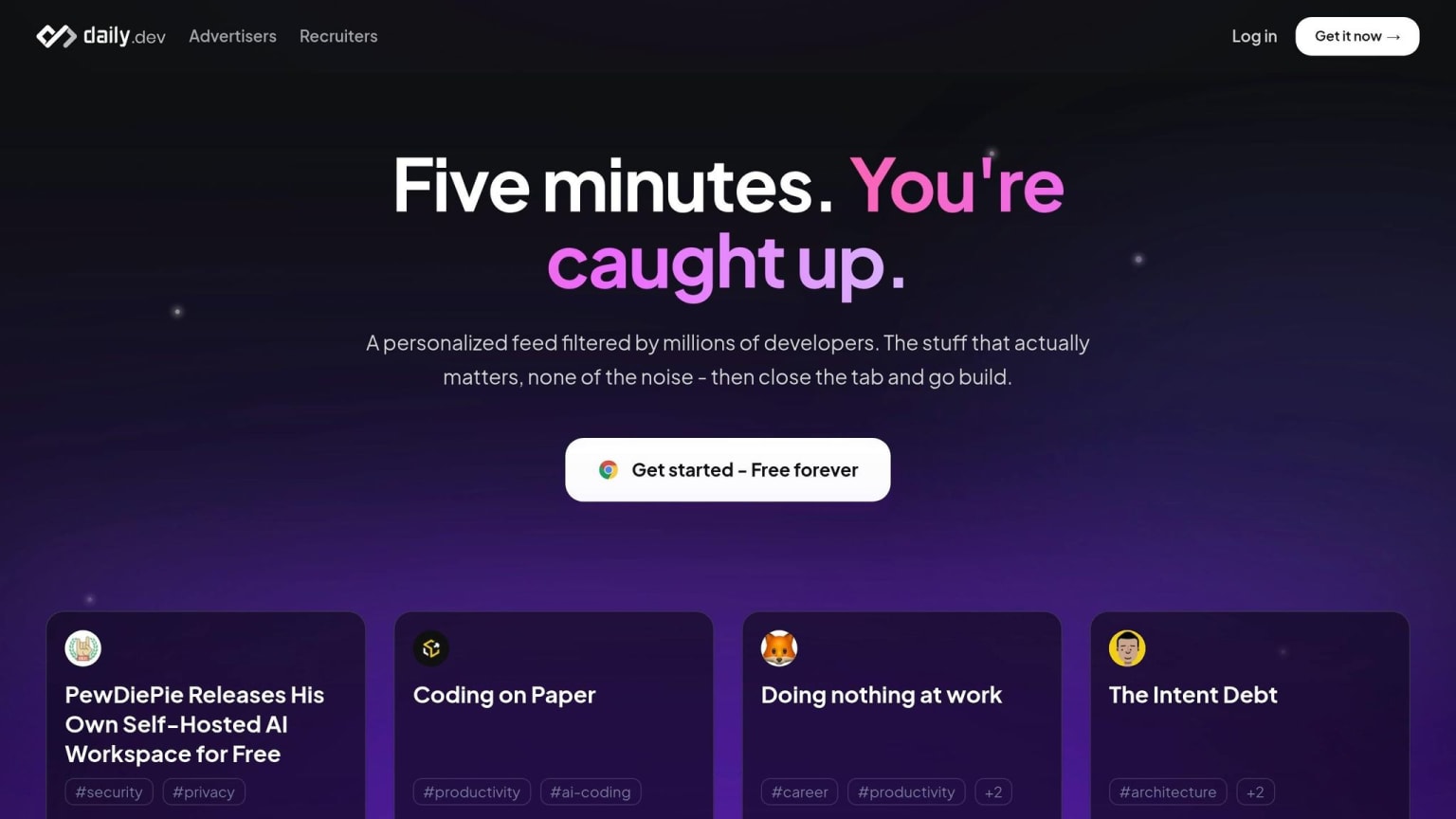
Developer signals move fast. New tools land, security advisories show up out of nowhere, and frameworks can change behavior between minor versions. Manually checking a dozen sites every day? That’s just a time sink. daily.dev gives you one personalized feed based on your stack and interests.
The core experience is free and includes the personalized feed, browser extension for Chrome and Edge, Search, and Squads . The browser extension swaps out your new tab page with the feed, which is a neat little habit loop: those in-between moments during the day turn into a fast scan of what matters. Use Search when you need a technical reference. Use Squads when you want topic-based discussion with your team or other developers. It slides into the workday without getting in the way.
That puts security and developer signal in the same daily rhythm as the rest of your work.
How this stack fits into a real workday
A practical daily flow from morning reading to shipping code
These tools fit into a normal workday without turning it into a juggling act.
Here’s what that can look like in practice: at 8:00 AM, scan daily.dev to catch up on what matters. By 9:30 AM, start your Git workflow in VS Code or JetBrains, use WezTerm for terminal work, pull secrets from 1Password or Bitwarden, and spin up services with Docker Compose. Test endpoints in Postman, switch to GitKraken only when the branch starts getting messy, and push before the day ends. Then CI takes over.
That’s the whole idea: a small stack that doesn’t get in your way.
Final takeaway: Get the basics right and follow build tool best practices before adding more tools
The 2026 developer stack is leaner. A small core setup handles most day-to-day work, and more tools usually mean more context switching.
The baseline is simple:
- an editor
- a terminal
- Git
- containers when needed
- an API client
- a password manager
- daily.dev
Docker matters for local services and reproducible environments, but you can skip it for simple frontend projects. GitKraken is worth using when branch work gets more complex. daily.dev helps you stay current without adding friction.
Add extra tools only when a clear problem calls for them. Get good at the stack already in front of you first.
FAQs
Which tools should I install first?
Start with the core setup before adding specialized tools.
Use:
- a reliable code editor, such as VS Code or Cursor
- Git and a solid terminal, like Warp, iTerm2, or Windows Terminal
- a project-appropriate package manager and Docker
Then pause. You don’t need a giant toolbox on day one. Add more tools only when a specific pain point starts slowing down your daily workflow.
Do I need both Git CLI and GitKraken?
Not necessarily. A clean workflow matters more than stacking tools on top of each other. For most day-to-day work, the Git CLI is enough.
If the command line slows you down, add one lightweight local helper like GitKraken for more visual tasks. Stick to one main Git workflow and skip extra helpers that do the same job.
Should I choose 1Password or Bitwarden?
The search results don’t mention 1Password or Bitwarden. They also don’t treat password managers as a core part of a developer’s toolkit for 2026.
In general, pick tools that slide into the way you already work and cut down on context switching. That usually means the tools you live in every day, like your editor, terminal, and version control system.
For security tools, choose the option that lines up with your security needs and the way your project is set up.