Run LLMs on local hardware for privacy, lower costs, and faster inference—this guide covers Ollama, llama.cpp, hardware, quantization, and deployment tips.
Running large language models (LLMs) locally on your own hardware is now a practical and cost-effective alternative to cloud-based APIs. This approach offers advantages like full data privacy, offline functionality, and significant cost savings. Tools such as Ollama and llama.cpp make it easy to deploy models on devices like laptops, workstations, or servers, even with modest hardware.
Key takeaways:
- Why Go Local: Avoid data privacy concerns, eliminate recurring API costs, and maintain uninterrupted access.
- Hardware Needs: GPUs with sufficient VRAM (e.g., 8GB for 7B models) or Apple Silicon with unified memory are ideal. 4-bit quantization reduces memory requirements by up to 75%.
- Setup Tools: Ollama is beginner-friendly and fast to deploy, while llama.cpp offers advanced control for developers.
- Performance: Local setups reduce latency (<100 ms) and eliminate per-token fees, making them ideal for high-volume tasks.
- Use Cases: Perfect for coding, summarization, and Retrieval-Augmented Generation (RAG) pipelines.
Whether you're looking to save costs or prioritize privacy, running LLMs locally is an efficient solution for modern developers.
Run LLMs Locally in Minutes with Ollama - DeepSeek, LLaMA & More!
Why Run LLMs Locally
Running large language models (LLMs) locally offers several advantages, with privacy and data control being at the forefront. When you send a prompt to a cloud-based API, your data inevitably passes through external servers. For many organizations, this poses a serious concern. In fact, by 2025, 44% of organizations identified data privacy and security as their top barrier to adopting LLMs . By running models locally, you keep proprietary code, customer data, and intellectual property within your own infrastructure. This is especially critical for industries like healthcare (to comply with HIPAA), finance, and legal services, where strict regulatory requirements demand data residency.
"For companies handling sensitive data, [sending prompts to external servers is] a dealbreaker." - Jaipal Singh, CTO, Prem AI
Another compelling reason is cost savings, particularly at scale. By 2025, enterprise LLM API costs reached a staggering $8.4 billion . A single developer heavily using GPT-4 can incur monthly expenses between $1,000 and $3,000, adding up to as much as $36,000 annually . For organizations handling large volumes of data, the financial benefits of self-hosting become clear. For example, a fintech company reduced its monthly AI costs from $47,000 to $8,000 - an 83% drop - by shifting high-volume tasks to local models and using cloud APIs only for more complex tasks . Similarly, a telehealth provider cut its monthly expenses from $48,000 to $32,000 by moving chat triage operations to self-hosted LLMs .
Local models also ensure uninterrupted operation. With offline capabilities, you can continue development without relying on an internet connection. This is a critical feature for air-gapped networks, classified environments, or situations where offline work is necessary. Additionally, running models locally eliminates network latency, allowing token generation to begin instantly without waiting for API round trips .
Lastly, local deployment enables full customization and fine-tuning. You gain control over model weights, quantization levels, and inference parameters, allowing you to experiment with architectures, fine-tune models on proprietary datasets, and integrate them with other AI tools for developers. This avoids the added costs and restrictions of training on external platforms .
These advantages highlight why local LLMs are becoming an attractive option, setting the stage for exploring the hardware needed to support them effectively.
Hardware Requirements for Local LLMs
Before diving into downloading local models, it’s crucial to know your hardware's capabilities. The biggest constraint? VRAM (Video RAM on GPUs) or system RAM (on CPUs and Apple Silicon). If your hardware doesn’t have enough memory to handle a model’s weights, performance takes a major hit, with inference slowing down dramatically .
The Role of 4-Bit Quantization
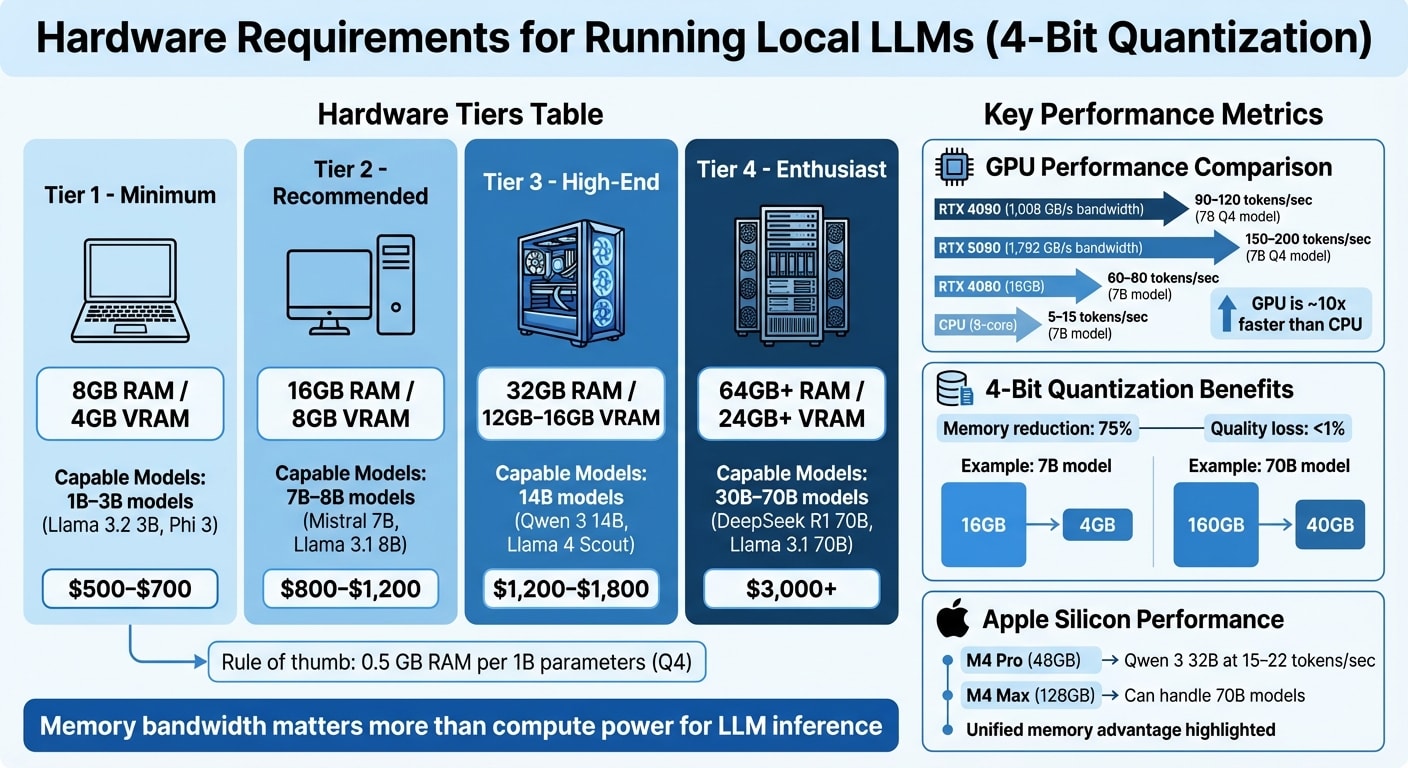
The introduction of 4-bit quantization has been a game-changer for local inference. Using the GGUF Q4_K_M format reduces memory usage by about 75%, while maintaining nearly the same quality (less than 1% loss) . For example, a 7B parameter model that would typically need 16GB of VRAM now only requires about 4GB. Similarly, a 70B model can run with roughly 40GB of VRAM instead of 160GB . This approach makes it possible to run larger models on more modest hardware setups.
Memory Bandwidth vs Compute Power
When it comes to LLM inference, memory bandwidth is more important than raw computational power. Generating tokens is a memory-bound process, meaning the hardware spends most of its time reading model weights from memory rather than crunching numbers . For instance, an RTX 4090 with 1,008 GB/s memory bandwidth can generate 90–120 tokens per second on a 7B Q4 model, while the newer RTX 5090, with 1,792 GB/s bandwidth, can push that to 150–200 tokens per second .
Hardware Tiers for 4-Bit Quantization
Here’s a breakdown of what you can expect to run on different hardware tiers:
| Tier | Memory | Capable Models (Q4 Quantization) | Cost |
|---|---|---|---|
| Minimum | 8GB RAM / 4GB VRAM | 1B–3B models (e.g., Llama 3.2 3B, Phi 3) | $500–$700 |
| Recommended | 16GB RAM / 8GB VRAM | 7B–8B models (e.g., Mistral 7B, Llama 3.1 8B) | $800–$1,200 |
| High-End | 32GB RAM / 12GB–16GB VRAM | 14B models (e.g., Qwen 3 14B, Llama 4 Scout) | $1,200–$1,800 |
| Enthusiast | 64GB+ RAM / 24GB+ VRAM | 30B–70B models (e.g., DeepSeek R1 70B, Llama 3.1 70B) | $3,000+ |
Storage Considerations
Storage often gets overlooked, but it plays a key role. An NVMe SSD is much faster than a SATA drive for loading large models. For example, loading a 40GB model is significantly quicker with NVMe. If you’re planning to experiment with multiple models, make sure you have at least 100GB of free space .
GPU vs CPU Performance
GPUs are the clear winners for LLM inference, thanks to their high memory bandwidth. Models running in GPU VRAM are about 10x faster than those relying on CPU memory . For example, an RTX 4080 with 16GB VRAM can process 60–80 tokens per second on a 7B model, while an 8-core CPU might only manage 5–15 tokens per second .
"A model that fits entirely in VRAM runs roughly 10x faster than one that spills over into system RAM." - Rafał Kuć, BigData Boutique
For interactive applications like coding assistants or real-time chats, a dedicated GPU with at least 8GB–12GB of VRAM is essential. Developers building these tools often rely on top developer advocacy tools to streamline their workflow and community engagement. On the other hand, CPU-only setups are better suited for batch tasks like summarizing large documents .
When choosing a GPU, prioritize VRAM over the card's generation. For instance, an older RTX 3090 with 24GB VRAM can outperform a newer RTX 4080 with 16GB because it avoids the slowdown caused by offloading layers to system RAM . If your model exceeds the available VRAM, the system will resort to slower memory, which drags down performance .
RAM and Storage Needs
System RAM becomes critical in two scenarios: CPU-only inference and hybrid inference (where some model layers run on the GPU while others run on the CPU). Tools like llama.cpp and Ollama support hybrid setups, but moving layers to the CPU can significantly reduce throughput .
For GPU-based systems, 32GB of system RAM is usually enough. The GPU handles model weights, while system RAM manages the operating system, IDE, and other processes. If you’re running 70B+ models on a CPU, you might need 64GB or more of fast memory .
Larger context windows also demand more memory. For instance, a 7B model with a 2,048-token context might use around 4GB of VRAM. Extending the context beyond this can nearly double memory requirements. If you’re tight on memory, consider limiting your context to 2,048 or 4,096 tokens .
Apple Silicon Performance
Apple’s M-series chips bring a unique advantage with their unified memory architecture (UMA). This design allows a Mac with 128GB of RAM to handle 70B+ parameter models that would otherwise require multiple high-end GPUs on a PC .
"A MacBook Pro with 36 GB of unified memory can load models that would need a 36 GB discrete GPU on a PC." - Rafał Kuć
For example, an M4 Pro with 48GB of RAM can run Qwen 3 32B (Q4 quantization) at 15–22 tokens per second . Meanwhile, an M4 Max with 128GB of unified memory can handle 70B models that wouldn’t fit on a single consumer GPU . However, Apple Silicon’s memory bandwidth is lower than high-end NVIDIA GPUs, so token generation is slower. For instance, the RTX 5090’s 1,792 GB/s bandwidth far outpaces most M-series chips .
The MLX framework, designed for Apple Silicon, offers a performance boost of 20–30% compared to llama.cpp on Macs . An 8GB Mac is suitable for smaller models (1B–3B parameters) like Llama 3.2 3B or Phi 3 Mini, delivering 5–10 tokens per second. For a smoother experience with 7B–13B models, 16GB of RAM is ideal .
Getting Started with Ollama
Once you've confirmed your hardware meets the requirements, setting up Ollama to run LLMs locally is quick and straightforward.
Ollama simplifies deploying LLMs on your machine, offering the benefits of privacy, cost efficiency, and offline functionality. The setup process is designed to have you chatting with an LLM in under five minutes . It also detects your hardware automatically, optimizing settings for NVIDIA, Apple Silicon, or AMD configurations .
Installing Ollama
macOS users can grab the official .dmg installer from ollama.com (compatible with macOS 11 Big Sur and later) or install it via Homebrew using brew install ollama . Windows users can either download the .exe installer from the website or install it through the Windows Package Manager with winget install Ollama.Ollama. No need for WSL2 . Linux users on Ubuntu, Debian, Fedora, or Arch can run the following one-liner:curl -fsSL https://ollama.com/install.sh | sh .
To confirm the installation, run:ollama --version .
For Docker users, you can launch a container with GPU support using this command:docker run -d --gpus all -v ollama:/root/.ollama -p 11434:11434 --name ollama ollama/ollama .
Downloading and Running Models
To download a model, use:ollama pull <model_name>.
Alternatively, you can use the shortcut:ollama run <model_name>.
This command downloads the model (if it's not already on your system) and opens an interactive chat session immediately . You can explore the full library of models at ollama.com/library, which includes options like Llama 3.2, Llama 4 Scout, DeepSeek R1, Mistral, and Qwen 2.5 Coder.
On macOS and Linux, models are saved locally in ~/.ollama/models . The size of these models varies, ranging from 1GB to over 40GB, depending on parameter count and quantization. Most models default to 4-bit quantization (Q4_K_M), which maintains about 95% of the original model's quality while using only 25% of the VRAM . For your first download, smaller models like llama3.2:3b or phi3 (around 2GB) are recommended to reduce wait times .
Some helpful commands include:
ollama list- View all downloaded models.ollama ps- Check which models are currently loaded in memory.ollama rm <model>- Remove models to free up disk space .
To verify the local server is running, visit http://localhost:11434 in your browser. You should see the message "Ollama is running" .
Once your models are set up, you're ready to test an interactive session and experience instant inference.
Running Your First Inference in 5 Minutes
To start your first inference, type:ollama run llama3.2.
If the model isn't already downloaded, it will be fetched automatically before launching an interactive chat session. Enter your prompt, press Enter, and watch the response appear in real-time. Exit the session with /bye or get help using /? .
For quick, one-shot prompts without interactive mode, use:ollama run <model> "your prompt here" .
On a machine with 16GB of RAM and no GPU, a 7B model typically generates 12–18 tokens per second, while a 13B model produces 6–10 tokens per second . If the process feels slow, try closing memory-heavy applications like Chrome when running larger models (13B or more) to avoid performance issues caused by disk swapping .
Ollama is both free and open-source under the MIT license . The only "cost" is the use of your hardware resources - RAM, GPU, and electricity . Additionally, the runtime provides an OpenAI-compatible API at http://localhost:11434/v1, allowing you to use local models as substitutes for cloud-based services in tools like VS Code or Cursor . This compatibility makes it easy to integrate into your existing workflows, which will be discussed further later.
With this setup, you’re ready to integrate self-hosted LLMs into your development process.
Using llama.cpp for Advanced Control
Ollama simplifies deployment, but if you're looking for more precise and customizable control, llama.cpp is your go-to. This high-performance C++ framework powers user-friendly tools like Ollama and LM Studio, but it also allows developers to directly manage model execution. Whether you're tweaking performance, experimenting with quantization, or embedding LLMs into specialized applications, llama.cpp gives you the tools to do it. The trade-off? You’ll need to compile it from source and work primarily through command-line interfaces. In return, you gain maximum efficiency on standard hardware and full control over inference parameters - perfect for fine-tuning performance and optimizing resources.
Compiling and Setting Up llama.cpp
To get started, you'll need Git, Make, a C++ compiler, and Python installed. llama.cpp supports macOS, Linux, and Windows (via WSL2 or CMake). Once your environment is ready, clone the repository from GitHub, navigate to the directory, and run make. On macOS, the build process automatically detects Apple Silicon and enables Metal acceleration for GPU inference. If you're using an NVIDIA GPU, you can compile with CUDA support by running make LLAMA_CUDA=1, enabling hybrid or full GPU inference.
After compiling, you’ll have two main executables:
llama-cli: For command-line inference.llama-server: For hosting an OpenAI-compatible API.
To confirm everything is set up correctly, run ./llama-cli --version.
llama.cpp uses the GGUF (GPT-Generated Unified Format) binary format, which replaced the older GGML format in August 2023. GGUF files combine model weights, tokenizer vocabulary, and metadata into a single, portable binary.
Understanding Quantization and GGUF Format
Quantization is a technique that reduces a model's precision (e.g., from 16-bit or 32-bit floating-point to 4-bit or 8-bit integers). This reduces the model's size and memory requirements, speeding up inference by easing memory bandwidth demands. For instance, moving from FP16 to INT8 can make memory access up to four times faster .
Let’s break this down: A standard 16-bit LLM requires 2 bytes per parameter. This means a 70B model would need around 140 GB of VRAM . With 4-bit quantization (Q4_K_M), the same model shrinks to about 40 GB, and a smaller 7B model fits into just 4–5 GB. As a quick rule of thumb, 4-bit quantized models need about 0.5 GB of RAM for every 1 billion parameters .
Among quantization levels, Q4_K_M strikes a great balance - it reduces model size by about 75% while maintaining strong reasoning ability. If you have more RAM and want even higher fidelity, you might try Q5_K_M or Q6_K. For systems with tight resource constraints, Q2_K or Q3_K are options, though they come with noticeable quality trade-offs.
To convert Hugging Face models (in PyTorch or Safetensors formats) into GGUF, use the convert_hf_to_gguf.py script included in the llama.cpp repository. Once your models are converted and quantized, you’re ready to dive into customizing inference.
Customizing Inference Parameters
llama.cpp gives you fine-grained control over inference through various command-line flags. Here are some key options:
-t: Sets the thread count. Match this to your CPU's physical cores for the best performance.-ngl: Controls GPU offloading. On macOS with Metal, setting-ngl 99typically moves all computations to the GPU or Neural Engine.-c: Adjusts the context window size (e.g.,-c 8192for processing long documents). Keep in mind, larger context windows use more RAM.
For interactive chat sessions, use the -i and -cnv flags to enable continuous conversation mode. You can also tweak output randomness with --temp, top-k, and top-p. Lower temperature values (e.g., 0.2) produce more factual responses, while higher values (e.g., 0.8) encourage creativity.
If you’re integrating llama.cpp into custom applications, the llama-server executable launches an OpenAI-compatible API at http://localhost:8080. Alternatively, you can use the llama-cpp-python bindings to programmatically set parameters like n_ctx and n_threads - perfect for building retrieval-augmented generation pipelines or other advanced workflows.
Alternative Local LLM Runtimes
While Ollama and llama.cpp address many needs, other runtimes bring specific advantages tailored to different workflows. LM Studio caters to developers who prefer visual interfaces, offering a polished desktop experience. LocalAI provides a versatile stack for multimodal applications. Meanwhile, vLLM focuses on high-performance production environments, excelling in handling multiple requests simultaneously. Here's a closer look at each:
LM Studio
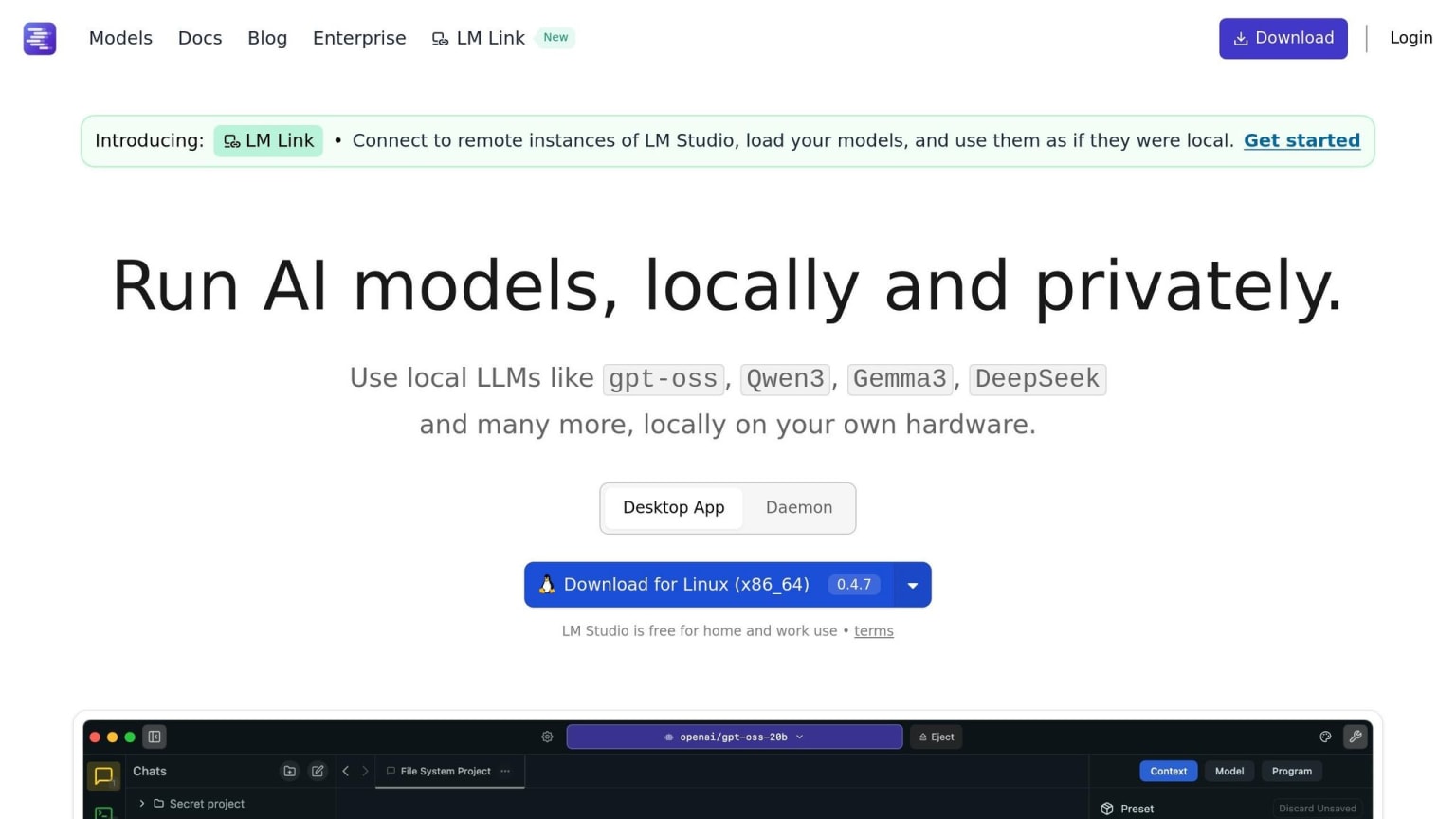
LM Studio is a desktop app designed for quick and efficient experimentation. It features an integrated model browser and allows side-by-side comparisons, making it easy to test and evaluate models in real time. Developers can tweak settings like GPU offloading and context length using intuitive visual sliders.
"LM Studio is the fastest path to productive prompt experimentation, and the side-by-side model comparison is genuinely useful for evaluating models before committing to one." - Moon Robert, Developer
Performance-wise, an NVIDIA RTX 4080 with 16GB of VRAM can generate 80–120 tokens per second with a Llama 3.3 8B model. On an Apple M3 Pro with 18GB of RAM, speeds range from 45–60 tokens per second . However, the Electron-based interface requires around 300MB of memory for the GUI, so consider this when planning resources .
LocalAI
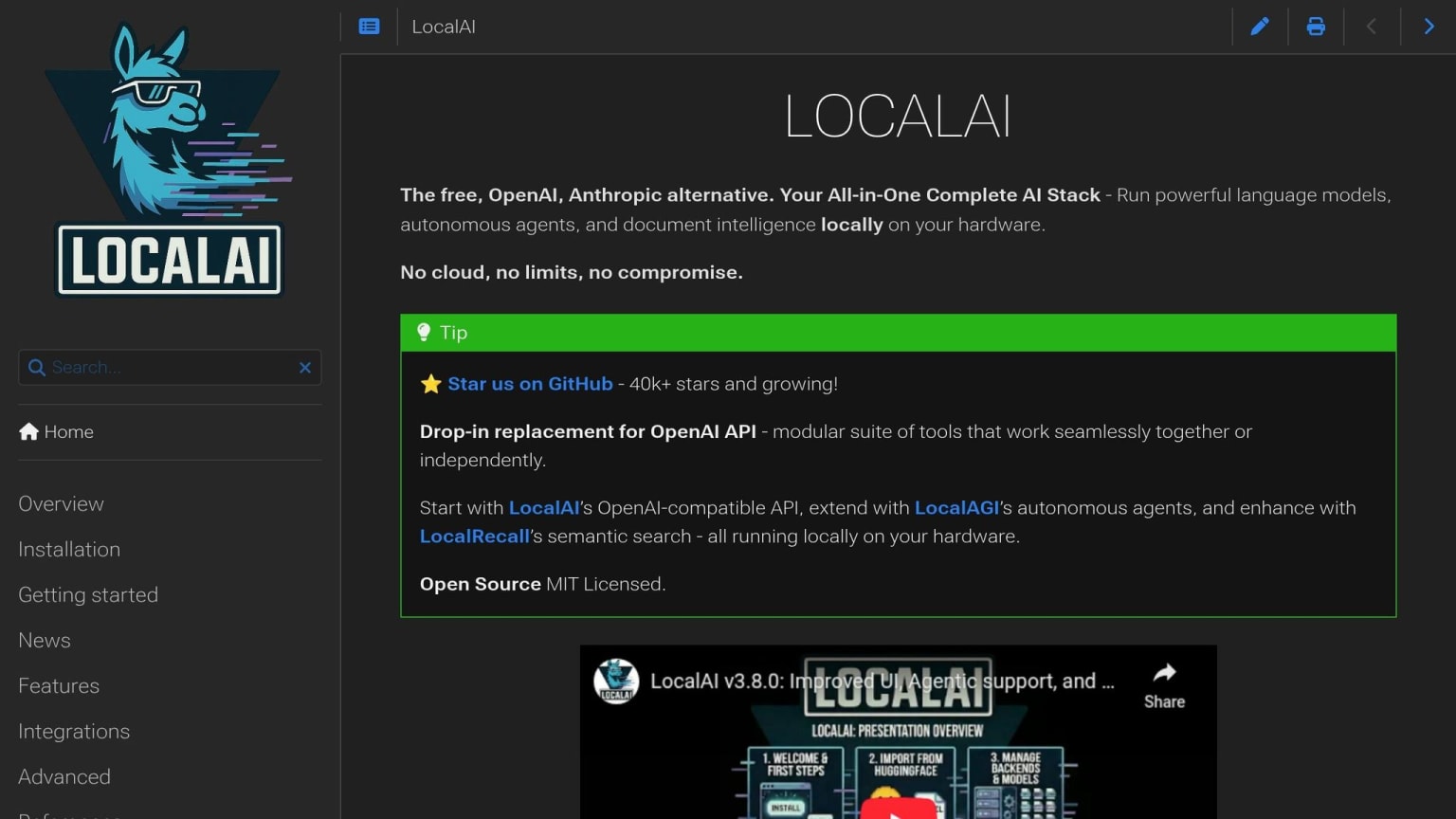
If you're looking for a broader AI solution, LocalAI stands out with its support for text, image, and audio generation, making it ideal for multimodal applications. It can handle semantic search across various media types and works as a drop-in replacement for OpenAI APIs. LocalAI supports multiple model formats, including GGUF, PyTorch, GPTQ, and AWQ. Additionally, it integrates tools like Whisper for audio transcription, Stable Diffusion for image generation, and text-to-speech models.
"LocalAI positions itself as a comprehensive AI stack, going beyond just text generation to support multimodal AI applications including text, image, and audio generation." - ROSGLUK, Tech Writer
LocalAI is open-source (MIT/Apache 2.0) and free to use, making it attractive for developers creating feature-rich applications without licensing issues. It runs on port 8080 by default and supports both CPU-only systems and GPU acceleration for better performance .
vLLM
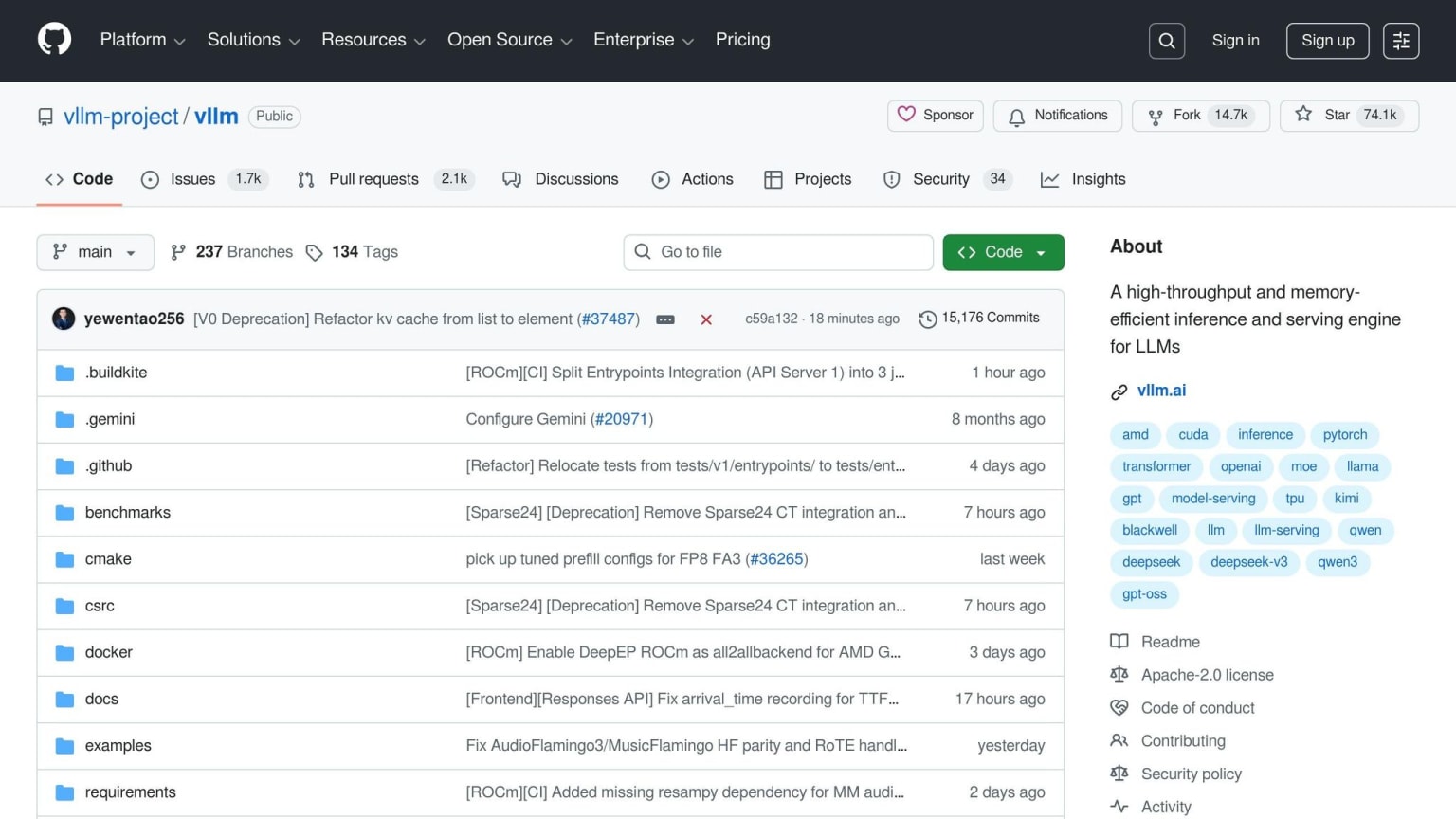
vLLM is purpose-built for production environments requiring high throughput and the ability to handle multiple concurrent requests. Its PagedAttention mechanism reduces memory fragmentation by over 50%, resulting in throughput improvements of 2–4x . This makes it an excellent choice for enterprise-grade deployments.
"vLLM is the gold standard for production deployments requiring enterprise-grade tool orchestration, offering both the highest performance and most complete feature set." - DEV Community Guide
Compatible with formats like PyTorch, Safetensors, GPTQ, and AWQ, vLLM is optimized for NVIDIA and AMD GPUs, supporting multi-GPU tensor parallelism. Unlike LM Studio's user-friendly GUI or LocalAI's web interface, vLLM is API-only, requiring command-line setup. It typically runs on port 8000 and is well-suited for environments using hardware like NVIDIA A100 or H100 GPUs, where parallel function execution and high reliability are critical .
These runtimes broaden the options for self-hosted AI, offering specialized tools to complement the capabilities of Ollama and llama.cpp.
Selecting the Right Model for Your Use Case
When working with hardware limitations, choosing the right large language model (LLM) is key to achieving the best performance. Your decision should factor in both the available VRAM and the specific demands of your task. Here's a quick way to estimate VRAM needs:
(model parameters × bits per weight) ÷ 8 = GB required .
For example, a 7B model using 4-bit quantization will need about 4–6GB of VRAM, while a 32B model under the same quantization will require roughly 20–24GB .
Your task also plays a big role in model selection. For coding tasks, Qwen 2.5 Coder 32B is a standout option, scoring 92% on the HumanEval benchmark - higher than GPT-4o’s 90.2% . If you have 24GB of VRAM, this model is excellent for generating and reviewing code. If your VRAM is closer to 8GB, models like Llama 3.2 8B or Mistral 7B deliver reliable general-purpose performance.
"Llama 4 Scout delivers near-70B quality with only 12GB of VRAM. Running locally is no longer a compromise - it's a competitive advantage." - AppStackBuilder
For tasks that require advanced reasoning or mathematical capabilities, different models shine. DeepSeek R1, for instance, achieves a 79.8% score on the AIME math reasoning benchmark, far surpassing GPT-4o’s 9.3% . Meanwhile, Llama 4 Scout (109B MoE) delivers near-70B performance by activating about 17B parameters during inference, all while using just 12GB of VRAM . If you're working with limited VRAM (e.g., 4GB), Phi 3 (3.8B) is a solid choice for edge devices and simpler tasks .
Model Comparison: Llama 3, Mistral, Phi, and Qwen
To help you decide, here’s a snapshot of key differences between some popular models:
| Model | Best For | Download Size (Q4) | Min VRAM | Tokens/Sec (RTX 4080) |
|---|---|---|---|---|
| Llama 3.2 8B | General chat, analysis | 4.7GB | 8GB | 80–120 |
| Llama 4 Scout | High quality on consumer GPUs | ~12GB | 12GB | 60–90 |
| Qwen 2.5 Coder 32B | Code generation, review | ~20GB | 24GB | 40–60 |
| Qwen 3 32B | Technical tasks, benchmarks | ~20GB | 24GB | 40–60 |
| Mistral 7B | Efficient general-purpose | 4.1GB | 8GB | 75–100 |
| Phi 3 3.8B | Edge devices, basic tasks | 2.3GB | 4GB | 100–140 |
If you're using Apple Silicon, unified memory can be a game-changer. For instance, a MacBook with 48GB of RAM can handle models that would typically require a high-end discrete GPU on a PC . On an M3 Pro with 18GB of RAM, Llama 3.3 8B generates 45–60 tokens per second, making it a practical choice for interactive development .
A quick tip: allocate only 80% of your available VRAM to ensure there's enough room for the KV cache and runtime overhead .
Adding LLMs to Your Development Workflow
Once you've chosen a model, the next step is integrating it into your development workflow. Using local LLMs can improve privacy, reduce costs, and simplify your setup. Many local LLM runtimes provide OpenAI-compatible REST APIs, making it easy to replace cloud endpoints with local ones, often requiring minimal changes to your code.
Take Ollama as an example. It operates as a background service and offers an API at http://localhost:11434. This includes native endpoints like /api/chat and /api/generate, along with an OpenAI-compatible endpoint at /v1/chat/completions. If you're working with the OpenAI Python SDK, you can redirect it to your local instance by tweaking just a couple of lines in your script:
client = OpenAI(base_url="http://localhost:11434/v1", api_key="ollama")
The api_key here is just a placeholder since Ollama doesn't require authentication.
For more robust deployments, especially in production or team environments, it's wise to add layers of security and reliability. You can run your local LLM in a Docker container with GPU passthrough using the NVIDIA Container Toolkit. Pair this setup with an Nginx reverse proxy for SSL and authentication. To enable real-time token streaming, set proxy_buffering off in Nginx, and adjust the keep_alive period to 30 minutes to keep the model loaded between requests .
These API setups make it simple to scale from local testing to full-scale production.
Setting Up API Endpoints
Other local LLM runtimes also provide flexibility similar to Ollama. Tools like LM Studio and LocalAI offer OpenAI-compatible endpoints, making them excellent alternatives to cloud APIs . For high-throughput scenarios, vLLM is a great choice, especially when multiple developers need to access the same local server at once. If you need precise control over inference settings, llama.cpp's server mode allows adjustments to quantization and hardware distribution across CPUs and GPUs .
| Tool | API Type | Best For | OS Support |
|---|---|---|---|
| Ollama | Native + OpenAI-compatible | CLI-first workflows | macOS, Linux, Windows |
| LM Studio | OpenAI-compatible | GUI exploration, visual tuning | macOS, Linux, Windows |
| LocalAI | OpenAI-compatible | Docker-native production | Linux, macOS (Docker) |
| llama.cpp | Native server mode | Maximum performance control | macOS, Linux, Windows |
"Ollama is the Docker of LLMs. One command to install, one command to run." – Ajit Singh
With secure API endpoints, you can seamlessly integrate local LLMs into your development tools.
Using IDE Plugins and Extensions
For coding tasks, integrating local LLMs directly into your IDE can streamline your workflow. Tools like the Continue.dev extension for VS Code and JetBrains, as well as Cursor IDE, allow you to configure custom endpoints. Simply set the API Base URL to http://localhost:11434/v1 and use any placeholder for the API key .
If you're using a mid-range GPU like the RTX 4060 Ti (16GB), you can achieve speeds of 55–65 tokens per second with a Llama 3.1 8B model . On-device inference delivers response times under 100 ms, significantly faster than the 300 ms or more typical of cloud APIs . This speed advantage is particularly beneficial for workflows involving frequent, small AI calls, which can otherwise become costly or inefficient when relying on cloud-based services.
Local vs Cloud Performance Benchmarks
Building on the earlier discussion about hardware and API integration, these benchmarks highlight why local setups often offer lower latency and cost benefits. Choosing between local and cloud-based large language models (LLMs) comes down to understanding clear performance and cost metrics. When it comes to latency, local setups have a clear edge - on-device inference eliminates the need for network round-trips, achieving a Time to First Token (TTFT) of under 100 milliseconds. By comparison, cloud APIs typically add at least 300 milliseconds of network overhead, which can be critical for workflows that require multiple tool calls per minute .
Throughput, on the other hand, depends heavily on the hardware and inference engines being used. For instance, a mid-range RTX 4060 Ti running Llama 3.1 8B achieves 30–50 tokens per second in local benchmarks. Meanwhile, the latest RTX 5090 paired with vLLM can generate over 5,841 tokens per second with a batch size of 8, outperforming even data center-grade A100 GPUs by 2.6 times . However, simpler tools like Ollama process requests sequentially, which means latency can spike dramatically under load - from 2 seconds to over 45 seconds with just five concurrent users . In contrast, vLLM maintains sub-100 millisecond P99 latency even with 128 concurrent users, making it a strong option for handling cloud-like concurrency . These performance differences set the stage for a deeper dive into the costs and trade-offs of local versus cloud setups.
Performance and Cost Comparison
Usage patterns significantly affect costs. For example, a single developer using GPT-4-class API calls might spend $50–$200 per month . Heavy users processing 200,000 tokens daily could face monthly expenses of $60–$120 on paid APIs . On the other hand, a $300 GPU can run an 8B model indefinitely without incurring per-token fees. Organizations that have transitioned from proprietary cloud APIs to self-hosted clusters have reported saving about 70% in operational costs .
"A single developer burning through GPT-4-class API calls can easily spend $50-200/month. A one-time $300 GPU runs a capable 8B model indefinitely." – Rafał Kuć, BigData Boutique
Here’s a quick comparison of key metrics for local and cloud-based setups:
| Metric | Local (RTX 4060 Ti) | Local (RTX 5090 + vLLM) | Cloud (GPT-4 / Claude) |
|---|---|---|---|
| TTFT (Latency) | <100 ms | <100 ms (stable P99) | 300 ms – 2+ seconds |
| Throughput | 30–50 tokens/sec | 5,841+ tokens/sec | Variable (rate limited) |
| Monthly Cost | $0 (after hardware) | $0 (after hardware) | $20–$200+ |
| Initial Hardware Cost | $300–$400 | $1,200+ | $0 |
| Privacy | 100% on-device | 100% on-premises | Managed by third parties |
While local models are often more efficient and cost-effective, they do trade some reasoning capabilities for these benefits. The tipping point where local setups become more economical than cloud APIs is around 2 million tokens per day . Below this threshold, cloud APIs offer cutting-edge model quality without the need for upfront hardware investment. Above this level, local infrastructure not only pays for itself quickly but also provides full control over your data. Up next, we’ll explore how to integrate these cost and performance benefits into your development workflow.
Building RAG Pipelines with Local LLMs
Retrieval-Augmented Generation (RAG) takes your local LLM from being just another chatbot to becoming a tailored assistant that’s tuned to your codebase and documentation. A local RAG setup combines a local LLM (like Llama 3.1), a lightweight embedding model (nomic-embed-text), a vector database (such as ChromaDB), and an orchestration framework (LangChain or LlamaIndex) . The process involves ingesting documents, creating embeddings, storing them, and retrieving relevant context when needed.
One of the standout benefits here is data security. Your proprietary code and internal documents stay entirely on your machine. Tools like Open WebUI offer a ChatGPT-like interface with built-in RAG functionality to index local repositories, while GPT4All’s "LocalDocs" feature allows private interaction with your documents . Unlike cloud-based RAG setups that rely on third-party servers, a local pipeline ensures complete control over your data and eliminates per-query costs after the initial hardware investment. Let’s dive into how to align your codebase with this framework for smooth integration.
Connecting LLMs to Your Codebase
To start, use a dedicated embedding model instead of your main generative model for vectorization. The nomic-embed-text model (768 dimensions) is a great choice - it’s lighter on VRAM and delivers better accuracy compared to using a larger generative model for embeddings . When processing your code or documentation, break the text into chunks of about 1,000 characters, with 200-character overlaps. This approach helps maintain the coherence of function definitions, class structures, and other key elements.
VRAM is often the limiting factor. At Q4_K_M quantization, plan for roughly 0.6–0.7 GB of VRAM per billion parameters . This aligns with earlier hardware benchmarks and highlights the importance of sufficient VRAM for local deployments. If your system can handle it, keep both the embedding model and the generation model loaded simultaneously to streamline the process. Setting keep_alive to 30 minutes can also help by avoiding reload delays . When ingesting documents, batch embedding calls to cut down processing time - this can speed up a 500-chunk corpus by 3–5x compared to processing documents one by one .
Implementing Embeddings and Retrieval
Once your LLM is connected to your codebase, the next step is managing embeddings effectively. Use an embedded vector database like ChromaDB, which runs entirely on your local machine without requiring external dependencies . When assembling prompts, limit the retrieved context to around 3,000 characters to stay within the LLM's context window . Exceeding this limit can lead to truncation or loss of critical information in the query.
"Capacity beats raw GPU speed here - an RTX 3090 with 24 GB often outperforms an RTX 4080 with 16 GB on larger models simply because it avoids offloading." – Rafał Kuć
When selecting hardware, prioritize VRAM capacity over raw GPU speed. For instance, an RTX 4060 Ti with 16 GB VRAM is ideal for local RAG setups, as it can handle 13B models entirely in memory . On Apple Silicon, the unified memory architecture provides another advantage - a MacBook with 36 GB of RAM can run models that would typically require a discrete GPU with the same capacity on a PC . By leveraging these local AI tools, you can fully unlock the potential of running LLMs on your own hardware.
Conclusion
Running large language models (LLMs) locally has shifted from being a casual experiment to a solid production approach for developers. Open-source models now match, and sometimes surpass, cloud-based solutions. For instance, DeepSeek R1 achieves a 79.8% score on AIME math benchmarks compared to GPT-4o's 9.3%, and Qwen 2.5 Coder reaches 92% on HumanEval . Keeping your proprietary code local not only eliminates recurring API fees after an initial hardware investment but also ensures faster response times without network delays.
For developers, Ollama is ideal for command-line workflows and quick integration, while LM Studio provides a user-friendly GUI for those who prefer a visual interface. If you're just starting, Q4_K_M quantization is a great choice to balance model quality with minimal VRAM usage . When selecting hardware, focus on VRAM capacity over GPU speed. For example, an RTX 4060 Ti with 16 GB of VRAM can handle 13B models entirely in memory for around $400. Apple Silicon users with 16–32 GB of unified memory are also well-positioned for this setup .
These use cases highlight the practical advantages of local deployment.
"Running locally is no longer a compromise - it's a competitive advantage." – AppStackBuilder
A hybrid approach is often the most effective strategy: use local models for 80–95% of routine tasks like coding, summarization, or handling sensitive data, and reserve cloud APIs for occasional tasks requiring advanced reasoning . With modern hardware achieving response times under 100 milliseconds and zero per-token costs after setup, local LLMs deliver both speed and privacy.
Whether you're building retrieval-augmented generation (RAG) pipelines, integrating AI into your IDE, or cutting down monthly API costs to just electricity, the tools and models outlined here make it easy to get started. Pick a runtime, download a model, and start building - chances are, the hardware you already own is more than capable.
FAQs
What’s the smallest PC or Mac that can run a useful local LLM?
If you're looking to run local language models (LLMs) on a Mac, the smallest option starts with a 2015 MacBook Pro equipped with 16 GB of RAM. This setup can manage smaller models, like the Phi-3 Mini 3.8B, at speeds of around 5-10 tokens per second. However, for smoother performance, especially with larger models, newer Macs featuring Apple Silicon (M1/M2 chips) are strongly recommended.
On the PC side, a mid-range system with 16 GB of RAM can handle smaller models. But if you're planning to run larger models (7B and above), you'll need a GPU with 8-16 GB of VRAM to ensure they perform effectively.
How do I choose between Ollama and llama.cpp for my project?
Choosing between Ollama and llama.cpp comes down to what you prioritize: simplicity or flexibility.
If you're looking for an easy setup with minimal hassle, Ollama is a great choice. It handles model management automatically and provides a straightforward interface, making it perfect for users who want to get started quickly without dealing with complex configurations.
On the other hand, llama.cpp is better suited for those who need more control and performance. It shines on a variety of hardware setups and includes advanced options like quantization, which can be crucial in resource-limited environments. Go with llama.cpp if you value customization and need to tweak your setup to meet specific requirements.
How can I run a private RAG setup on my own codebase?
To create a private Retrieval-Augmented Generation (RAG) pipeline for your codebase, you can utilize local Large Language Models (LLMs) like Ollama or llama.cpp. These tools allow you to run models entirely offline, ensuring your data stays private while still being adaptable to your needs.
Here’s how you can get started:
- Install a runtime: Begin by setting up the necessary runtime environment for your chosen tool.
- Select a model: Options like Llama 3 or Mistral are popular choices for their performance and flexibility.
- Integrate with your codebase: Use APIs or command-line interfaces (CLI) to seamlessly connect the model to your existing codebase.
- Add retrieval components: Implement mechanisms to fetch relevant data efficiently, enhancing the model's responses.
- Optimize performance: Fine-tune the model or apply quantization techniques to improve speed and accuracy.
This setup ensures you maintain control over your data while tailoring the pipeline to your specific requirements.