Keep Chrome lean: choose 6–8 Manifest V3 extensions that solve repeat dev tasks—debugging, API testing, CSS review, and repo navigation.
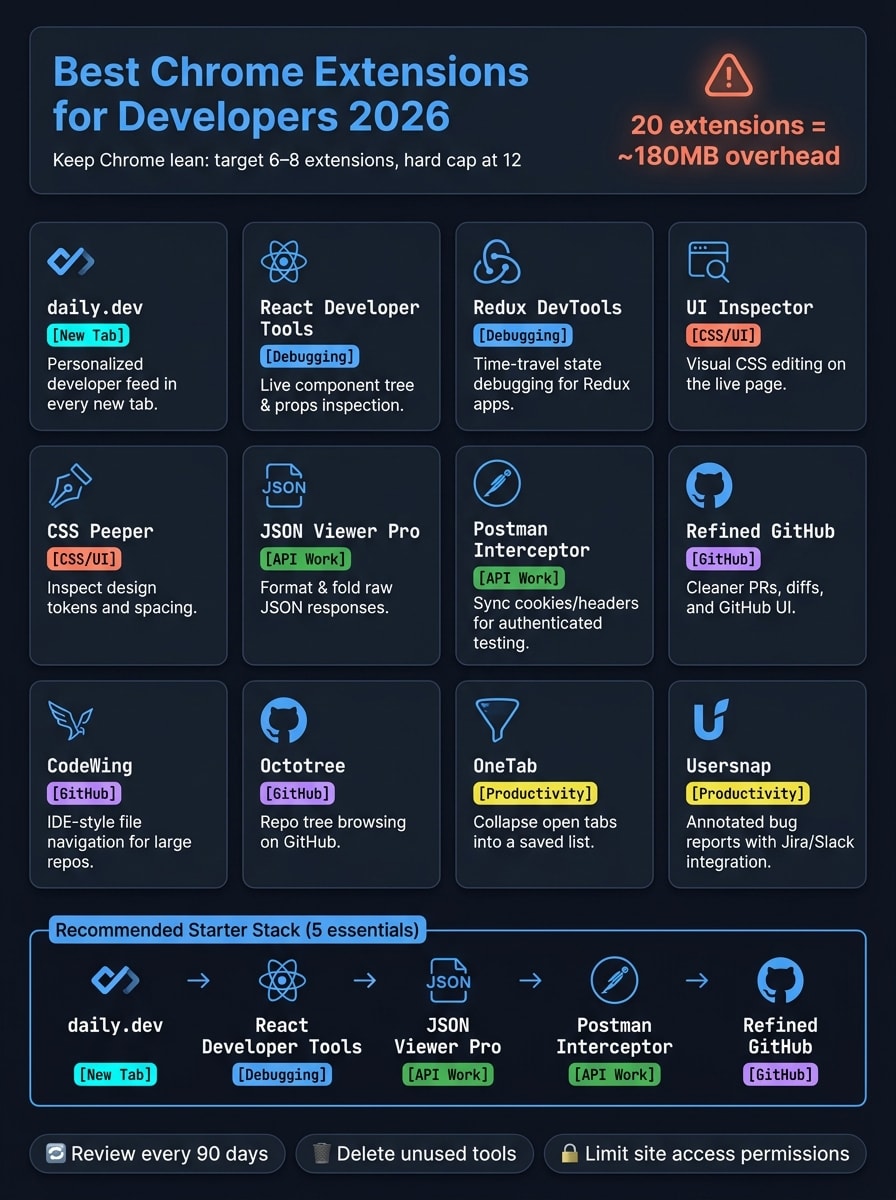
Most developers do not need more Chrome extensions. They need a small set that solves repeat problems. This list keeps it simple: only Manifest V3 tools, a target of 6 to 8 extensions, and a hard cap of 12. The article’s main picks cover new tab reading, focus, React debugging, Redux state checks, CSS review, JSON formatting, API testing, and GitHub cleanup.
Here’s the short version:
- Best new-tab pick: daily.dev
- Best React debugging pick: React Developer Tools
- Best API response pick: JSON Viewer Pro
- Best GitHub pick: Refined GitHub
- Best tab cleanup pick: OneTab
- Best bug report tool: Usersnap
- Best task tool: ClickUp
- Best Redux state tool: Redux DevTools
- Best CSS review tools: UI Inspector and CSS Peeper
- Best authenticated API testing helper: Postman Interceptor
- Best large-repo navigation tool: CodeWing
- Also mentioned for repo navigation: Octotree
The article also makes one clear point: keep Chrome lean. A stack of 20 extensions can add about 180 MB of overhead, and some tools run scripts on every page. That means more memory use and less clean browser profiling. So the advice is simple: keep only the tools you use often, review them every 90 days, and limit site access when you can.
Quick Comparison
| Extension | Main job | Best for | Works in |
|---|---|---|---|
| daily.dev | Developer news in new tab | Reading during short breaks | New tab page |
| Usersnap | Annotated bug reports | QA and frontend work | Browser overlay |
| ClickUp | Task tracking | Project work | Browser extension |
| OneTab | Save and close tabs | Research and code review | Toolbar action |
| React Developer Tools | Inspect components and props | React apps | DevTools |
| Redux DevTools | Track state changes | Redux apps | DevTools |
| UI Inspector | Edit CSS on the page | UI testing | Popup tool |
| CSS Peeper | Check spacing and tokens | Design handoff review | Popup tool |
| JSON Viewer Pro | Format JSON | API response review | Page view |
| Postman Interceptor | Sync cookies and headers | Logged-in API testing | Browser/Postman link |
| Refined GitHub | Clean up GitHub UI | PR review and diffs | GitHub pages |
| CodeWing | Repo file navigation | Large codebases | GitHub pages |
| Octotree | Repo tree browsing | Large repos | GitHub pages |
Bottom line: if I were trimming this down fast, I’d start with daily.dev, React Developer Tools, JSON Viewer Pro, Postman Interceptor, and Refined GitHub. Then I’d add only the tools that match my day-to-day work.
2. The best new-tab extension for developers: daily.dev
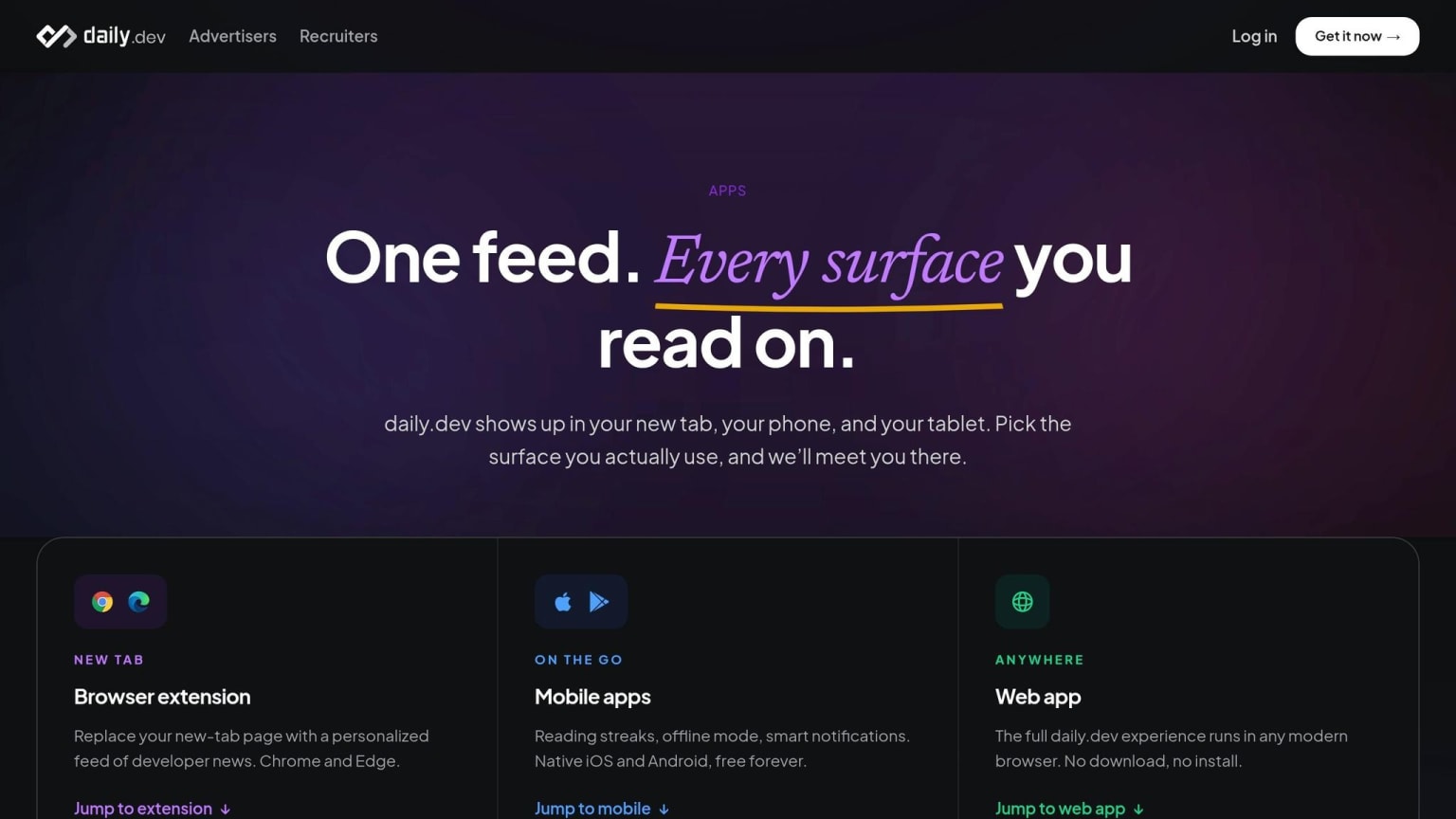
daily.dev swaps the blank new-tab page for a curated stream of technical articles, tutorials, and discussions that match your stack. It's free, fully open-source, and Manifest V3-compliant. The extension pulls from more than 2,000 sources, so you don't have to bounce across a dozen sites trying to find the good stuff.
How daily.dev fits a developer workflow
The extension turns each new tab into a personalized feed. What shows up is shaped by your languages, frameworks, and reading habits over time. If you spend your days in React and Rust, that's what rises to the top. If you're focused on DevOps or cloud infrastructure, the feed shifts with you.
That matters because the new tab is one of the few quiet pauses in a developer's day. daily.dev uses those in-between moments for low-friction learning right inside the browser you already use. You can also join Squads, which are topic-based communities built to give you more focused content from developers in the same area.
Why daily.dev is the top new-tab pick in 2026
The new-tab page doesn't get much credit, but it can do more than sit there blank. daily.dev makes that space useful without turning it into a distraction. Beyond the feed, it also includes DevCards, a shareable developer identity card that tracks reading streaks and achievements, plus a community layer through Squads.
From there, the roundup moves into the best extensions by workflow. Next up are picks for productivity, debugging, design inspection, and API work.
3. The best Chrome extensions by developer workflow
Install the extensions that fix a problem you run into again and again. That’s the simplest way to keep Chrome useful instead of cluttered. Below, the picks are grouped by workflow: focus, UI debugging, API work, and GitHub.
Productivity and focus: Usersnap, ClickUp, OneTab

These three help with day-to-day browser friction. Usersnap lets you take annotated screenshots and turn them into bug reports, with integrations for Jira, Slack, and Trello. ClickUp keeps task tracking inside the browser, so you don’t have to bounce between tabs just to update work. OneTab turns a pile of open tabs into a single saved list, which helps a lot during long research sessions or code reviews.
| Extension | Primary Use Case | Best For | Integrations |
|---|---|---|---|
| Usersnap | Annotated bug reports | QA & frontend devs | Jira, Slack, Trello |
| ClickUp | Task tracking | Project management | ClickUp platform |
| OneTab | Reducing tab overload | Research & code review | N/A |
Next up are the tools that help most when you need to inspect components, state, and styles.
Debugging and UI inspection: React Developer Tools, Redux DevTools, UI Inspector, CSS Peeper
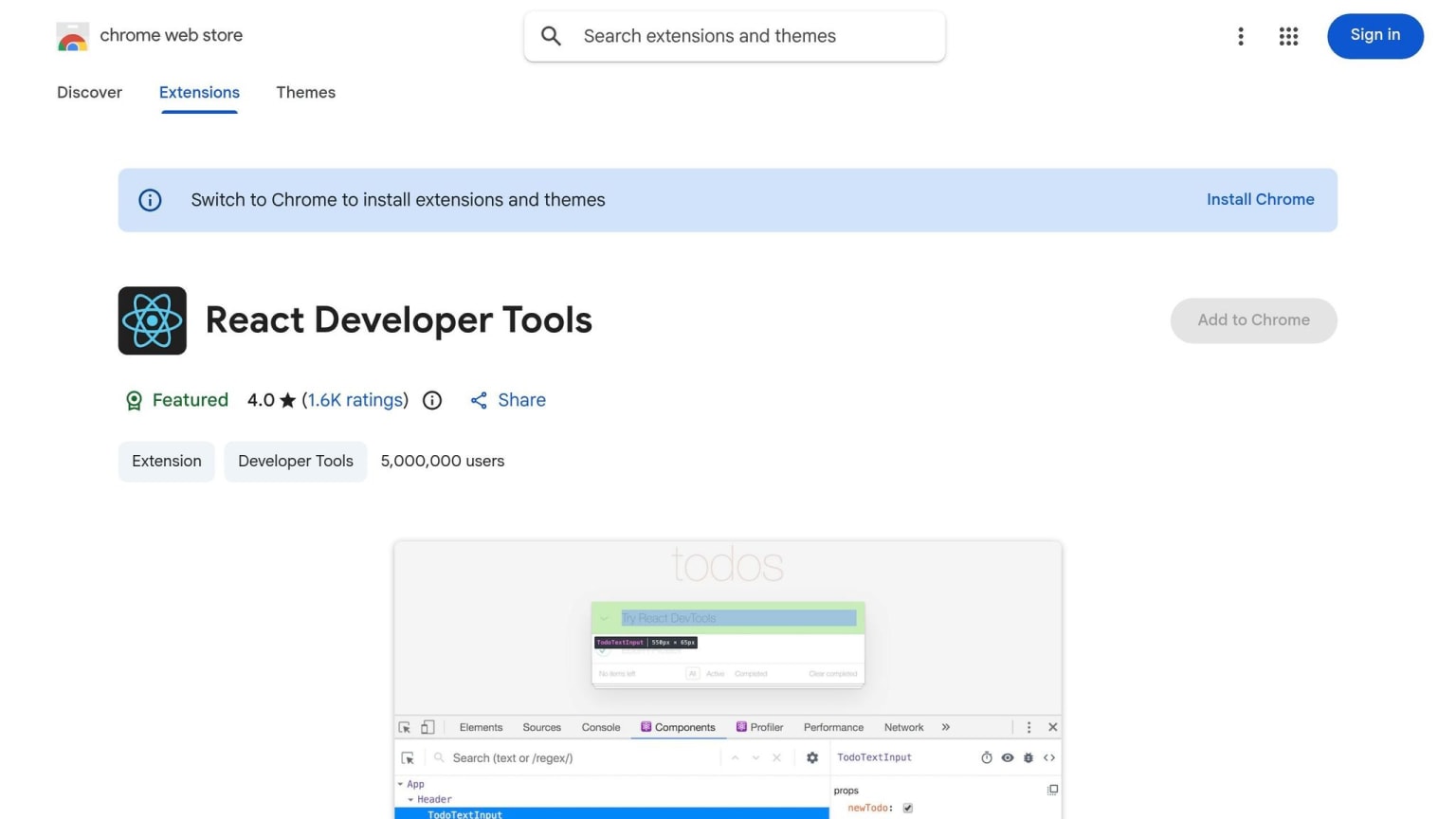
This is the category many web developers lean on the most. If you work in a React-heavy front end, React Developer Tools adds a panel inside Chrome DevTools where you can inspect component trees and check props. Redux DevTools works next to it and gives you time-travel debugging, so you can replay actions and step through state changes.
UI Inspector and CSS Peeper work as popups rather than DevTools panels. UI Inspector gives you visual CSS editing on the live page, which makes quick prototyping much easier. CSS Peeper is handy when you need to inspect design tokens and spacing during a handoff review or when checking whether a component matches the spec.
| Extension | Primary Focus | DevTools Integration | Ideal Project Type |
|---|---|---|---|
| React Developer Tools | Component trees & props | Dedicated panel | React / React Native |
| Redux DevTools | State & time-travel debugging | Dedicated panel | Redux / Flux / Toolkit |
| UI Inspector | Visual CSS editing | Standalone popup | Rapid UI prototyping |
| CSS Peeper | Design tokens & spacing | Standalone popup | Design-to-code audits |
For API calls and GitHub cleanup, this next group tends to do more of the heavy lifting.
JSON, API, and GitHub work: JSON Viewer Pro, Postman Interceptor, Refined GitHub, CodeWing
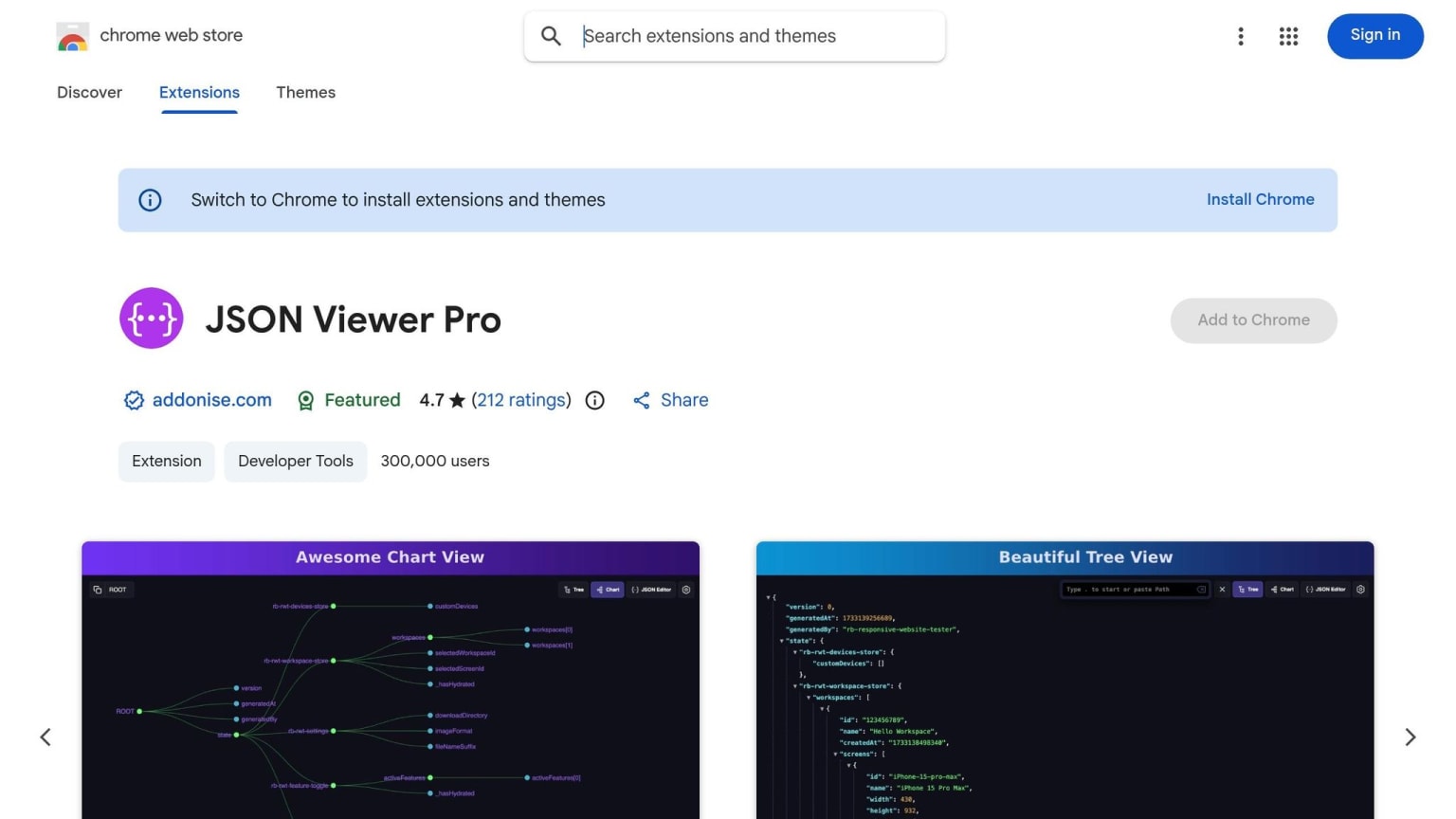
When the problem sits in the response or the repo, these are the tools to open first. JSON Viewer Pro formats raw API responses in the browser with syntax highlighting and collapsible nodes, which makes messy JSON much easier to read during browser-based debugging. Postman Interceptor connects the browser to Postman desktop and captures cookies and headers from live sessions, so you can test authenticated requests without doing all the setup by hand.
On the GitHub side, Refined GitHub makes small UX tweaks to GitHub’s interface, including cleaner pull request views and easier-to-scan diffs during daily repo work. CodeWing adds IDE-style file navigation to GitHub repos, which helps when you’re moving through a large codebase and the default GitHub file tree starts to feel limiting.
| Extension | Category | Core Strength | Workflow Fit | Where it works |
|---|---|---|---|---|
| JSON Viewer Pro | JSON formatting | Syntax highlighting & folding | API response review | Modifies page |
| Postman Interceptor | API testing | Cookie & header sync | Authenticated API testing | Network inspection |
| Refined GitHub | GitHub UX | Small UI upgrades | Daily repo management | Modifies GitHub |
| CodeWing | GitHub navigation | IDE-like file browsing | Large repo navigation | Modifies GitHub |
4. Quick picks by developer job
Top picks for new tab, web debugging, API work, and GitHub
If you already know what kind of work you do most, you can skip the guesswork and go straight to the default pick.
New tab: daily.dev is the top choice for a personalized developer feed right in your new-tab page.
Web debugging: If you work on React apps, install React Developer Tools first. It gives you live component tree inspection and makes it much easier to spot unnecessary re-renders.
API work: JSON Viewer Pro turns raw responses into collapsible, searchable trees. That means less squinting at plain JSON and more time finding what matters.
GitHub: Refined GitHub cleans up pull requests and diffs, which is a big help when you spend a lot of time reviewing code using best practices.
| Category | Top Pick | Why it stands out |
|---|---|---|
| New tab | daily.dev | Personalized developer feed that adapts to your stack |
| Web debugging | React Developer Tools | Live component tree inspection |
| API work | JSON Viewer Pro | Turns raw API responses into collapsible, searchable trees |
| GitHub | Refined GitHub | PR and diff cleanup |
If you want to keep Chrome lean, the next section shows how to trim this down to a small stack.
5. Build a small extension stack that matches your workflow
Most developers need a small extension stack, not a toolbar packed with stuff they'll barely touch. If the shortlist above still feels like too much, cut it down to the tools you use every week. A 20-extension stack can add about 180MB of overhead , and every active extension uses RAM. Some also inject scripts into every page, which can throw off performance profiling .
A good target is 6 to 8 extensions, with 12 as a hard ceiling. Give each tool one clear job, then stop there. For example:
- daily.dev for your new tab
- React Developer Tools for frontend debugging
- JSON Viewer Pro and Postman Interceptor for API work
- Refined GitHub for PR reviews
- Octotree for large repos
A lean, well-kept stack beats a crowded toolbar every time. After that, tighten access. Review your extensions every three months. If you haven't used a tool in 90 days, delete it . Check permissions before installing anything too. A JSON formatter shouldn't need broad site access. In Chrome, you can limit access to specific sites or set site access to click only .
Keep the extensions that cut repeat friction, and drop the rest.
FAQs
Which extensions should I install first?
Start with daily.dev for a personalized new-tab feed, OneTab for tab management, your framework’s DevTools like React Developer Tools or Vue.js Devtools, Wappalyzer for tech stack detection, and JSON Formatter for readable API responses.
To keep Chrome running smoothly, keep your total extension count under 12.
How do I keep Chrome fast with extensions?
Keep your active extensions to a small, high-impact set. A good rule of thumb is fewer than 12. If you haven’t used an extension in the last 3 months, remove it.
It also helps to cut overlap. If two tools do the same job, keep the one you lean on most and drop the other. Pin only your 3 or 4 must-haves so your toolbar doesn’t turn into a junk drawer.
For extra control, use separate Chrome profiles for development and personal browsing. And when an extension doesn’t need to run on a site, turn it off there. Simple moves like these can keep Chrome cleaner, lighter, and easier to manage.
Which tools are best for my workflow?
The best tools for your workflow depend on your stack and the problems that slow you down. But most of them fall into a few core buckets.
For staying in the loop, daily.dev turns your new-tab page into a personalized developer feed. It’s a simple way to keep up without adding yet another site to check.
For debugging, React Developer Tools and Redux DevTools make it easier to inspect components and state. Wappalyzer shows you what tech a site uses, OneTab helps cut tab chaos, and a JSON formatter makes API responses much easier to read.