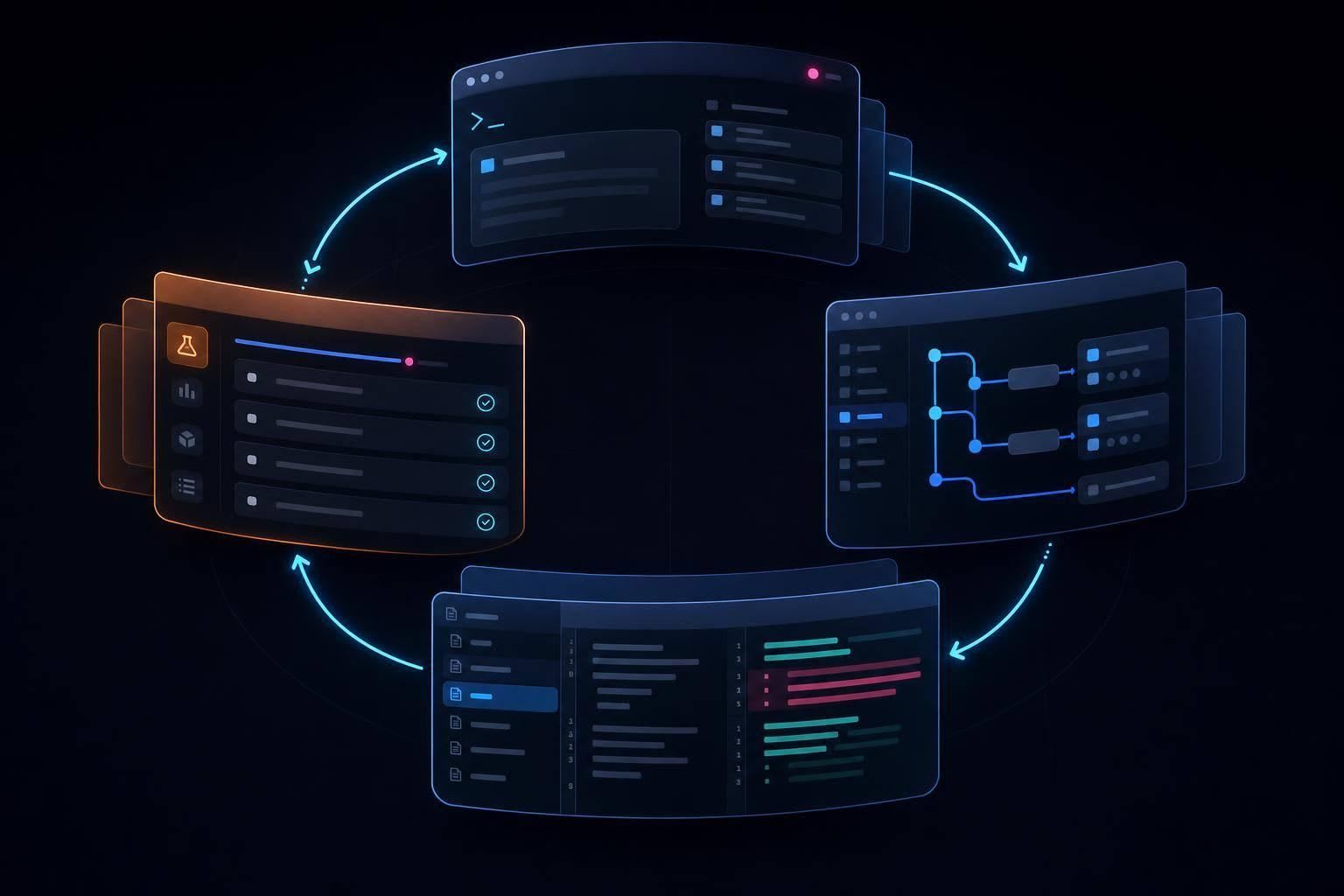
A terminal-first agentic workflow turns repo-wide planning, multi-file edits, and test-driven refactors into a cohesive automated developer loop.
If you want an AI that can work across your repo from the terminal, Claude Code is one of the main options in 2026. I’d sum it up like this: it’s built for planning, multi-file edits, test runs, and command-line work in one session, not just inline suggestions.
Here’s the short version:
- I’d use Claude Code for repo-wide fixes, refactors, test-repair loops, and migration work
- I would not pick it first for single-line autocomplete or tight inline editing
- Setup is simple: install Node.js 22 LTS, install the CLI, sign in, and run
claude - Two parts matter a lot after setup:
CLAUDE.mdfor repo rules and MCP for tools like GitHub, Jira, databases, and logs - Permissions matter because Claude Code can edit files and run commands
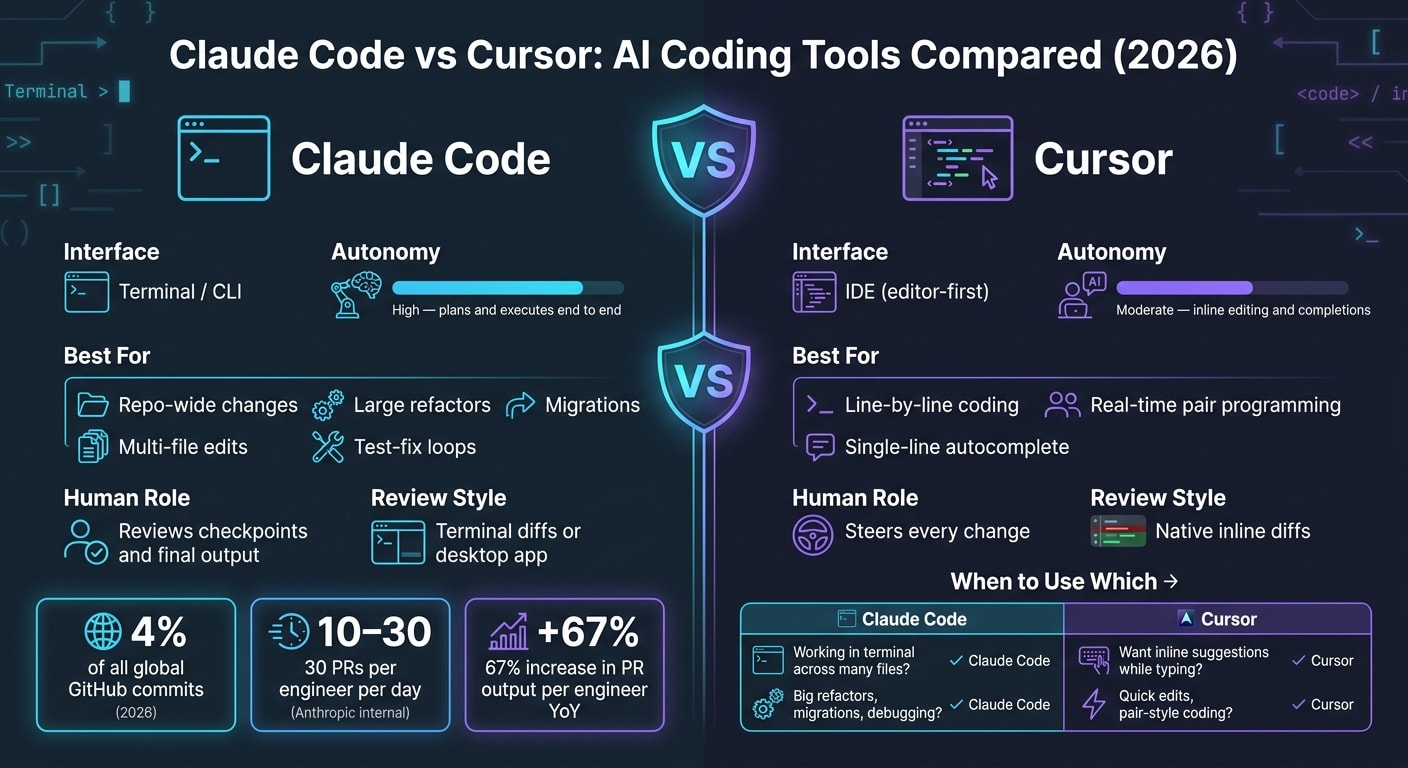
- As of early 2026, Anthropic says Claude Code is tied to 4% of all global GitHub commits, and its own team ships 10 to 30 PRs per engineer per day
If you’re deciding between Claude Code and an IDE-first tool like Cursor AI, the split is simple: Claude Code is terminal-first and more agent-driven; Cursor is editor-first and more hands-on.
Quick comparison
| Tool | Main interface | Best use case | How you work with it |
|---|---|---|---|
| Claude Code | Terminal / CLI | Repo-wide changes, tests, refactors, migrations | I describe the outcome, review the plan, and approve actions |
| Cursor | IDE | Inline edits, completions, pair-style coding | I guide changes as I code |
What I like most is the workflow: ask for a plan, review it, let the tool make changes, run tests, and check the diff. What I’d watch closely is approval mode, because giving terminal access without guardrails can go wrong fast.
So if your work lives in the terminal and spans many files, Claude Code can fit well. If you mostly want line-by-line help in your editor, an IDE assistant may feel like the better match.
What Claude Code is and how it differs from in-editor assistants
Claude Code changes how you work. Instead of guiding an assistant line by line, you describe the outcome you want, and it plans the work, edits files, and runs terminal commands to get there.
It’s built for tasks it can handle on its own: reading the full codebase, changing multiple files, and using shell commands along the way. You feel that difference most on jobs that cut across files, commands, and tests.
Anthropic describes Claude Code as an agent, not autocomplete: it reads the repo, plans the work, edits files, runs commands, and finishes the task.
You also don’t need to leave your usual setup behind. Claude Code runs alongside your editor in VS Code, JetBrains, or its desktop app.
How the agentic workflow works
The workflow is pretty simple. You write the task in plain English. Claude Code then looks through the repository, checks the repo structure and dependencies, and proposes a multi-step plan. You review that plan, approve it, and the agent starts making edits and running commands. If tests fail, it adjusts and tries again.
Because Claude Code can take action for you, permission settings matter. By default, it asks for approval before each file edit or destructive command . You can also change how much approval it needs with its permission modes :
- Plan mode for read-only exploration
- Default for approval before edits or commands
- Accept Edits for automatic file changes
- Bypass only in trusted environments
Claude Code vs Cursor: terminal agent vs IDE-first assistant
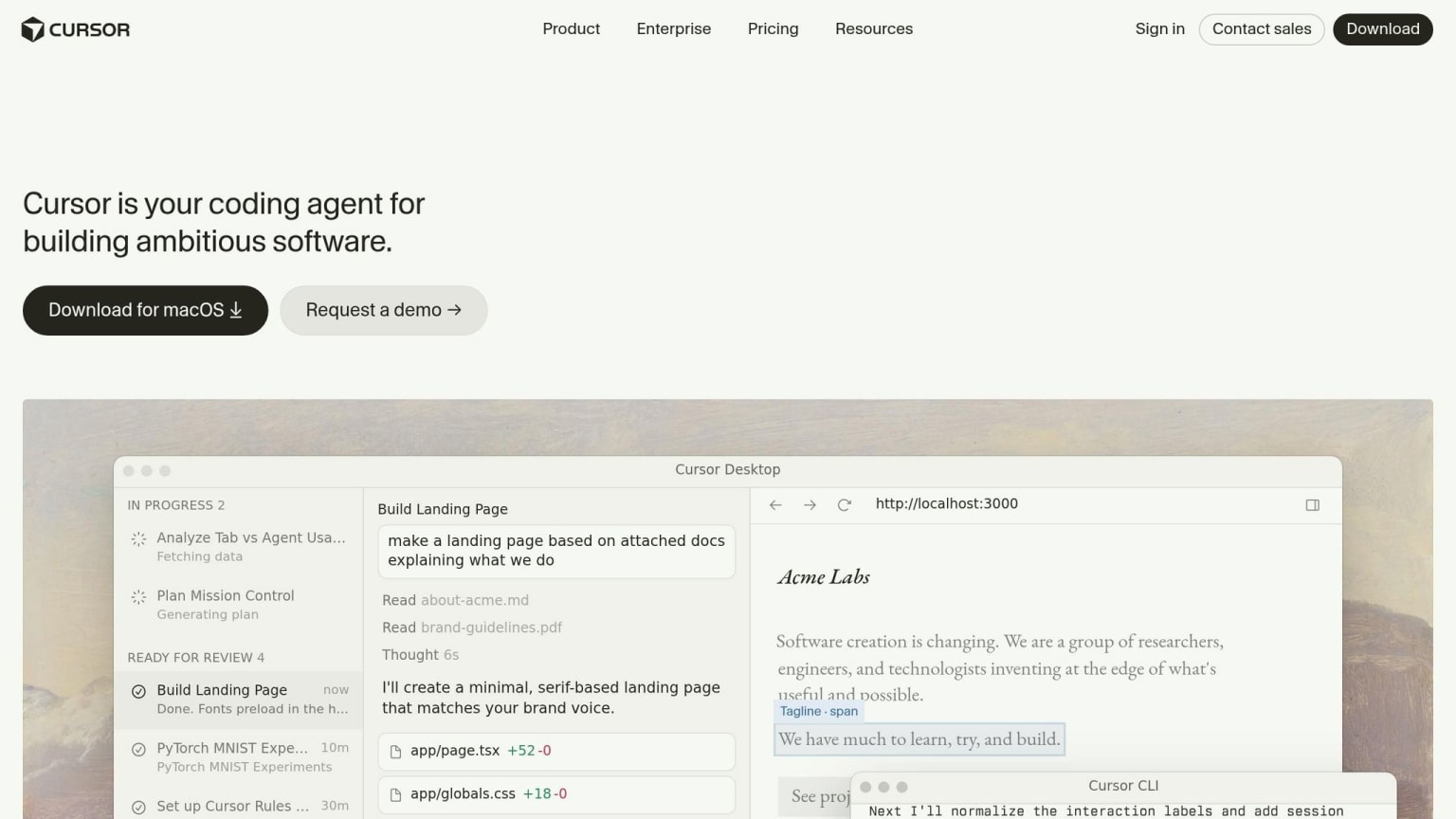
This is the main split between Claude Code and IDE-first assistants. In Cursor, you’re often steering the AI step by step with inline edits and completions. In Claude Code, you give it an outcome like “migrate this database schema” or “fix all failing tests in the auth module,” and it works out the steps.
| Feature | Claude Code | Cursor |
|---|---|---|
| Interface | Terminal / CLI | IDE |
| Autonomy | High - plans and executes end to end | Moderate - inline editing and completions |
| Best For | Large refactors, multi-file edits, repo-wide fixes | Line-by-line coding, real-time pair programming |
| Review | Terminal diffs or desktop app | Native inline diffs |
| Human Role | Reviews checkpoints and final output | Steers every change |
A lot of developers use both. Claude Code is a good fit for heavy lifting like big refactors, bug hunts, and test-fix loops. An IDE-first tool fits the moment-to-moment editing where you want to watch each line take shape.
How to set up Claude Code for the first time
Start by installing Node.js 22 LTS. You’ll also need a AI tools for developers like Claude Pro, Max, Team, or Enterprise account, or an Anthropic Console account with API credits . Once you have those two pieces in place, setup usually takes just a few minutes.
Install, sign in, and start a session
Anthropic recommends using the native installers since they update in the background on their own.
| Operating System | Installation Command |
|---|---|
| macOS / Linux / WSL | curl -fsSL https://claude.ai/install.sh | bash |
| Windows (PowerShell) | irm https://claude.ai/install.ps1 | iex |
| Windows (CMD) | curl -fsSL https://claude.ai/install.cmd -o install.cmd && install.cmd && del install.cmd |
One Windows gotcha trips people up all the time: don’t mix shells. If your prompt shows PS C:\, you’re in PowerShell, so use the irm script. If it shows C:\, use the CMD version. Use the wrong script in the wrong shell, and it won’t run .
After install, open a new terminal session so your PATH can update. Then cd into your project folder and run claude. On first launch, Claude opens a browser sign-in flow. If you’re on a remote server or inside WSL2 without browser access, Claude gives you a URL that you can copy and use to finish sign-in manually .
To make sure everything worked, run claude --version or claude doctor .
Connect Claude Code to your editor and repo settings
If you want inline diffs and file mentions, connect Claude Code to your editor after you install the CLI. For VS Code, install the official Claude Code extension from the Marketplace. Then open the Command Palette - Cmd+Shift+P on macOS or Ctrl+Shift+P on Windows - and choose Claude Code: Open in New Tab .
Inside each repo, run /init to create CLAUDE.md. That file stores conventions, build commands, and project instructions. It gives Claude the context it needs, which makes the next round of work faster and more on point.
A few commands matter right away:
/modelswitches models/permissionssets approval limits
You should also commit .mcp.json so everyone on the team gets the same MCP tools .
Core workflows: planning, multi-file edits, tests, and project memory
Plan before coding with repo-wide context
Before you edit anything, ask Claude Code to summarize the repo, entry points, and overall architecture. That gives you a map of the codebase before changes start. For work that isn't simple, use the Explore → Plan → Code → Verify flow.
Use Plan Mode (Shift+Tab or /plan) to review the plan before Claude changes any files. For bigger refactors, it often helps to draft the plan with Opus and then carry it out with Sonnet.
That plan then becomes the anchor for the edit-and-test loop that comes next.
Make multi-file changes and run tests from the terminal
Once Claude has a repo map, it can make coordinated updates across many files without you having to walk it through each step.
After the plan is approved, give Claude a high-level goal and let it trace every affected file. For example, "add email as an optional field to the user model" gives the agent enough room to find each place that needs work.
From there, run the test suite, read the failures, and iterate until the tests pass. If the loop starts drifting, /rewind rolls back both the conversation state and the code changes.
That’s the point where terminal-native work starts to beat manual editing.
Use CLAUDE.md and MCP to give Claude Code better context and tools
CLAUDE.md acts as project memory. It helps Claude stay aligned with your repo across sessions. Use it for things like architecture decisions, coding standards, build commands, preferred libraries, and files or areas Claude should avoid changing. Keep it under 200 lines so token costs stay low.
You can stack instructions in two places:
~/.claude/CLAUDE.mdfor personal defaults./CLAUDE.mdfor project-specific rules
Claude merges them automatically.
MCP, or Model Context Protocol, extends Claude Code beyond local files. In plain English, it lets Claude work with tickets, issues, and databases without messy copy-paste. With the right MCP servers set up, Claude can read a Jira ticket, implement the fix, and open a GitHub PR in one sequence. Use --scope project to store the config in .mcp.json.
You can also reference MCP resources inline with @. For example, @github:issue://123 lets Claude autocomplete the rest.
| MCP Server | What It Adds |
|---|---|
| GitHub | Manage issues, PRs, and repo searches |
| PostgreSQL | Introspect schemas and run read-only queries |
| Sentry | Pull recent error logs and stack traces |
| Filesystem | Deep read/write access to local directories |
| Brave Search | Web context for updated docs or libraries |
Project memory and outside tools are what make these workflows stick from one session to the next.
Claude Code works best when planning, editing, testing, and context all live inside one terminal loop.
Is Claude Code worth it, and how to stay current
Where Claude Code works well and where it falls short
Claude Code shines on complex, repo-wide work because it can follow changes across the entire codebase. That gives it an edge on big refactors, cross-cutting updates that hit multiple directories, database migrations, and debugging jobs where you need to trace a problem through the whole project. Since it runs in the terminal, you can pipe logs, run build scripts, and handle Git in one place without bouncing between tools.
That edge shows up most when the job spans files, commands, and tests. But it’s not the best pick for every case. If you want quick single-line autocomplete or prefer reviewing edits inline while you type, an in-editor assistant usually feels smoother. Pro can also feel limiting during long sessions, while higher-tier plans make more sense for frequent daily use.
Anthropic has also said its internal engineering team increased pull request output per engineer by 67% year over year by using Claude Code to automate routine tasks like test generation and linting .
Conclusion: key takeaways for developers in 2026
The core tradeoff is pretty simple: does your work gain more from delegation, or from inline guidance?
Claude Code is a terminal-first agent for planning, editing, testing, and checking code changes. After setup, CLAUDE.md helps keep context steady across sessions, and MCP links Claude to the external tools your project already uses. If you spend a lot of time in the terminal and work on large codebases, Claude Code is worth it. If your work leans toward quick edits, an in-editor assistant is still the better match.
Claude Code is moving fast. Updates ship often - v2.1.211 dropped on July 15, 2026 alone - and the MCP ecosystem keeps growing. To keep up with Claude Code releases and related agent tools, use daily.dev.
FAQs
How do I start using Claude Code?
First, make sure you have a Claude subscription or an Anthropic Console account for API access.
Then install Claude Code with the native installer or Homebrew. After that, open your project folder in Terminal and run claude.
The first time you launch it, you’ll sign in through your browser. Once you’re in, run /init to create CLAUDE.md.
That file gives Claude Code a map of your project’s conventions and constraints before you ask it to plan, write, and test code.
What should I put in CLAUDE.md?
Think of CLAUDE.md as your project’s persistent memory. It gives Claude the context, rules, and preferences it needs at the start of each session, so you don’t have to repeat yourself every time.
Include the project overview and tech stack, coding standards and naming conventions, build, test, and lint commands, architecture decisions and constraints, and any known pitfalls or no-touch areas. Keep it specific, concise, and centered on concrete rules.
When is Claude Code worth using?
Claude Code makes the most sense for multi-file, agentic work where the model has to reason across your whole codebase, not just spit out a one-line completion.
That’s where it starts to earn its keep: big refactors, full feature builds, and terminal-first workflows where it can run tests, inspect the output, and fix errors as it goes. It feels less like autocomplete and more like a pair programmer working through the job step by step.
It’s a strong fit for:
- Complex refactoring
- Context-heavy tasks that rely on CLAUDE.md
- MCP-based tool integration
Where it tends to be a weaker fit is simpler UI polish or live, in-editor completions. If you just need to nudge spacing, swap a color, or get instant suggestions while typing, this probably isn’t the best tool for that.