Set up Cursor, index a small repo, and master Tab, Inline Edit, Agent, and rules to speed safe code edits in under an hour.
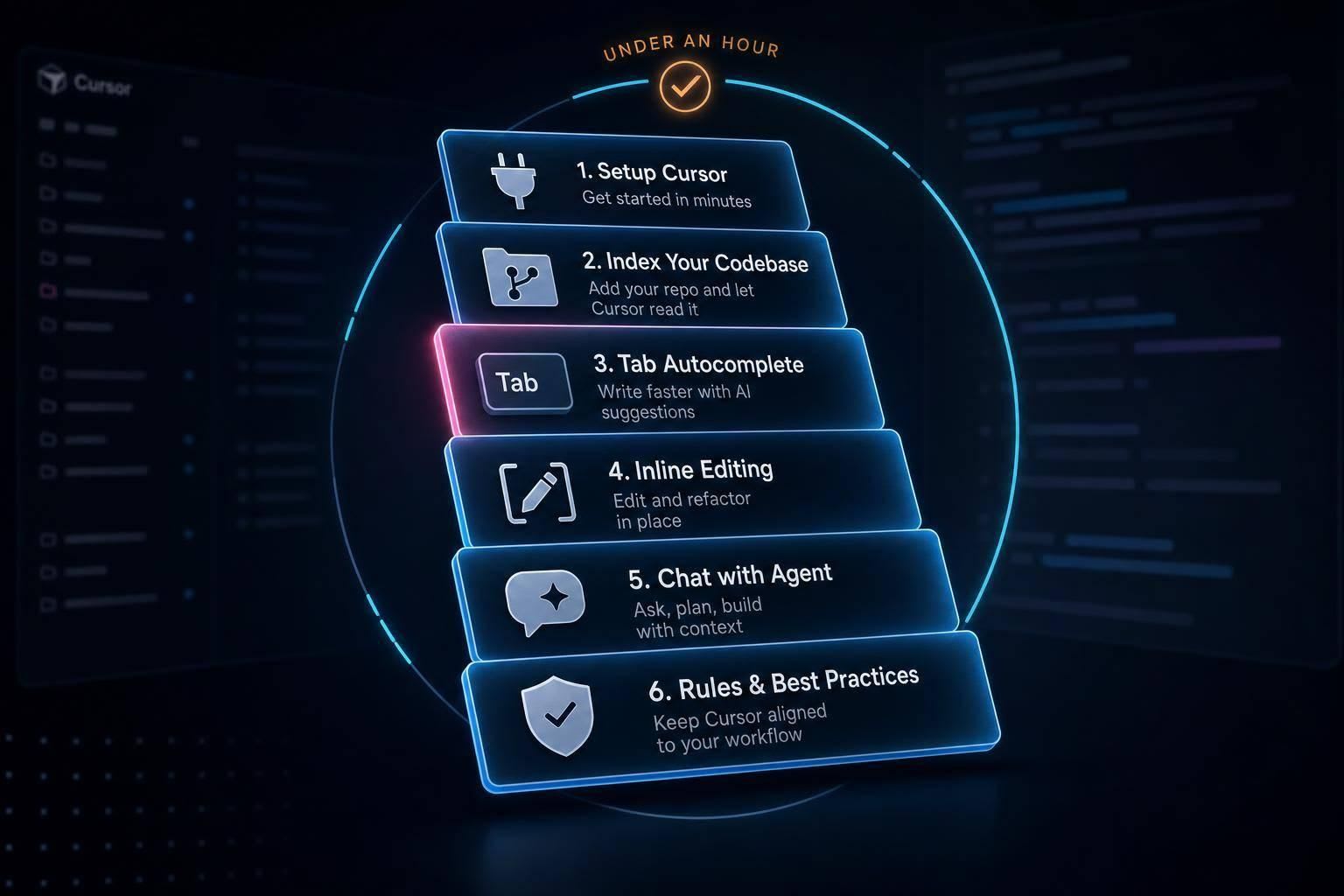
You can get useful with Cursor AI in about 1 hour if you focus on five things: setup, Tab, Inline Edit, Agent, and rules.
I’d start by importing my VS Code setup, turning on Privacy Mode, picking a default model, and testing Cursor on a small repo with fewer than 1,000 files. From there, I’d learn the core flow in this order: use Tab for boilerplate, Inline Edit for small code changes, and Agent only for tight multi-file tasks. If indexing is working, Cursor can often understand repo context in about 5 to 10 seconds on a small project.
Here’s the short version of what matters most:
Set up Cursor first
- Import VS Code settings, themes, extensions, and keybindings
- Run
cursor .from your repo root - Turn on Privacy Mode for private code
- Pick a default model that fits day-to-day work
Learn the core features in order
- Tab for line-by-line help
- Inline Edit for selected code blocks
- Agent for scoped tasks across files
- Plan Mode before bigger edits
Give Cursor better context
- Wait for the repo to show Indexed
- Use
@to point to the right files - Keep
.gitignoreclean so junk files stay out of context - Add
.cursorrulesor scoped rules so it follows your stack and style
Avoid the mistakes that waste time
- Don’t accept code without reading the diff
- Don’t prompt with vague requests like “improve the app”
- Don’t aim Agent at the whole repo
- Don’t skip tests after AI edits
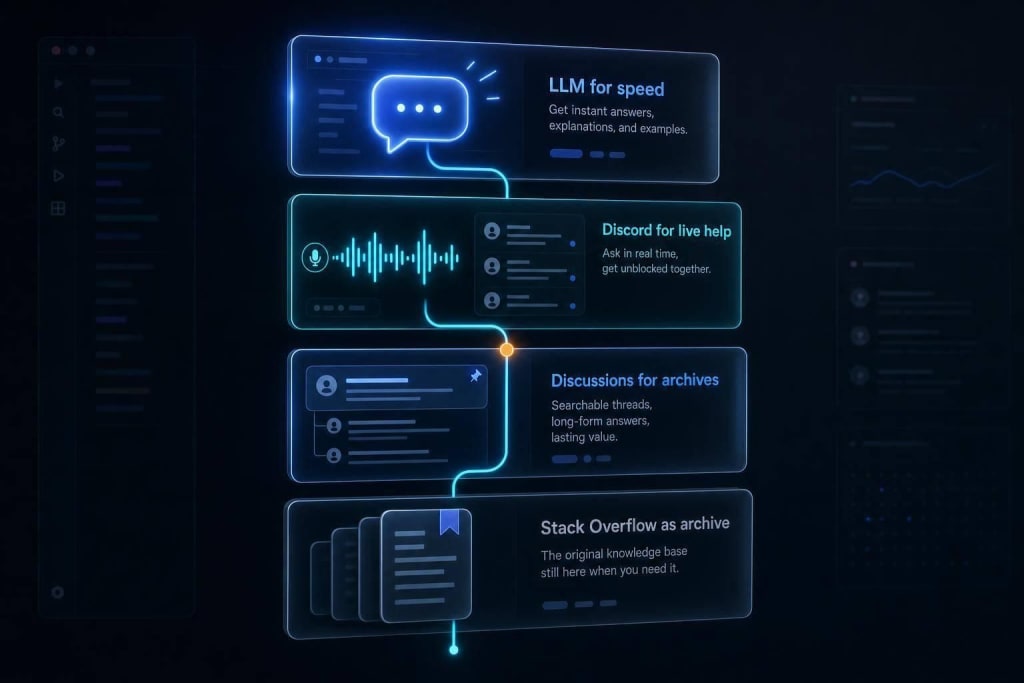
Use the right learning sources
- Docs for setup and feature details
- Forum for edge cases and fixes
- YouTube for step-by-step demos
- daily.dev for release and model updates
A fast way to think about it: Cursor works best when I keep tasks small, prompts clear, and context tight. That’s the main idea behind the full guide.
| Part | What I’d use it for | Best time to learn |
|---|---|---|
| Tab | Boilerplate and routine code | Right away |
| Inline Edit | Small rewrites and fixes | Right away |
| Agent | Multi-file tasks and test runs | After the basics |
| Rules | Project style and stack guidance | Early |
| Indexing | Repo awareness and file relationships | During setup |
If you want a simple path: set it up, test it on one small repo, review every diff, and keep Agent on a short leash.
Set Up Cursor in Your First Hour
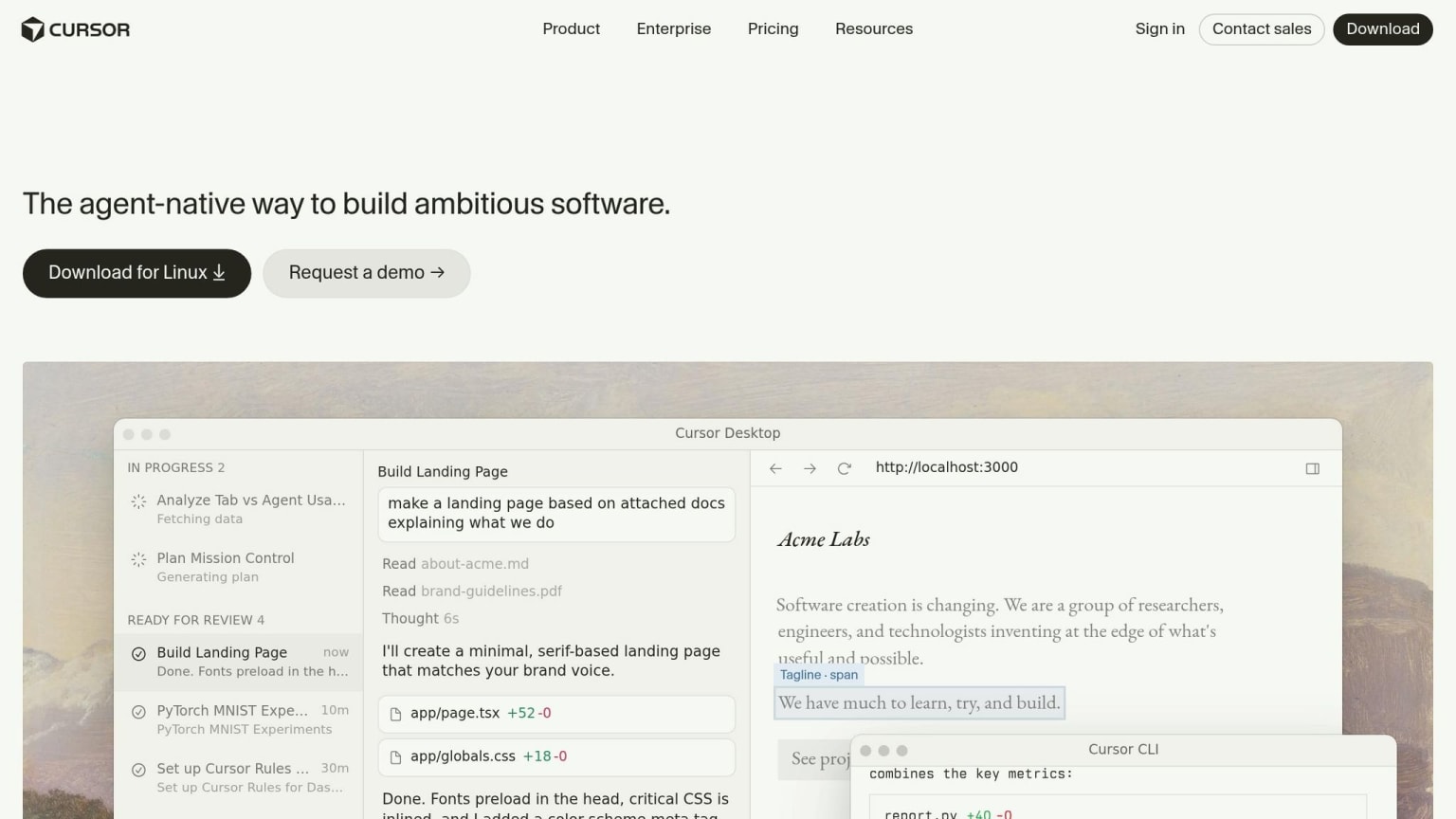
Cursor will look pretty familiar if you’ve used VS Code before.
Install Cursor and Import Your VS Code Setup
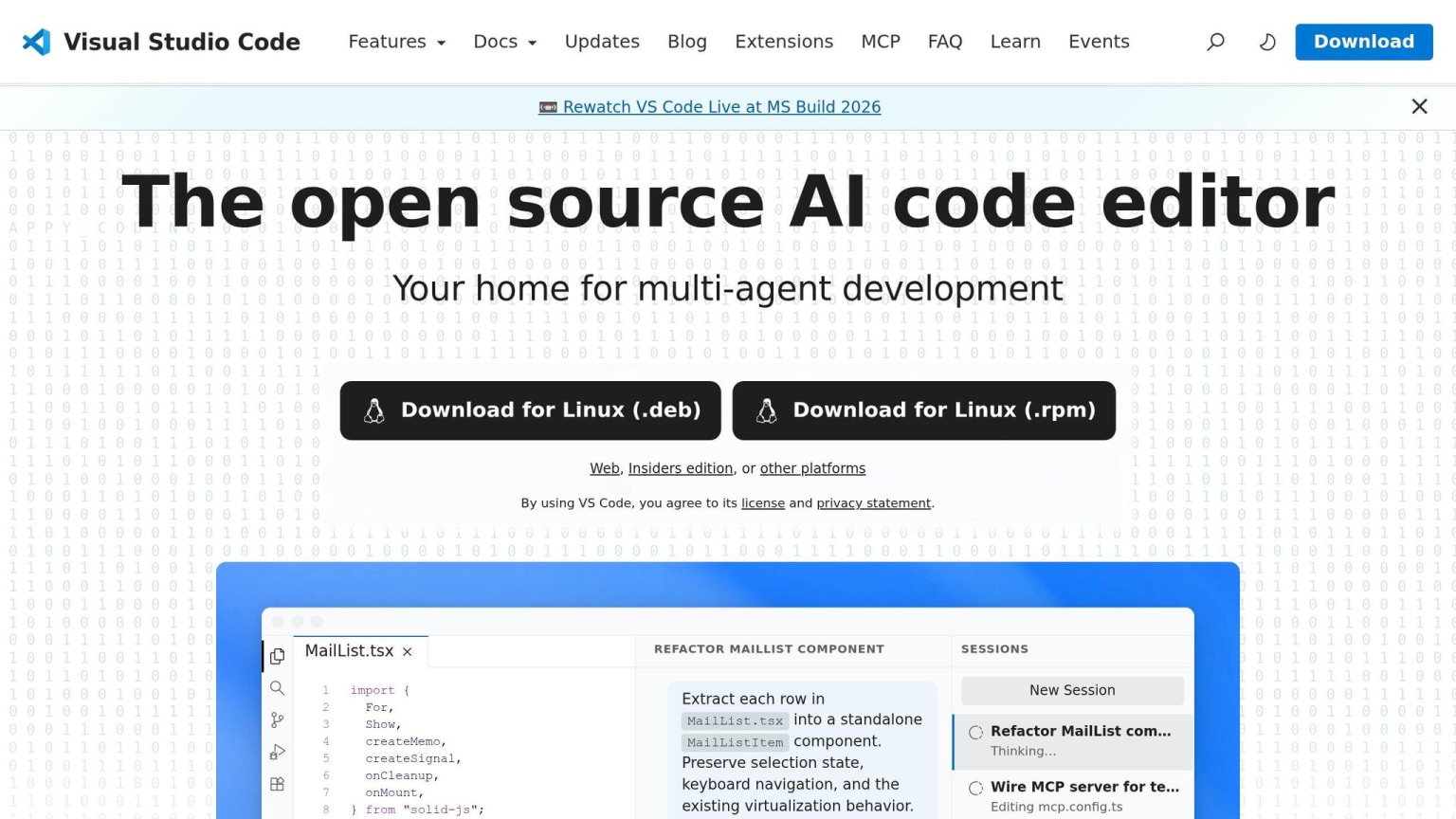
Download Cursor from cursor.com and open it. The first time it launches, you’ll see a setup wizard that can pull in your VS Code extensions, themes, settings, and keybindings. Go ahead and accept it so Cursor feels like the editor you already know .
Then run cursor . from your repo root to make sure the CLI works as expected .
The First Settings Worth Changing
Before you write any code, change two settings.
For private or proprietary code, go to Settings > General > Privacy and turn on Privacy Mode. This keeps your code and prompts from being stored on Cursor’s servers or used for model training .
Next, open Cursor Settings > Models and choose a default model. A common starting point is Claude 3.5 Sonnet because it’s fast, then switch to a stronger model like Claude Opus when you’re working through harder architecture tasks .
You can leave almost everything else alone for now. After that, do one small test before jumping into the main features.
Run a Quick Test on a Sample Project
Open a small repo you know well, ideally one with fewer than 1,000 files. Cursor usually indexes a project that size in about 5–10 seconds . Check the status bar at the bottom of the editor. When it shows Indexed, repo-aware features are ready.
Now run three fast checks before moving on to Tab, Inline Edit, and Agent:
- Tab: Type a function signature and wait for the gray ghost text to show up. Press
Tabto accept it. - Inline Edit: Highlight a block of code, press
Ctrl+Kon Windows orCmd+Kon Mac, and type something like "add error handling." Cursor should show a diff with the proposed change. - Chat with context: Press
Ctrl+LorCmd+L, type@, and mention a file. If the AI uses that file’s contents, context is working.
If the suggestions seem generic, give indexing a little more time. It also helps to keep build artifacts out of context with a clean .gitignore . Once indexing is working, use that same repo to learn Tab, Inline Edit, and Agent.
The Cursor Features Worth Learning First
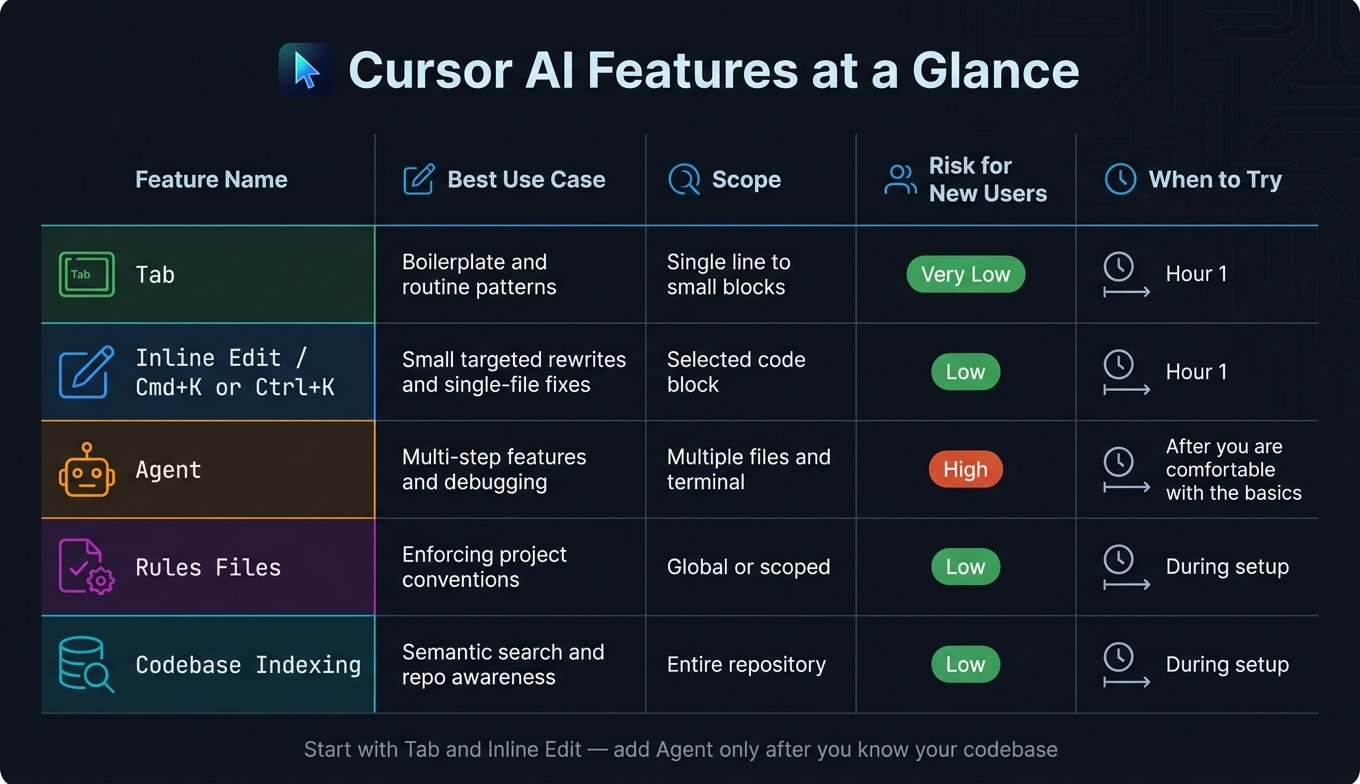
Start with Tab and Inline Edit, then move to Agent, rules files, and codebase indexing. Stick with the same sample repo you used during setup so every feature works from the same codebase context.
Start with Tab and Inline Edit for Small, Reviewable Changes
Tab completion is the easiest place to begin. As you type, Cursor suggests the next lines based on the code around them. That makes it handy for boilerplate, repeated patterns, and routine function scaffolding.
Inline Edit (Cmd+K on Mac, Ctrl+K on Windows) is the next step. Select a block of code, describe the change you want, and Cursor rewrites that selection so you can check it before you accept it. It works best for small, targeted rewrites, adding error handling, or converting a single component or function.
Use the Agent for Scoped Tasks, Not Full Automation
The Agent is better suited for multi-file work. It can read and write files, run terminal commands, execute tests, and keep iterating until the task is done. That kind of freedom helps, but it also means you should use it for scoped tasks, not as a hands-off coder.
Get used to Tab and Inline Edit first. Then move to Agent mode once you have a feel for how Cursor works with your codebase. When you do use Agent, keep the goal narrow, point it to the right files with @, and commit your work first so you have a clean rollback point. If the task gets messy, use Plan Mode with Shift+Tab so Cursor maps out the approach before it starts writing code.
If Agent keeps drifting from your team’s patterns, rules files are usually the next thing to set up.
Add Rules Files and Learn How Codebase Indexing Works
Rules files give Cursor lasting instructions about how your project should work. This is where you tell it which libraries to use, which patterns to skip, and how code should be arranged. Start short. Then tighten the rules as Cursor repeats the same mistakes. On larger projects, scoped .mdc files inside .cursor/rules/ let you apply instructions to specific folders or file types, which keeps the guidance tied to the code in front of it.
Codebase indexing runs in the background and helps Cursor understand your repo’s structure and relationships. In plain English, you don’t have to attach every related file to every prompt. Cursor can often find related functions and dependencies on its own. That makes a big difference after the first few test runs, when you want it to work with the repo instead of only the snippet you pasted in.
| Feature | Best Use Case | Scope | Risk for new users | When to Try |
|---|---|---|---|---|
| Tab | Boilerplate and routine patterns | Single line to small blocks | Very low | Hour 1 |
| Inline Edit | Small targeted rewrites and single-file fixes | Selected code block | Low | Hour 1 |
| Agent | Multi-step features and debugging | Multiple files and terminal | High | After you are comfortable with the basics |
| Rules files | Enforcing project conventions | Global or scoped | Low | During setup |
| Codebase indexing | Semantic search and repo awareness | Entire repository | Low | During setup |
Once these basics are in place, the next section covers the mistakes that most often slow new users down.
Beginner Mistakes That Slow You Down in Cursor
These mistakes tend to show up the moment you start using Cursor on actual code. Once Tab, Inline Edit, and Agent become part of your day-to-day workflow, a few habits can quietly drag your pace down. This is where the gap between setup and real editing starts to show.
Do Not Accept Code Before You Review It
AI-written code can look right and still break on edge cases, miss security checks, or fail tests. That’s why a quick glance isn’t enough.
Before you run a multi-file Agent task, make a checkpoint commit first. Then review the diff line by line, run tests locally, and use Review → Find Issues as a second pass. It’s a simple habit, but it can save you from messy fixes later.
Write Prompts with a Clear Goal and Constraints
Requests like “add login” or “improve the app” sound simple, but they leave too much room for guessing. Cursor may fill in the blanks in ways that don’t match your stack or the way your codebase is set up.
A better approach is to write prompts more like short specs. Include:
- the goal
- the relevant files with
@ - the constraints
- the expected output
That extra detail gives Cursor a much better shot at producing code you can actually use.
Do Not Skip Rules Files or Point Agent at the Whole Repo
Add a .cursorrules file so Cursor follows your stack, style, and architecture. Without it, the tool has less direction than you probably think.
Also, avoid pointing Agent at the whole repo. That often leads to large diffs that are hard to review and touch files you never meant to change. Keep the scope tight: one module or one bug at a time. Pin only the files that matter with @, and start a new chat when you switch tasks so old context doesn’t tag along.
If you want to go deeper, the docs and community resources below cover the workflows Cursor users rely on most.
The Best Resources for Learning Cursor in 2026
When Cursor leaves you stuck, you don't need to waste time digging around at random. A few go-to resources can answer most questions fast, and each one helps with a different part of the job.
Start with the Cursor Docs and Community Forum
The official Cursor docs should be your first stop for feature reference, setup steps, and the latest guidance on Agent, Plan, Debug, MCP, and Skills.
The community forum is better for troubleshooting and seeing how other people work through messy cases. That's where you'll find practical .cursorrules examples, indexing edge cases, and fixes for problems the docs don't cover. If the agent is acting weird or your rules files aren't behaving the way you expect, the forum is often the fastest place to get unstuck.
Use YouTube for Walkthroughs and Workflow Demos
YouTube helps when you want to see the workflow instead of just reading about it. Look for walkthroughs that show the whole loop: prompt, diff review, accept, or reject.
That's the part that matters. You can watch someone use Cursor step by step and pick up the small habits that make review smoother.
Track New Cursor Features with daily.dev
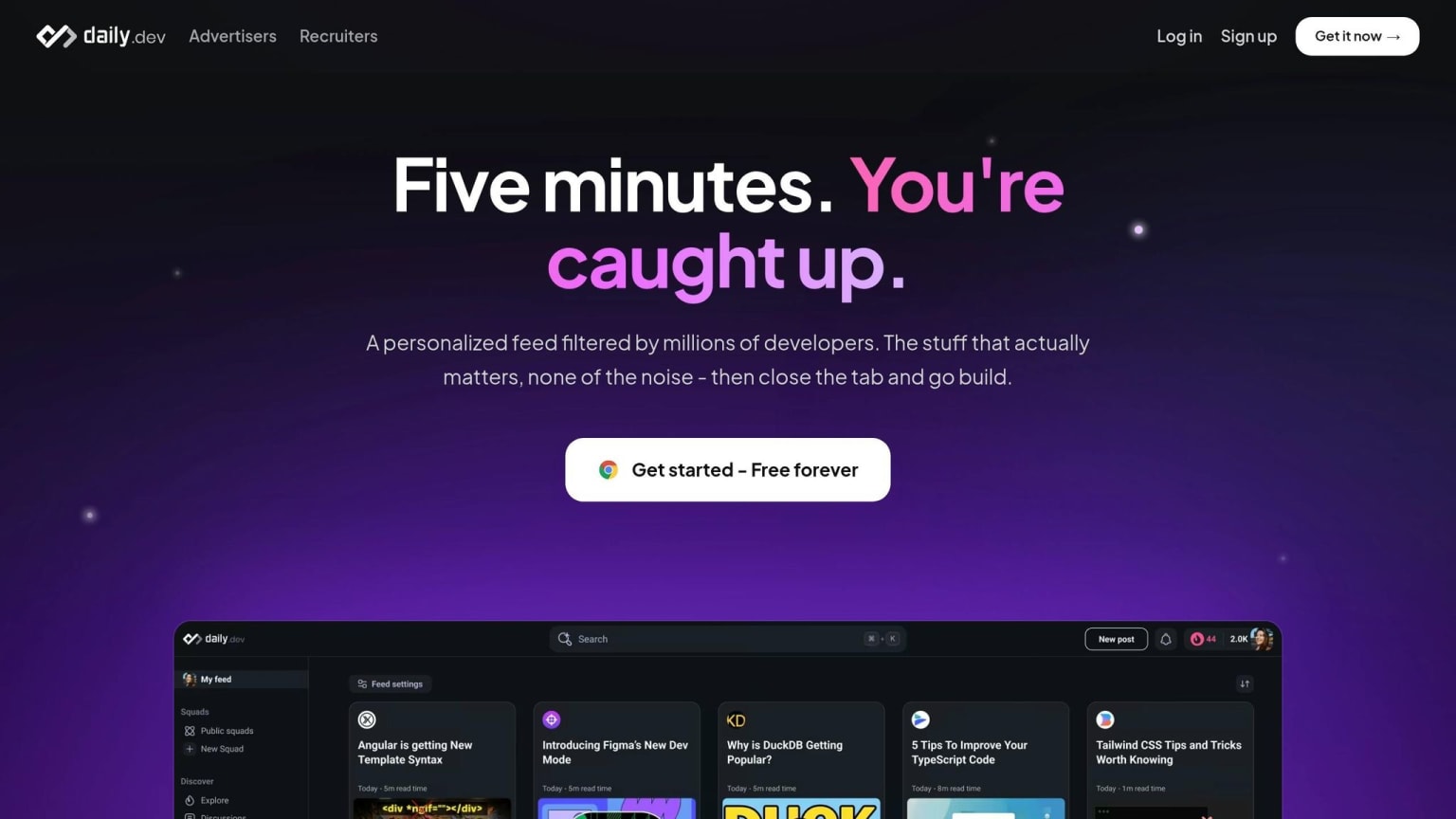
Use daily.dev to follow new Cursor releases, model updates, and related AI tools as they roll out. Its free personalized feed and browser extension surface updates as they happen, and Squads let you follow community discussions around specific tools and workflows.
It's a simple way to stay current without waiting for the next guide update.
| Resource | Best Use | Time Cost | Update Cadence |
|---|---|---|---|
| Cursor Docs | Feature reference, setup, MCP configuration | Low | With every major release |
| Community Forum | Troubleshooting, .cursorrules templates, edge cases |
Medium | Daily / Real-time |
| YouTube | Visual workflows, prompting styles, diff review habits | High | Weekly |
| daily.dev | Tracking new features and related AI tool trends | Very Low | Daily |
FAQs
How do I know when Cursor is ready to use on my repo?
Cursor is ready once you’ve finished the initial setup and your codebase indexing is done.
After you open your project folder, look at the status bar at the bottom to check indexing progress. Once it finishes - and after you accept the codebase indexing prompt - Cursor has full awareness of your project, so its AI features can work well across your repo.
When should I use Agent instead of Inline Edit?
Use Agent when a task touches multiple files, follows a more involved workflow, or needs autonomous actions like finding files, running terminal commands, and iterating until the work is done.
Use Inline Edit for precise, self-contained changes in a single file when you want to review the diff before applying it.
What should I put in a .cursorrules file first?
Start by adding a .cursorrules file at the root of your project. This gives Cursor clear, project-level instructions, so it can write code that fits your setup and sidestep common mistakes.
Your first draft should be short and focused. Include the framework you use, how you handle styling, and the main rules for data fetching, architecture, and naming. That’s usually enough to steer code generation in the right direction.