Rebase vs merge, squash discipline, --force-with-lease, conventional commits, git bisect — opinionated advice from production teams in 2026.
Most git tutorials hand you a checklist of commands. This one takes positions. After working in repos ranging from solo side projects to monorepos with hundreds of contributors, here's what actually matters:
- Rebase your feature branches before merging to main. Merge commits on shared history make
git logunreadable. Rebase locally, then merge with--no-ffso the feature is grouped but the history is linear. - Squash commits on shared branches, preserve them on solo work. Reviewers want one logical unit per PR. Future-you wants the granular history when bisecting.
- Use
--force-with-lease, never--force. Same outcome when you're right, no destroyed teammate work when you're wrong. - Conventional commits earn their keep above ~3 contributors. Below that, they're overhead. Above that, they unlock automated changelogs and
git log --grep=^fix. - Learn
git bisect,git rerere, andgit worktreebefore you think you need them. Bisect finds the offending commit in O(log n) instead of guessing. Rerere remembers conflict resolutions so you don't redo them. Worktree lets you check out a hotfix branch without stashing. - Sign your commits with SSH keys, not GPG. GitHub supports both; SSH signing is one config line and reuses the key you already have.
Quick Comparison of Branching Strategies:
Strategy
Best For
Pros
Cons
Feature Branching
Small-medium projects
Separates work, easy to manage
Can lead to integration issues
Large, complex projects
Structured releases, good for maintenance
Complex, can slow development
Trunk-Based
Fast-moving teams
Simple, promotes continuous integration
Requires disciplined team, can be risky
Remember: Commit often, write clear messages, and keep learning as Git evolves.
Related video from YouTube
Git Basics
Core Git Concepts
Git has four main parts:
- Repository: A folder with all your project files and history.
- Commits: Snapshots of your code at specific times.
- Branches: Separate lines of work in your project.
- Staging Area: A place to prepare changes before saving them.
Common Git Workflow
Here's how to use Git:
- Change your files
- Use
git addto stage changes - Use
git committo save changes - Use
git pushto send changes to a shared repository
Important Git Terms
Term
Meaning
Bare Repository
A repository without working files
Clone
A copy of a repository
Fetch
Get changes from a shared repository
Merge
Combine changes from different branches
Pull
Get and merge changes from a shared repository
Push
Send changes to a shared repository
Remote
A repository on another computer
Tag
A label for a specific commit
Setting Up Git
Git Configuration Steps
To start using Git, set it up on your computer:
Open a terminal or command prompt
Set your name and email:
git config --global user.name "Your Name"
git config --global user.email "youremail@example.com"
- Check your settings:
git config --list
This shows all your Git settings, including your name and email.
Creating a .gitignore File
A .gitignore file tells Git which files to ignore in your project. To make one:
- Go to your project's main folder
- Create a file named
.gitignore - Add file or folder names to ignore, one per line
Examples:
build.log
*.tmp
This ignores build.log and all files ending in .tmp.
Selecting a Branching Strategy
Branching helps organize your work in Git. Choose a strategy based on your needs:
Strategy
Description
Best for
Feature branching
Make a new branch for each feature
Small to medium projects
Release branching
Make a new branch for each release
Projects with set release dates
GitFlow
Use separate branches for features, releases, and fixes
Large, complex projects
Pick by deployment cadence, not team size. The honest rule:
- Deploying multiple times per day? Trunk-based development. Short-lived branches (under a day), feature flags for anything not ready, no long-running release branches. This is how Google, Meta, and most CI/CD-mature shops actually work.
- Deploying weekly or per-sprint? GitHub Flow. Feature branches off main, PR review, merge, deploy. Boring and effective.
- Shipping versioned software with parallel maintenance branches (think: a database engine, a mobile SDK)? GitFlow. The complexity earns its keep when you're patching v2.1 while v2.3 is in beta.
If you can't deploy on demand from main, the branching strategy isn't your problem — your CI is. Fix that first.
Good Commit Practices
Clear Commit Messages
Good commit messages help keep your project's history clear. Here's how to write them:
- Use simple, direct language
- Keep the first line short (50 characters or less)
- Add more details in the body if needed
- Use present tense (e.g., "Add feature" not "Added feature")
Example of a good commit message:
Add multi-language support

- Update database schema
- Create new API endpoints
- Change UI to show language options
Small, Focused Commits
Making small commits helps manage your project better. It lets you:
- Find and fix problems easily
- Work with others more smoothly
- Review and test code more quickly
Tips for small commits:
- Make one change at a time
- Commit often
- Don't mix unrelated changes
Example of a small commit:
Fix login bug

- Update login API
- Fix user model
How Often to Commit
Commit frequency advice measured in minutes misses the point. Commit when you've made one coherent change — passing tests, isolated diff, message you can write in present tense without 'and'. That might be every five minutes or every two hours.
What to actually do:
- Commit early and often locally; clean up before pushing. Use
git commit --fixupandgit rebase -i --autosquashto fold WIP commits into their logical parents before the PR goes up. - Never push broken commits to a shared branch. Local broken commits are fine — they're a safety net. Public broken commits poison
git bisectfor everyone. - 'Save your work often' is what
git stashand uncommitted edits are for. Commits aren't saves; they're statements about what changed and why.
Branching Methods
Feature Branches
Feature branches are a way to work on different parts of a project at the same time. Here's how they work:
- Make a new branch from the main branch (e.g.,
feature/new-login-system) - Change the code in the new branch
- Save changes often
- When done, add the new branch to the main branch
Feature branches are good for:
- Working on many things at once
- Keeping changes separate
- Testing before adding to the main code
But they can cause:
- Problems when joining branches
- Too many branches to manage
GitFlow Overview
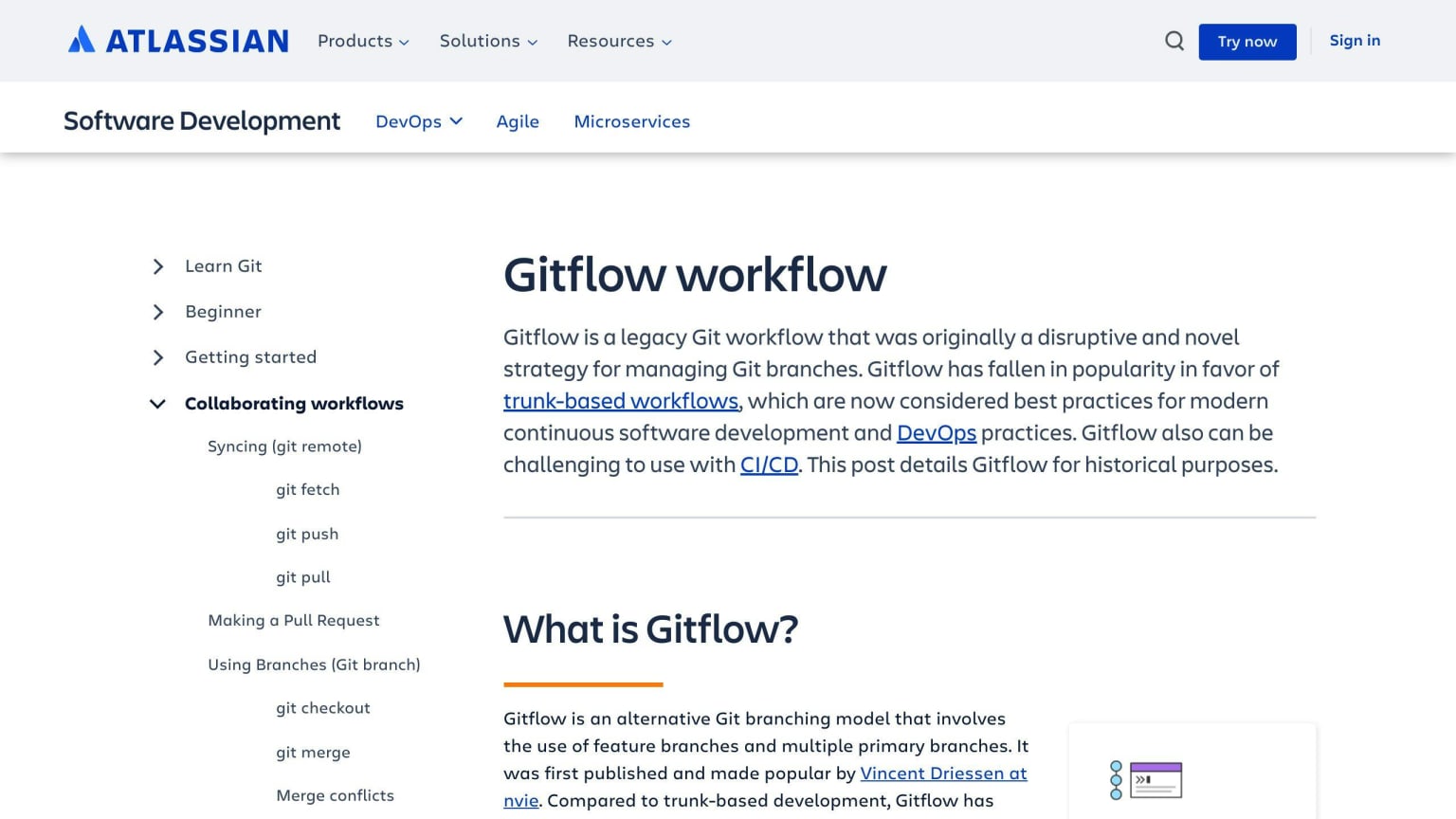
GitFlow uses two main branches: master and develop. The master branch is for finished code, and the develop branch is for work in progress.
How GitFlow works:
- Make a new branch from
develop(e.g.,feature/new-feature) - Change the code in the new branch
- Save changes often
- When done, add the new branch to
develop - Make a release branch from
develop(e.g.,release/v1.0) - Test the release branch
- Add the release branch to
master
GitFlow is good for:
- Managing different versions of your code
- Keeping changes separate
- Testing before adding to the main code
But it can be hard to use and may need extra tools.
Trunk-Based Development
Trunk-Based Development uses one main branch for all work. It's simpler than other methods.
How it works:
- Change code in the main branch
- Save changes often
- Use pull requests to check changes before adding them
Trunk-Based Development is good for:
- Small teams or simple projects
- Making changes quickly
But it can cause:
- Problems when many people work on the same code
- Hard to manage changes and testing
Branching Methods Comparison
Method
How it Works
Good Things
Bad Things
Feature Branches
Make a new branch for each task
Keeps changes separate, lets people work at the same time
Can cause problems when joining branches, hard to manage many branches
GitFlow
Uses master and develop branches
Manages different versions well, keeps changes separate
Can be hard to use, needs extra tools
Trunk-Based Development
Uses one main branch for all work
Simple to use, makes changes quickly
Can cause problems when many people work on the same code, hard to manage changes
Pick the method that works best for your team and project. Think about what you need and what problems you might face.
Team Collaboration
Pull Requests and Code Reviews
Pull requests and code reviews help teams work together in Git. They let people suggest changes and check them before adding them to the main code.
How to make a pull request:
- Change your code in a new branch
- Save your changes
- Send your changes to the shared repository
- Go to the repository online
- Click "New pull request"
- Pick the branch you want to add to
- Write a clear title and description
- Click "Create pull request"
How to review a pull request:
- Go to the repository online
- Click on the pull request
- Read the description and comments
- Look at the code changes
- Leave comments or ideas
- Say yes or no to the changes
Pull requests and code reviews help make sure changes are good before they're added to the main code. This helps stop bugs and makes the code easier to work with.
Fixing Merge Conflicts
Merge conflicts happen when two or more people change the same code. Here's how to fix them:
- Find the conflict
- Open the file with the conflict
- Fix the conflict by changing the file
- Add the fixed file to Git
- Save the fixed file
- Send the fixed file to the shared repository
Fixing merge conflicts can be hard, but you'll get better with practice.
Contributing to Open-Source Projects
Working on open-source projects helps you learn from other coders. Here's how to do it:
- Find a project you like
- Read how to help
- Make a copy of the project
- Change the code in your copy
- Ask to add your changes
- Wait for the project owners to look at your changes
- Fix any problems they find
- Get your changes added to the project
Working on open-source projects helps you learn new things and show what you can do.
Method
What It Does
Good Things
Bad Things
Pull Requests
Ask to add changes
Changes are checked
Can be slow
Code Reviews
Look at changes before adding them
Makes code better
Takes time
Open-Source Work
Help with free projects
Learn new things, show skills
Can be hard
Advanced Git Skills
Rebasing vs. Merging
The debate has a clear answer once you separate two questions: how you sync your feature branch with main, and how you land your feature branch into main.
Syncing your feature branch with main: rebase.
git fetch origin
git rebase origin/main
This replays your commits on top of the current main. Conflicts surface one commit at a time instead of as one giant blob. If you hit the same conflict twice, enable git rerere so git remembers your resolution:
git config --global rerere.enabled true
Landing your feature branch into main: depends on the PR.
- Multi-commit feature where each commit is meaningful? Merge with
--no-ff. Preserves the structure. - PR with 14 'fix lint', 'address review', 'oops' commits? Squash merge. Nobody wants that history.
- Single-commit PR? Either works; rebase merge keeps history linear.
The one rule with no exceptions: don't rebase commits that exist on a shared remote branch. If you must rewrite shared history (you almost never must), communicate it and use --force-with-lease.
Cherry-Picking Commits
Cherry-picking lets you add specific commits from one branch to another without merging everything. It's useful for quick fixes or adding certain features.
To cherry-pick:
git cherry-pick <commit-hash>
When to use cherry-picking:
- Fix bugs quickly
- Add specific features to older versions
- Change the order of commits
Be careful when cherry-picking, as it can create duplicate commits.
Using Git Hooks
Git hooks are scripts that run at certain times in Git. They help automate tasks and keep code consistent.
Common hooks:
- Pre-commit: Runs before a commit
- Post-commit: Runs after a commit
- Pre-push: Runs before pushing changes
To set up a hook:
- Go to the
.git/hooksfolder in your project - Make a script with what you want to do
- Make sure the script can run
Example of a pre-commit hook:
#!/bin/sh

npm run lint
To make the script work:
chmod +x .git/hooks/pre-commit
Hook Type
When It Runs
What It Can Do
Pre-commit
Before committing
Check code quality
Post-commit
After committing
Send notifications
Pre-push
Before pushing
Stop bad code from being shared
Improving Git Workflow
Using Git Aliases
Git aliases help you work faster by making short versions of long commands. Here's how to set up some useful aliases:
git config --global alias.co checkout
git config --global alias.br branch
git config --global alias.ci commit
git config --global alias.st status
With these aliases, you can:
- Use
git coinstead ofgit checkout - Use
git brinstead ofgit branch - Use
git ciinstead ofgit commit - Use
git stinstead ofgit status
These shortcuts save time and make working with Git easier, especially for big projects.
Git GUI Tools
While command-line Git is powerful, GUI tools can make some tasks easier. They show your project visually, which can help you understand what's happening.
Tool
What it does
Free, easy to use, works with Git Flow
Looks nice, works with many services
Makes GitHub easier, simple to use
GUI tools can help new developers learn Git and make complex tasks simpler for everyone.
Git in CI/CD Pipelines
Using Git with CI/CD (Continuous Integration/Continuous Deployment) helps make sure your code works well and gets to users quickly. Here's what it does:
- Tests code automatically: Checks if new code breaks anything
- Gives quick feedback: Tells developers if there are problems right away
- Makes releases the same every time: Puts out new versions the same way each time
To use Git with CI/CD:
- Pick a CI/CD tool (like Jenkins or GitHub Actions)
- Set it up to watch your Git repository
- Make it run tests and put out new versions when you change your code
This helps catch problems early and makes putting out new versions of your software easier and safer.
Git Security Practices
Protecting Sensitive Data
Keeping sensitive data safe in Git is key. Here's how to do it:
- Use a
.gitignorefile:
- List files and folders you don't want Git to track
- Keep private keys and config files out of Git
- Use tools like git-secrets:
- Check commits for sensitive info before pushing
- Stop accidental leaks of important data
Setting Access Controls
Control who can access your Git repos to keep them safe:
- Set up access roles for each repo 2. Give permissions based on team roles 3. Check access settings often
This helps stop people from seeing or changing things they shouldn't.
Signing Commits and Tags
Signing commits and tags makes your code more secure:
- Use GPG (GNU Privacy Guard) to sign commits 2. Make a GPG key pair:
- Private key: Sign your commits
- Public key: Store in the repo
Benefits of Signed Commits
Shows who made the changes
Proves the code wasn't changed
Builds trust in the team
Signing commits helps keep your Git workflow safe and trustworthy.
Fixing Common Git Problems
Solving Merge Conflicts
Merge conflicts happen when two branches change the same part of a file. Here's how to fix them:
- Find the conflict: Git will tell you which files have problems.
- Open the file: Look for lines with
<<<<<<< HEAD,=======, and>>>>>>> other-branch-name. - Fix the conflict: Choose which changes to keep.
- Remove the conflict markers.
- Save the changes:
git add fixed-file.js
git commit -m "Fix merge conflict in fixed-file.js"
- If needed, finish the merge:
git merge --continue
Finding Lost Commits
If you lose a commit, you can get it back using git reflog. This shows all changes in your repository.
To find a lost commit:
- Run
git reflogto see all actions. - Find the commit you want.
- To go back to that commit:
git checkout HEAD@{n}
Or to move your branch to that commit:
git reset --hard HEAD@{n}
Managing Large Repositories
Big repositories can be slow and hard to work with. Here's how to make them easier to manage:
Method
What it does
How to use it
Git LFS
Stores big files outside the main repository
Install Git LFS and set up tracking for large files
Clean up history
Combines multiple commits into one
Use git rebase or git squash
Shallow clone
Gets only the latest version of the code
Use git clone --depth 1 <repository-url>
These methods can help make large repositories faster and easier to work with.
Git for Big Projects
Working with Monorepos
Monorepos are single repositories that hold many projects. They can make working together easier but can also cause problems like bigger repos and more complex setups. To use monorepos well:
- Keep a clean history by using rebasing
- Make small, focused commits
- Organize folders clearly
- Clean up branches often
- Think about using trunk-based development
Using Git LFS for Large Files
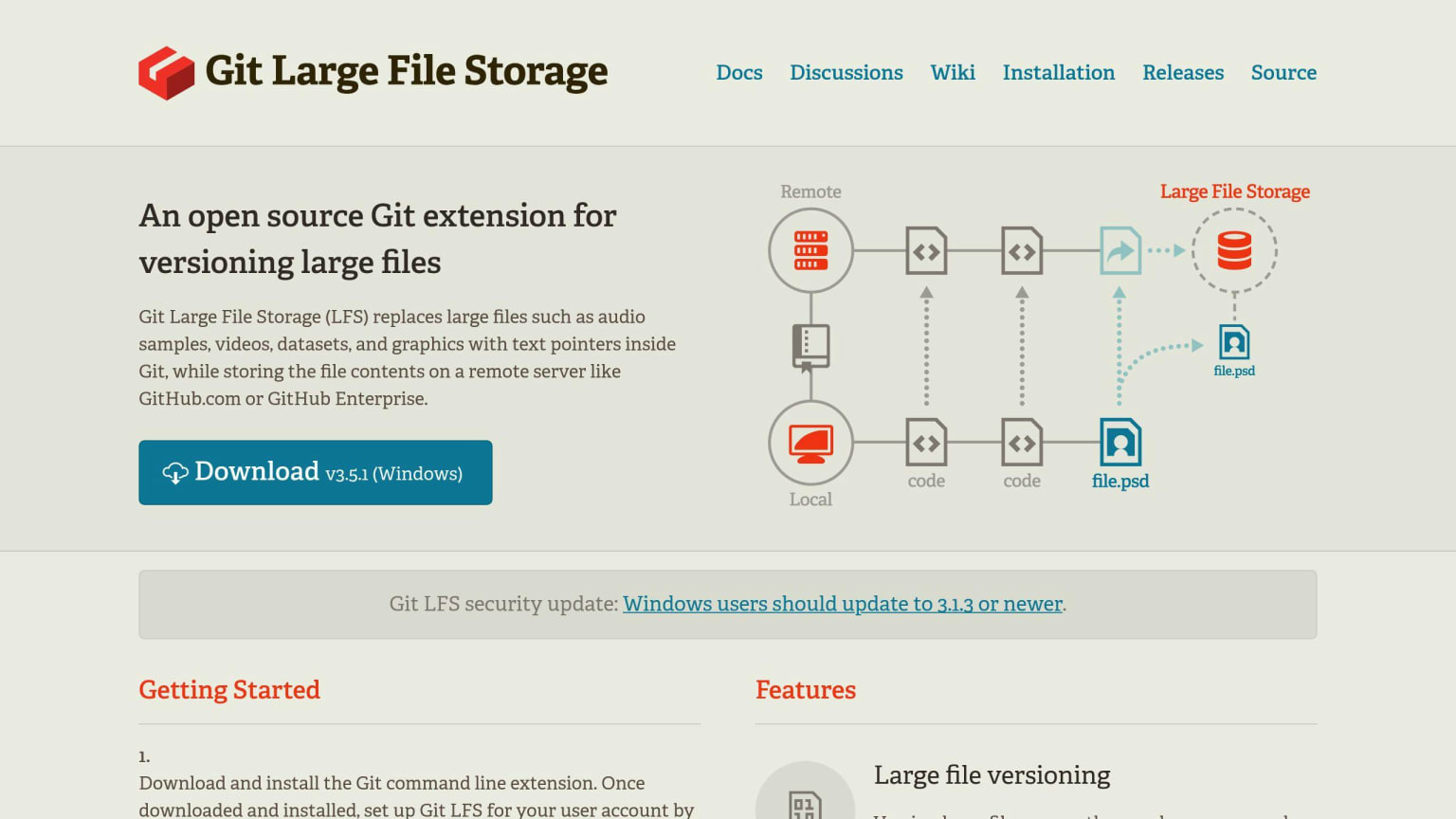
Big projects often have large files that can slow down Git. Git Large File Storage (LFS) helps by:
- Storing big files outside the main repo
- Using small pointer files instead
- Making cloning and fetching faster
To use Git LFS:
- Install the Git LFS extension
- Set it up to track big files (like images or videos)
This keeps your repo small and fast while still handling large files.
Git in Enterprise Settings
Big companies often have large, complex projects. To use Git well in these settings:
Best Practice
Why It Helps
Use Git LFS
Manages big files better
Have a clear branching plan
Helps teams work at the same time
Set rules for commit messages
Makes the history easier to read
Name branches consistently
Helps everyone understand the work
Use Git hooks
Checks code automatically
Train team members
Helps everyone use Git better
These practices help big teams work together more smoothly and manage projects better.
Conclusion
Key Git Best Practices
Here are some main ways to use Git well:
Practice
Why It Helps
Set up a clear Git workflow
Helps teams work together better
Use branches and pull requests
Makes it safe to try new things
Set up Git hooks
Checks code before saving
Make small, clear commits
Makes it easy to track changes
Write good commit messages
Helps others understand what changed
What to learn next
The commands above cover maybe 80% of daily git use. The remaining 20% is where senior engineers separate from the pack. Specifically:
git bisect— binary-search through history to find the commit that broke the build. The first time you use it on a 400-commit range, you'll wonder how you lived without it.git reflog— your local undo history for branch movements. Almost nothing in git is truly lost for 30 days; reflog is how you find it.git worktree— multiple working directories from one repo. Reviewing a PR without stashing your in-progress work, running tests on main while you keep coding on a branch.git log --graph --oneline --allaliased togit lg— the only way to actually read a complex history.- The man pages.
git help mergeis denser than any tutorial and has the answer to the obscure question you'll have at 11pm before a release.
FAQs
What Git workflow is used by teams that collaborate on a single branch?
Teams that work together on one branch often use a centralized Git workflow. Here's how it works:
Feature
Description
Branch
Everyone uses the main branch
Commits
Team members add changes directly to the main branch
Best for
Small teams
Key need
Good team communication
This way of working helps small teams:
- Keep things simple
- Work quickly
- Avoid extra branches
But it can cause problems if:
- Many people change the same code
- The team doesn't talk often
To use this workflow well:
- Talk to your team often
- Check what others are working on
- Be careful not to overwrite others' work