
Learn how to start building embedded systems with Elixir using Nerves Framework. Explore key components, setup steps, features, project creation, hardware setup, firmware compilation, networking, debugging, advanced topics, and best practices.
This guide will help you start building embedded systems with Elixir using Nerves Framework. Here's what you need to know:
- Nerves is for embedded systems, not desktop or server use
- You need basic Elixir and Linux knowledge
- Key components: Erlang, Elixir, Nerves Bootstrap, and compatible hardware (e.g. Raspberry Pi)
Quick setup steps:
- Install Erlang and Elixir using ASDF
- Install Nerves Bootstrap
- Set up your system with required tools
- Create a new Nerves project
- Build and load firmware onto your device
Key features:
- Remote firmware updates
- Shell access for troubleshooting
- Hardware control (e.g. blinking LEDs)
- Networking configuration
| Topic | Description |
|---|---|
| Setup | Install software, prepare hardware |
| Development | Create projects, manage firmware |
| Networking | Configure static IP, Wi-Fi |
| Debugging | Use logs, system info |
| Advanced | Custom systems, external libraries |
| Best Practices | Improve performance, security |
This guide covers everything from initial setup to advanced topics and best practices for Nerves development.
Related video from YouTube
What you need to start
To begin using Nerves Framework, you'll need some basic software, hardware, and tools. Here's what you need:
Software requirements
You'll need to install:
- Erlang: Make sure it's a version that works with Nerves
- Elixir: Install it using ASDF
- Nerves Bootstrap: This tool helps with builds, firmware updates, and device setup
Compatible hardware
For this guide, we'll use a Raspberry Pi. You can use other devices that work with Nerves, but the setup might be different.
Setting up your workspace
Make sure you have:
- A working operating system (MacOS or Linux)
- A code editor you like
- A terminal for running commands
If you're using MacOS, use these commands to install the tools you need:
brew update
brew install fwup squashfs coreutils xz pkg-config
If you already have Erlang & Elixir from Homebrew, remove them:
brew uninstall elixir
brew uninstall erlang
If you want to build custom Nerves systems, you'll also need Docker for Mac. After installing it, change Docker's resource limits to help with compiling more complex custom systems.
| Software | Purpose |
|---|---|
| Erlang | Runs Elixir code |
| Elixir | Main programming language |
| Nerves Bootstrap | Manages builds and updates |
| Docker (optional) | For custom Nerves systems |
Preparing your development environment
To start using Nerves, you need to set up your development environment. This section will guide you through installing the needed software and tools.
Installing Erlang and Elixir
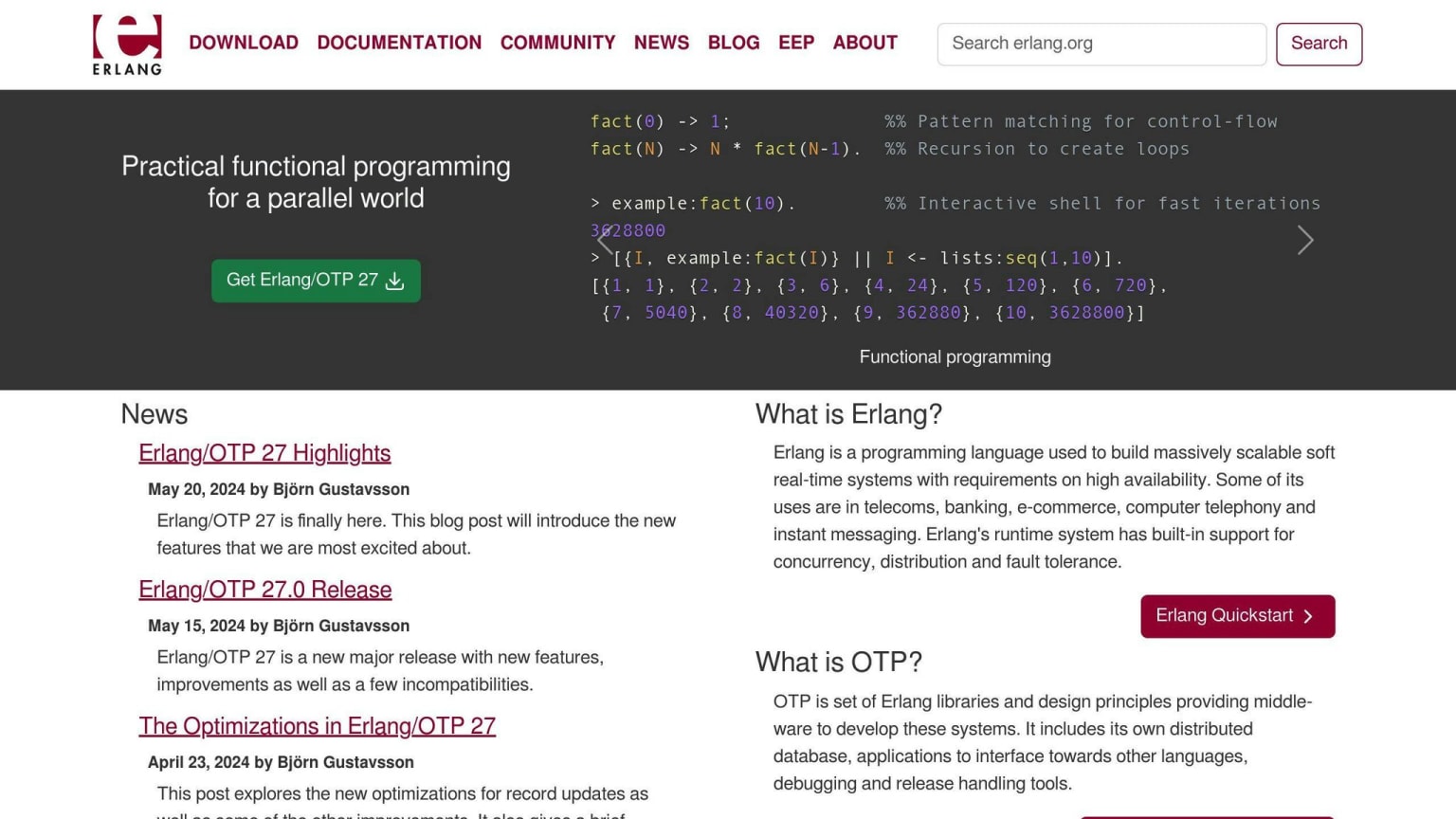
Use ASDF to install Erlang and Elixir:
- Clone ASDF and add it to your PATH:
git clone https://github.com/asdf-vm/asdf.git ~/.asdf
echo "\n. $HOME/.asdf/asdf.sh" >> ~/.zshrc
echo "\n. $HOME/.asdf/completions/asdf.bash" >> ~/.zshrc
source ~/.zshrc
- Install Erlang and Elixir:
asdf plugin-add erlang
asdf plugin-add elixir
asdf install erlang 25.0.3
asdf install elixir 1.14.0-otp-25
asdf global erlang 25.0.3
asdf global elixir 1.14.0-otp-25
Installing Nerves Bootstrap
Install Nerves Bootstrap by updating Elixir tools and adding the Nerves archive:
mix local.hex
mix local.rebar
mix archive.install hex nerves_bootstrap
Setting up your system for Nerves
On MacOS, install needed tools using Homebrew:
brew update
brew install fwup squashfs coreutils xz pkg-config
| Tool | Purpose |
|---|---|
| fwup | Firmware update tool |
| squashfs | File system for embedded devices |
| coreutils | Basic file, shell, and text tools |
| xz | Data compression utility |
| pkg-config | Helper tool for compiling applications |
These steps will prepare your system for Nerves development.
Starting your first Nerves project
Now that your development environment is ready, let's create your first Nerves project. We'll cover how to make a new project, what its parts are, and how to set up your hardware.
Creating a new Nerves project
To make a new Nerves project, use this command:
mix nerves.new my_nerves_project
Change my_nerves_project to the name you want for your project.
Project structure overview
Here's what you'll find in your new Nerves project:
| Directory | Contents |
|---|---|
config/ |
Project settings files |
lib/ |
Your Elixir code |
priv/ |
Private files (firmware, configs) |
test/ |
Test files |
Setting the target hardware
Before you build and load firmware, you need to tell Nerves what hardware you're using. Do this by setting the MIX_TARGET environment variable.
For example, if you're using a Raspberry Pi 3:
export MIX_TARGET=rpi3
Replace rpi3 with your actual hardware target. You can find a list of supported targets in the Nerves docs.
| Hardware | Target Name |
|---|---|
| Raspberry Pi 3 | rpi3 |
| Raspberry Pi 4 | rpi4 |
| BeagleBone Black | bbb |
Building and loading firmware
This section explains how to compile and load firmware onto your hardware device.
Compiling firmware
To compile the firmware, use this command:
mix firmware
This command compiles your Elixir code and creates a firmware bundle. Make sure you've set the MIX_TARGET environment variable for your hardware.
Writing firmware to an SD card
After compiling, write the firmware to an SD card:
mix firmware.burn
This command puts the compiled firmware on an SD card for your device.
Starting your device
To start your device:
- Insert the SD card with the new firmware
- Power on the device
| Step | Action |
|---|---|
| 1 | Insert SD card |
| 2 | Power on device |
Make sure to set up your device's network so it can connect to your development machine. This allows you to:
- Update firmware remotely
- Access your device's shell
| Feature | Benefit |
|---|---|
| Remote firmware updates | Easy to make changes |
| Shell access | Troubleshoot and manage device |
Setting up networking
This section covers how to set up networking for your Nerves device and fix common issues.
Configuring a static IP address
Use the :vintage_net package to set a static IP address:
Nerves.Network.setup "wlan0", ip_address: "192.168.1.100", subnet_mask: "255.255.255.0"
This sets the IP address of wlan0 to 192.168.1.100 with a subnet mask of 255.255.255.0.
Connecting to your device
Connect to your Nerves device using Ethernet or Wi-Fi:
- Ethernet: Plug in an Ethernet cable and connect to the same network as your computer.
- Wi-Fi: Use this code to set up Wi-Fi:
Nerves.Network.setup "wlan0", ssid: "myssid", key_mgmt: :"WPA-PSK", psk: "secretsecret"
This connects to the myssid Wi-Fi network using WPA-PSK and the password secretsecret.
Fixing common network problems
If you have network issues, try these steps:
| Problem | Solution |
|---|---|
| Wrong network settings | Check IP address, subnet mask, and gateway |
| Connection issues | Restart your device |
| Unstable connection | Check Wi-Fi or Ethernet connection |
| Multiple network interfaces | Look for conflicts between interfaces |
Working with your Nerves device
Now that your Nerves device is set up, let's look at how to use it and control basic hardware.
Connecting with IEx
To connect to your Nerves device using IEx:
- Open a terminal
- Go to your project folder
- Run
iex -S mix
This starts an IEx session connected to your device. You can now use Elixir code to interact with it.
Controlling hardware
Here's a simple way to control hardware: blinking an LED. The nerves_examples repository has a Blinky project that shows how to do this.
To try it:
- Clone the repository
- Go to the Blinky project folder
- Run
mix do deps.get, firmware, firmware.burn - Put the SD card in your device and turn it on
You should see the LED blink.
| Step | Action |
|---|---|
| 1 | Clone repository |
| 2 | Go to Blinky project |
| 3 | Run mix commands |
| 4 | Insert SD card and power on |
You can also update your device's firmware over the network using the ssh_subsystem_fwup package. It uses SSH keys from your ~/.ssh folder. To make an upload script, run mix firmware.gen.script. This creates an upload.sh script for updating your device's firmware.
Exploring the Nerves environment
The Toolshed package gives you useful IEx commands to look at the Nerves environment. These commands help you check the system, device settings, and more.
For example, run Toolshed.info to see:
| Information | Description |
|---|---|
| IP address | Device's network address |
| CPU architecture | Type of processor |
| Firmware version | Current software version |
This helps you understand your device's setup and status.
Updating firmware remotely
This section explains how to update your Nerves device's firmware over the network.
Creating an upload script
To make an upload script:
- Run this command in your project folder:
mix firmware.gen.script
- This creates an
upload.shfile you can use to update your device.
Sending updates to your device
To update your device:
- Use the
upload.shscript like this:
./upload.sh <device_ip_address>
- Replace
<device_ip_address>with your device's IP address.
Checking update success
After updating, check if it worked:
- Connect to your device using IEx
- Run this command:
Toolshed.info
- Look at the firmware version in the output
| Step | Action | Purpose |
|---|---|---|
| 1 | Create script | Make a tool for updates |
| 2 | Run script | Send new firmware to device |
| 3 | Check version | Make sure update worked |
This process lets you update your Nerves device without touching it.
Debugging your project
This section covers how to find and fix problems in your Nerves project. We'll look at using logs, checking system info, fixing hardware issues, and solving common problems.
Using logs and system info
Nerves has a good logging system to help you find issues. Here's how to use it:
- In your Elixir code, use the
Loggermodule:
require Logger
Logger.info("This is an info message")
- To see logs in real-time, connect to your device with
iexand run:
iex> Logger.info("This is an info message")
You can also get system info using the System module. This gives you details about your device, like:
| Information | Description |
|---|---|
| Firmware version | Current software version |
| Hardware setup | Device components and settings |
| System stats | Memory usage, CPU load, etc. |
Troubleshooting hardware issues
When you have hardware problems, try these steps:
- Make sure the power supply is working and connected properly
- Check that all hardware parts are set up and installed correctly
- Use the
iexconsole to run commands that check specific hardware
Common problems and fixes
Here's a table of common issues and how to solve them:
| Problem | Fix |
|---|---|
| Device won't start | Check the power supply connection |
| Hardware part not working | Make sure it's set up and installed right |
| Firmware update not working | Check if the firmware version works with your device |
Advanced topics
Building custom Nerves systems
You can make your own Nerves system to fit special hardware needs or add more Linux packages. Here's how:
- Copy an existing Nerves system
- Change the
mix.exsfile - Build the system
- Use it in your Nerves project
For example, to make a custom system for Raspberry Pi 3:
| Step | Action |
|---|---|
| 1 | Copy nerves_system_rpi3 |
| 2 | Update mix.exs with new system name |
| 3 | Build the system |
| 4 | Save changes in version control |
Adding external libraries and drivers
To add new libraries or drivers to your Nerves project:
- Add the library to your
mix.exsfile - Update project dependencies
- Use the library in your Elixir code
Example: To use a library for a specific hardware part, add it to mix.exs and use its functions in your code.
Creating complex embedded apps
To make advanced embedded apps with Nerves, you need to know:
- Elixir
- Linux
- Nerves framework
You can use Nerves to build apps that:
- Work with hardware parts
- Talk to other devices
- Do complex tasks
Example: An IoT device that:
| Function | Description |
|---|---|
| Collects data | Gets info from sensors |
| Sends data | Uploads info to cloud service |
| Receives commands | Gets instructions from remote server |
Best practices and tips
Improving performance
To make your Nerves projects run better:
- Find slow parts: Use tools like
:observeror:debuggerto see what's slowing down your code. - Make database queries faster: Check that your database queries work well, and think about using caching.
- Use multiple tasks: Take advantage of Elixir's ability to do many things at once to make your system faster and more responsive.
Building reliable systems
To make Nerves systems that don't break easily:
| Practice | Description |
|---|---|
| Handle errors well | Make your system able to deal with problems and keep working |
| Watch and record | Keep an eye on how your system is doing and write down errors to fix them quickly |
| Test a lot | Do many tests, including pretend situations, to make sure your system can handle different problems |
Securing IoT devices
Keeping IoT devices safe is very important. Here's how to do it:
- Use safe ways to talk: Use methods like SSL/TLS to keep data secret when sending it.
- Control who can use it: Make sure only the right people can use your device.
- Use NervesHub: NervesHub helps update your device safely. It uses:
| Feature | What it does |
|---|---|
| Special signatures | Makes sure updates are real |
| SSL | Keeps data safe on both sides |
| Access control | Lets only the right people make changes |
Wrapping up
Key takeaways
This guide has shown you how to start using the Nerves Framework to make embedded software with Elixir. We've covered:
| Topic | What we learned |
|---|---|
| Setup | Software and hardware needs |
| Development | How to make a new project |
| Firmware | Building, loading, and updating |
| Best practices | Making better and safer systems |
Further learning
Now that you know the basics, here's how to learn more:
- Read the Nerves docs to understand all its features
- Look at the Nerves Examples to see different projects
- Talk to other Nerves users in online groups
- Try making projects with different hardware
| Next steps | Why it's helpful |
|---|---|
| Read docs | Learn all Nerves can do |
| See examples | Get ideas for projects |
| Join community | Get help and share tips |
| Use new hardware | Get hands-on practice |
These steps will help you get better at using Nerves for embedded systems.