
Essential guide to publishing an Android app on Google Play in 2026. Learn about Google Play rules, API requirements, app building, testing, content rules,...
Here's your essential guide to publishing an Android app on Google Play in 2024:
- Set up a Google Developer account
- Ensure app quality and follow content rules
- Meet technical requirements
- Create a compelling store listing
- Address privacy and security concerns
- Set pricing and distribution
- Test thoroughly before submission
- Submit your app for review
Key steps before development:
- Sign up for a Google Developer account ($25 fee)
- Read Google Play Developer Program Policies
- Check 2024 API requirements (Android 14 for new apps)
Building and testing:
- Ensure app performance, safety, and design
- Test on various devices
- Implement security features
Preparation Area
Key Tasks
Store Page
Write clear description, create visuals, translate
Technical
Set up for release, sign app, check size
Content Rules
Set age ratings, create privacy policy
Payments
Choose pricing model, set up in-app purchases
Testing
Conduct internal and beta tests
Submission
Upload app file, fill out required info
After launch:
- Monitor app performance
- Plan regular updates
- Provide user support
Use this checklist to ensure a smooth publication process for your Android app on Google Play in 2024.
Related video from YouTube
Before You Start Developing
Get ready before you begin making your app.
Set Up Your Google Developer Account
To put your Android app on Google Play, you need a Google Developer account. Here's what to do:
- Sign the Google Play Developer agreement
- Pay the one-time registration fee
This account lets you upload and manage your apps on Google Play.
Learn Google Play Rules
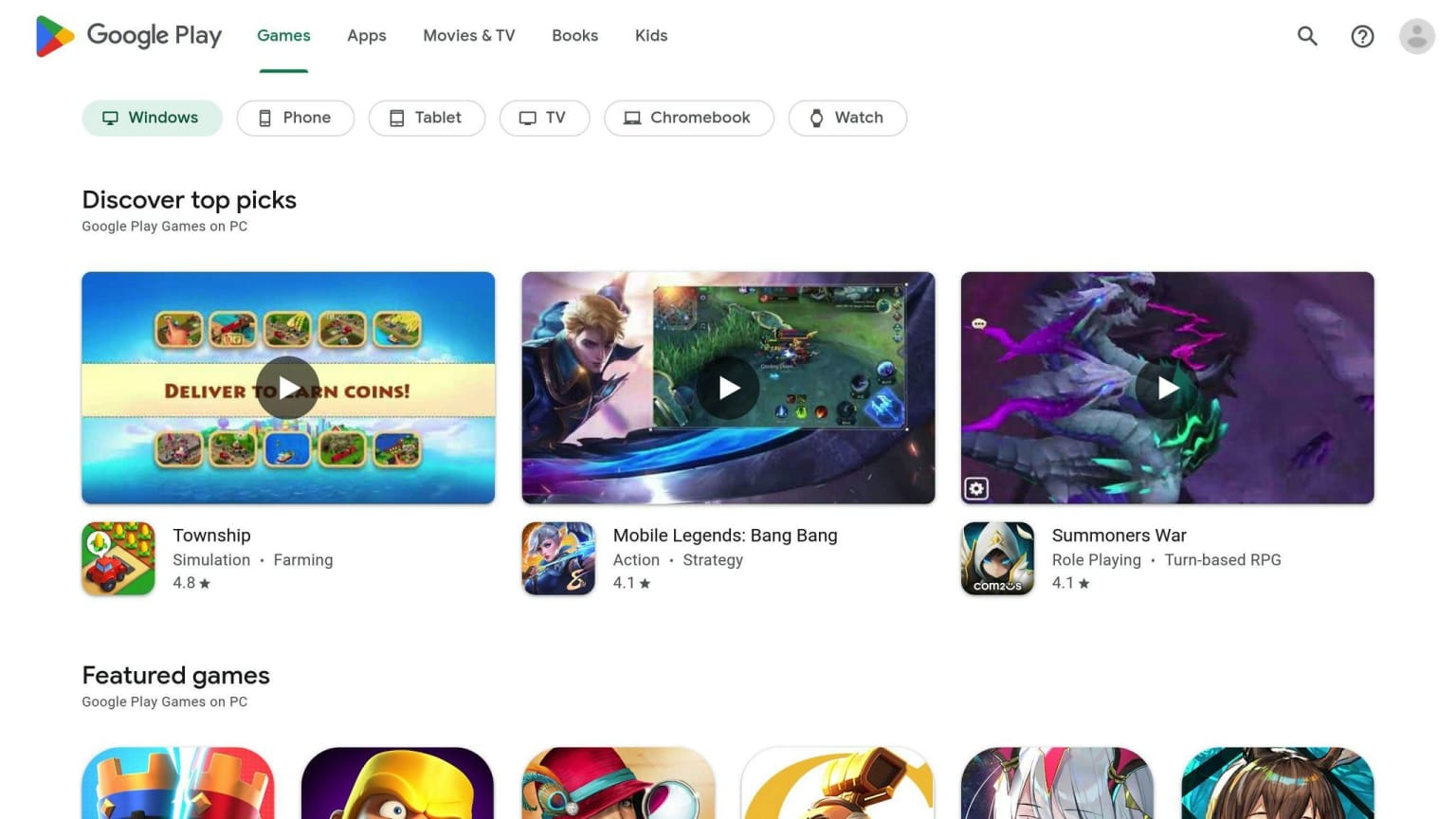
Know the rules before you start coding. Read the Google Play Developer Program Policies. These tell you what you can and can't do with your app.
⚠️ API level requirements change every year. The numbers in this section reflect the 2024 cutoff. Always verify the current required target API level on the Google Play target API level requirements page before building for release.
Check 2024 API Requirements
Make sure your app works with new Android versions. Here are the key dates:
Date
Requirement
August 31, 2024
New apps and updates must target Android 14 (API level 34) — this was the 2024 cutoff
Check current requirements
Google raises the target API level requirement annually. Verify the current minimum on the official Google Play target API level requirements page before submitting any new app or update.
Meeting these rules helps your app stay on Google Play and work on new devices.
Build and Test Your App
Make sure your app works well before you release it.
Make Sure Your App Works Well
To create a good app that meets Google's standards:
Aspect
What to Do
Speed
Make your app run fast without crashing or slowing down phones
Safety
Keep user information safe
Look
Design an easy-to-use app that looks good
Features
Make sure all parts of your app work correctly
Test on Different Devices
Check your app on many phones and tablets:
- Use fake phones on your computer
- Try real phones and tablets
- Use online services to test on many devices at once
Add Safety Features
Keep your app and its users safe:
Feature
Description
Data protection
Hide important information like passwords
Safe coding
Write your app code in ways that stop problems
Updates
Fix any safety issues quickly
Prepare Your App Store Page
Getting your app ready for the Google Play Store is key to getting more downloads.
Write a Good App Description
Your app description should:
- Be clear and easy to read
- Tell users what your app does
- List main features
- Use words people search for
Keep it short and simple. Don't use hard-to-understand words.
Create Clear Screenshots and Videos
Good pictures and videos show users what your app looks like and how it works.
Item
Requirements
Screenshots
At least 1080px wide
Videos
Show main features
Both
Follow Google Play rules
Add text to explain what's in each picture or video.
Translate for Different Markets
Making your app available in different languages can help more people find and use it.
Step
Action
1
Find out which countries you want to reach
2
Translate your app description and store page
3
Use Google Play's tools to help with translation
This helps people who speak other languages understand and use your app.
Technical Steps
Get your app ready for release with these key steps.
Set Up Your App for Release
Before you publish:
- Turn off debugging
- Set the right version info
- Clean up project folders
To do this:
- Go to App releases in the left menu
- Pick Production track
- Click MANAGE
- Hit CREATE RELEASE
Sign Your App
You must sign your app. You have two choices:
Option
Description
Self-signing
You handle the signing process
Google Play signing
Google manages your app's signing key
To sign your app:
- Make cryptographic keys
- Choose OPT OUT when making a new release (if you want to self-sign)
Check App Size
Make sure your app isn't too big:
App Size
Action
Under 4 GB
Good to go
Over 4 GB
Use APK Expansion Files
To check your app size:
- Upload your app file to Google Play Console
- Look at the size info
Try to make your app smaller. This helps users download it faster and use less space on their phones.
Follow Content Rules
Make sure your app follows Google Play Store's rules to avoid problems.
Set Age Ratings
Tell users how old they should be to use your app:
- Answer questions about your app's content
- Get a rating based on your answers
The rating shows if your app is okay for kids, teens, or only adults.
Create a Privacy Policy
Write a clear privacy policy that explains:
What to Include
Why It's Important
Data you collect
Users know what info you have
How you use data
Shows you're honest
User rights
Tells users how to control their info
Make sure your policy follows laws like GDPR and CCPA.
Check Restricted Content Rules
Google Play has strict rules about what's allowed in apps:
Not Allowed
Examples
Bad content
Violence, hate speech
Illegal stuff
Gambling, drugs
Copying others
Using someone else's work without permission
If you break these rules, Google might take your app off the store.
Set Up App Payments
Here's how to set up payments for your app.
Choose Free or Paid
When deciding if your app should be free or paid, think about:
Factor
What to Consider
Money goals
How will you make money? (In-app buys, ads, etc.)
Users
Will people pay for your app?
Other apps
What prices do similar apps charge?
You can make your app free with in-app buys or charge for extra features.
Add In-App Purchases
To let users buy things in your app:
Get a Google Merchant Account: Link it to your developer account.
Add billing permission: Put this in your app's manifest file:
<uses-permission android:name="com.android.vending.BILLING" />Make in-app products: Set these up in the Google Play Developer Console.
Use Google Play Billing Library: Add this to your app to handle purchases.
Set Prices for Different Countries
When setting prices for other countries:
Task
Why It's Important
Use local money
Makes it easier for users to buy
Check other app prices
Helps you set fair prices
Think about taxes
Different places have different rules
Use the Google Play Console to set prices for each country. Make sure you follow the rules about pricing and taxes in each place.
Test Before Launch
Check your app carefully before you release it to make sure it works well for users.
Do Internal Testing
Test your app within your team first:
Method
Description
Share your app with team members
Play Console's internal app sharing
Let team members try your app
This helps you find and fix problems early.
Run Beta Tests
Let more people try your app before the public release:
Test Type
Description
Closed beta
Limited group of users
Open beta
Anyone can join
Use the feedback to improve your app.
Use Google Play Console Reports
Google Play Console gives you helpful information:
Report Type
What It Shows
Stability
If your app crashes or freezes
Performance
How fast your app runs
Other issues
Problems that might affect users
Look at these reports to make your app better before you release it.
Submit Your App
Here's how to officially put your app on Google Play.
Upload Your App File
Follow these steps to upload your app:
- Go to Google Play Console
- Pick your app
- Click "Release management" then "App releases"
- Choose "Create release"
- Pick your release type
- Upload your app file (APK or AAB)
- Fill in the needed info
- Check and confirm your release details
Fill Out All Required Info
Make sure to complete all these fields:
Field
What to Include
App title
Short, clear name
Short description
Quick summary
Full description
Detailed info
Screenshots
Clear images of your app
Graphics
Logo and other visuals
Category and tags
Help users find your app
Pricing
Free or paid
Distribution
Where to sell your app
Content rating
Age group for your app
Privacy policy
How you handle user data
Choose Your Release Type
Pick the right way to release your app:
Release Type
Who Can Use It
Best For
Production
All users
Final, ready-to-use apps
Beta
Limited group
Getting feedback before full release
Alpha
Small, trusted group
Early testing of new features
After Launch
Watch App Performance
After your app goes live, keep an eye on how it's doing. Use Google Play Console and Firebase Analytics to check:
Metric
What It Tells You
Downloads
How many people get your app
Installs
How many keep your app
Crashes
How often your app stops working
Ratings
What users think of your app
Revenue
How much money your app makes
Looking at these numbers helps you:
- Find what needs fixing
- Make your app work better
- Keep users happy
- Get more people to use your app
- Help more people find your app on the Play Store
Plan Updates
Keep your app fresh and working well by planning updates. This means:
Task
Why It's Important
Fix bugs
Stop things from going wrong
Add new features
Give users more reasons to use your app
Make the app faster and safer
Keep users' info safe and make the app run smoothly
Update app info
Tell users about new changes
Think about future updates
Stay ahead of what users might want
By doing these things, your app stays useful and safe for people to use.
Help Users and Fix Problems
Be there for your users when they need help. Set up ways to support them:
Support Method
How It Helps
Answer reviews on Play Store
Shows you care about user feedback
Write clear help guides
Makes it easy for users to solve problems
Offer email, chat, or phone help
Gives users different ways to reach you
Fix issues quickly
Keeps users happy and using your app
Ask users what they think
Helps you make the app better
Good support makes users trust your app and want to keep using it.
Quick Checklist
Here's a simple list to check before you put your Android app on Google Play:
Development
Task
Details
Google Developer account
Set it up
Google Play rules
Learn them
2024 API requirements
Check them
App building and testing
Do it thoroughly
Security features
Add them
App Store Page
Task
What to Do
App description
Write it clearly
Screenshots and videos
Make them easy to understand
Different languages
Translate your app info
Technical Steps
Step
Action
Release setup
Get your app ready
App signing
Do it correctly
App size
Make sure it's not too big
Content Rules
Rule
What to Do
Age ratings
Set them
Privacy policy
Write one
Restricted content
Check the rules
Payments
Task
Action
App cost
Choose free or paid
In-app purchases
Add if needed
Prices for countries
Set them
Testing
Test Type
What to Do
Internal testing
Test with your team
Beta tests
Test with some users
Play Console reports
Use them to find issues
Submission
Task
What to Do
App file
Upload it
Required info
Fill it all out
Release type
Pick the right one
Use this list to make sure you've done everything before putting your app on Google Play.
FAQs
How do I publish an Android app to Google Play?
To put your Android app on Google Play, follow these steps:
- Set up a Google Developer account
- Go to Google Play Console website
- Pay the $25 one-time fee
- Sign up for an account
- Get your app ready
- Make a final version of your app file (APK)
- Write your app's store description
- Choose your app's price
- Put your app on Google Play
- Go to Google Play Console
- Upload your app file
- Fill in all needed info
Step
What to Do
Why It's Important
- Account Setup
Create Google Developer account
Lets you use Google Play
- App Preparation
Make APK, write description, set price
Gets your app ready for users
- App Upload
Use Google Play Console to upload
Puts your app on the store
- Add required information
- App title
- Short and full descriptions
- Screenshots
- App icon
- Choose app category
- Pick how to release your app
- Free or paid
- Countries where it's available
- Age rating
Related Blog Posts
- Google I/O 2024: Everything you should expect from Google’s upcoming developer conference
- Android App Performance Optimization Guide 2024
- Google I/O 2024 recap: Everything you should know in one place
- 10 Android Accessibility Best Practices 2024