---
title: ARCore for Android: Quickstart Guide 2026 | daily.dev
description: Learn how to develop augmented reality (AR) apps on Android using ARCore. Set up your environment, create AR scenes, and optimize AR experiences with this...
canonical: https://daily.dev/blog/arcore-for-android-quickstart-guide-2024/
og:type: article
og:url: https://daily.dev/blog/arcore-for-android-quickstart-guide-2024/
og:title: ARCore for Android: Quickstart Guide 2026 | daily.dev
og:description: Learn how to develop augmented reality (AR) apps on Android using ARCore. Set up your environment, create AR scenes, and optimize AR experiences with this...
og:image: https://media.daily.dev/image/upload/s--EnXJpt6j--/f_auto,q_auto/v1/recruiter-landing/668f329d31dacbcb34501edb_1675463643d26d5a1ee8e4c7c9d738b1_b77a48241d?_a=BAMAMiB80
og:site_name: daily.dev
og:locale: en_US
article:published_time: 2024-07-11
article:modified_time: 2026-06-09T20:38:17.975Z
article:author: Alex Carter
twitter:card: summary_large_image
twitter:site: @dailydotdev
twitter:creator: @dailydotdev
twitter:title: ARCore for Android: Quickstart Guide 2026 | daily.dev
twitter:description: Learn how to develop augmented reality (AR) apps on Android using ARCore. Set up your environment, create AR scenes, and optimize AR experiences with this...
twitter:image: https://media.daily.dev/image/upload/s--EnXJpt6j--/f_auto,q_auto/v1/recruiter-landing/668f329d31dacbcb34501edb_1675463643d26d5a1ee8e4c7c9d738b1_b77a48241d?_a=BAMAMiB80
---
[ARCore](https://developers.google.com/ar) is Google's toolkit for creating augmented reality (AR) apps on Android. This guide covers:
- Setting up ARCore in your Android project
- Key concepts and features of ARCore
- Creating a basic AR app
- Testing and optimizing [AR experiences](https://daily.dev/blog/ar-tools-for-developers)
Here's a quick overview of what you need to get started:
Requirement
Details
Software
[Android Studio](https://developer.android.com/studio) 3.5+, ARCore SDK
Hardware
Android 7.0+ device with camera, accelerometer, gyroscope
Skills
Basic [Android development](https://app.daily.dev/tags/android-development) knowledge
Key ARCore features:
- Motion tracking
- Environmental understanding
- Light estimation
This guide will walk you through setting up your development environment, creating your first ARCore project, and implementing basic AR features. We'll also cover testing, debugging, and advanced topics like anchors, image recognition, and shared AR experiences.
## Related video from YouTube
## What You Need to Start
To begin using ARCore for Android, you'll need specific software, hardware, and Android version support.
### Software and Hardware Needs
Here's what you need to develop ARCore apps:
Item
Requirement
Android Studio
Version 3.5 or newer
ARCore SDK
Latest version
Android Device
Physical or emulator with Android 7.0+
Device Features
Camera, accelerometer, gyroscope
### Android Version Support
ARCore works with Android 7.0 (Nougat) and newer versions. Some features may not work on older Android versions.
### Devices That Work with [ARCore](https://developers.google.com/ar)
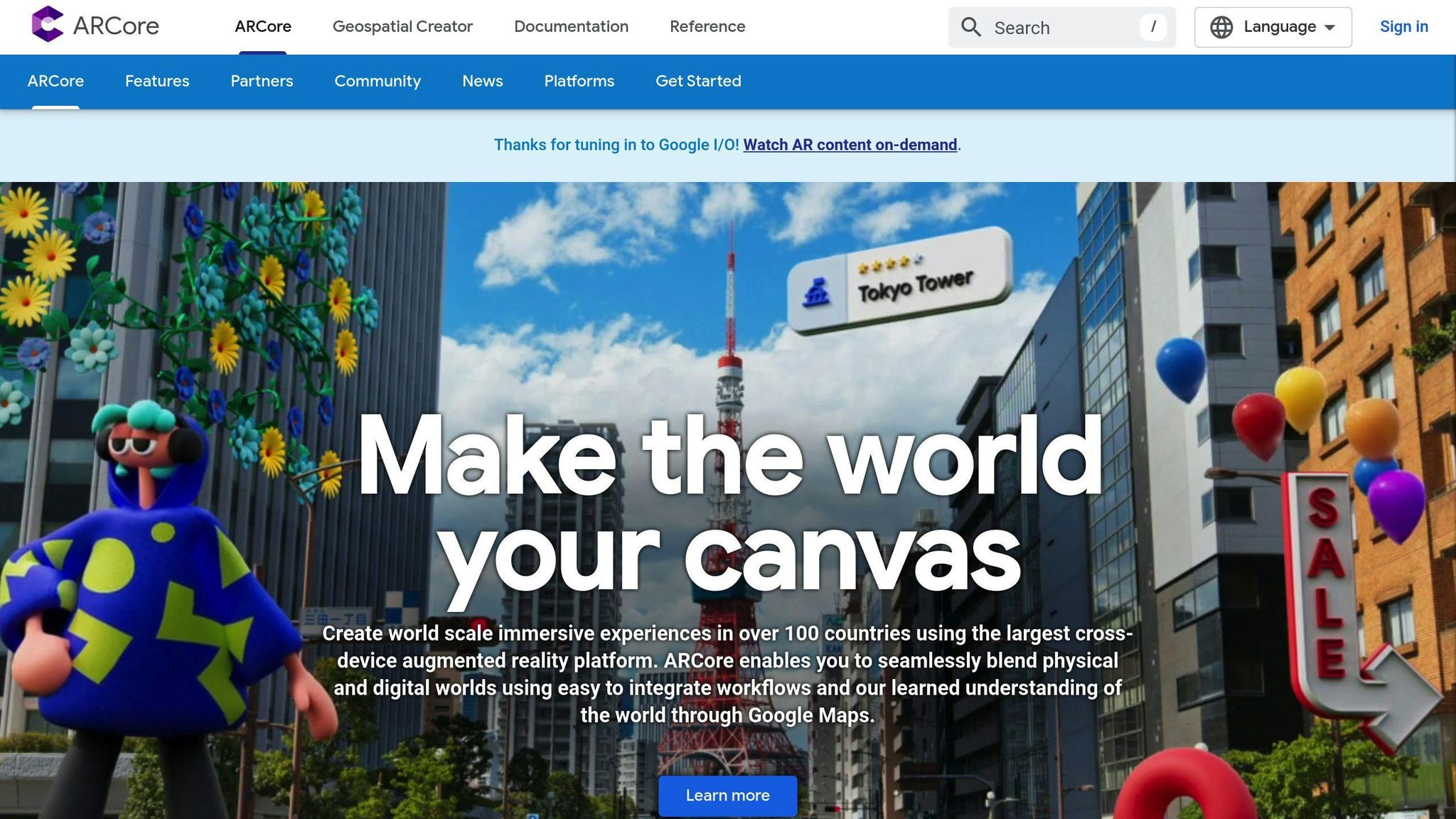
Many Android devices support ARCore. Here's a sample list:
Android Devices
iOS Devices (with ARKit)
[Samsung Galaxy S21 Ultra](https://www.samsung.com/us/smartphones/es/galaxy-s21-ultra-5g/)
iPhone 13 Pro Max
[Google Pixel 5](https://store.google.com/us/category/phones)
iPhone 12 Pro
[OnePlus 9 Pro](https://www.oneplus.com/us/9-pro)
iPhone 13
[Samsung Galaxy Note 20 Ultra](https://www.samsung.com/us/smartphones/galaxy-note20-5g/)
iPad Pro (2023)
[Sony Xperia 1 III](https://www.sony.com/electronics/support/mobile-phones-tablets-mobile-phones/xperia-1-iii/specifications)
iPhone SE (2023)
This list isn't complete. Check the official ARCore website for the most current list of supported devices.
## Setting Up Your Work Environment
To start making ARCore apps, you need to set up your work area. This means getting Android Studio, adding ARCore to your project, and getting your test devices ready.
### Getting [Android Studio](https://developer.android.com/studio)
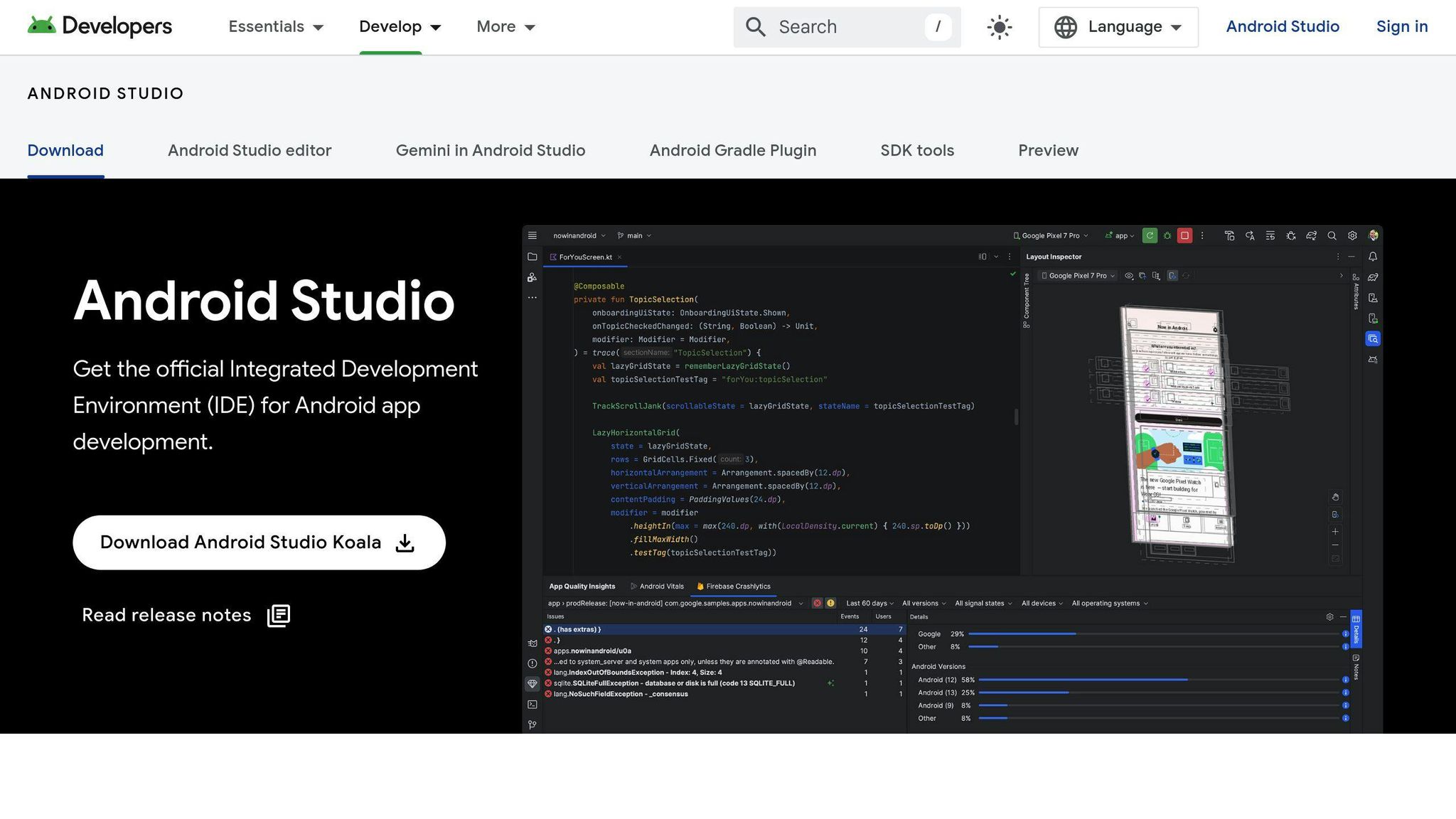
You need Android Studio version 3.0 or newer for ARCore apps. If you don't have it:
1. Go to the official Android website
2. Download Android Studio
3. Install it on your computer
### Adding ARCore to Your Project
To use ARCore in your Android project:
1\. Open your project's `build.gradle` file
2\. Add this line:
```gradle
implementation 'com.google.ar:core:1.44.0' // ⚠️ Replace with the latest stable version — check https://github.com/google-ar/arcore-android-sdk/releases
```
3\. Click "Sync Now" in Android Studio
4\. Open `AndroidManifest.xml` and add:
```xml
```
5\. Add this before the closing `application` tag:
```xml
```
### Preparing Test Devices
To test your ARCore app, you need:
Device Type
Requirements
Physical
\- Android 7.0 or newer
\- Camera
\- Accelerometer
\- Gyroscope
\- [Developer options](https://daily.dev/blog) on
\- USB debugging on
Emulator
\- Android 7.0 or newer
\- ARCore support
With these steps done, you're ready to start building your ARCore project.
## ARCore Basics
### Key Terms and Ideas
ARCore uses three main features to create AR experiences:
Feature
What it Does
Motion Tracking
Helps the phone know where it is in the world
Environmental Understanding
Finds surfaces like floors, tables, and walls
Light Estimation
Figures out how bright the area is
These features let ARCore sense its surroundings and work with information.
### What ARCore Can Do
ARCore helps make AR apps. Here's what it can do:
- Track how the phone moves
- Understand the space around it
- Figure out lighting
- Create AR scenes
- Add virtual objects to the real world
ARCore also has tools like anchors, trackables, and planes. These help make better AR experiences.
## Starting Your First ARCore Project
### Creating a New Android Project
To begin your ARCore project:
1. Open Android Studio
2. Click "Start a new Android Studio project"
3. Choose "Empty Activity"
4. Fill in project details:
- Project name
- Package name
- Location
5. Select "Kotlin" as the programming language
6. Choose a minimum SDK version that supports ARCore (API level 24 or higher)
### Including ARCore in Your Project
Add ARCore SDK to your project:
1. Open `build.gradle` file
2. Add this line:
```
dependencies {
implementation 'com.google.ar:core:1.27.0'
}
```
3. Sync your project
### Setting Up the Android Manifest
Add these lines to your `AndroidManifest.xml` file:
```xml
```
These settings allow ARCore to work correctly in your app.
Setting
Purpose
Camera permission
Lets the app use the device camera
AR camera feature
Tells the system the app needs AR support
ARCore metadata
Specifies that ARCore is needed for the app
## Adding Basic AR Features
This section shows you how to add simple AR features to your app. You'll learn how to set up an AR scene, handle AR sessions, and put virtual objects in the real world.
### Creating an AR Scene
To make an AR scene, you need to set up the ARCore session and camera. Here's how:
1. Make an `ArSceneView` in your activity's layout
2. Use `ArSceneView` to show the AR scene and track device movement
Here's a code example:
```kotlin
import com.google.ar.sceneform.ArSceneView
import com.google.ar.sceneform.ux.ArFragment
class MyActivity : AppCompatActivity() {
private lateinit var arSceneView: ArSceneView
override fun onCreate(savedInstanceState: Bundle?) {
super.onCreate(savedInstanceState)
setContentView(R.layout.activity_main)
arSceneView = findViewById(R.id.ar_scene_view)
val fragment = ArFragment()
fragment.setupSession(arSceneView.session)
supportFragmentManager.beginTransaction().add(R.id.ar_fragment_container, fragment).commit()
}
}
```
### Managing AR Sessions
Handling AR sessions is key for a smooth AR experience. Use the `ArSession` class to control the AR session:
```kotlin
import com.google.ar.core.Session
class MyActivity : AppCompatActivity() {
private lateinit var arSession: Session
override fun onResume() {
super.onResume()
arSession.resume()
}
override fun onPause() {
super.onPause()
arSession.pause()
}
}
```
### Adding Virtual Objects
To put virtual objects in your AR scene, use the `Node` class. Here's how:
```kotlin
import com.google.ar.sceneform.Node
class MyActivity : AppCompatActivity() {
private lateinit var arSceneView: ArSceneView
override fun onCreate(savedInstanceState: Bundle?) {
super.onCreate(savedInstanceState)
setContentView(R.layout.activity_main)
arSceneView = findViewById(R.id.ar_scene_view)
val node = Node()
node.renderable = Renderable.createFromSource(this, R.raw.model)
arSceneView.scene.addChild(node)
}
}
```
This code adds a basic virtual object to your AR scene.
AR Feature
Purpose
AR Scene
Shows the real world with AR objects
AR Session
Controls when AR starts and stops
Virtual Objects
Adds 3D models to the real world
These steps help you start with AR in your app. There's more to learn about AR, but this gives you a good start.
###### sbb-itb-bfaad5b
## Using ARCore's Main Features
This section covers ARCore's key functions: motion tracking, environmental understanding, and light estimation.
### Tracking Device Movement
ARCore tracks how a device moves, letting apps place virtual objects in the real world. This feature allows users to:
- Interact with virtual content
- Use gestures and taps
- Move around virtual objects
Developers can use this to make AR apps more fun and easy to use.
### Understanding the Environment
ARCore looks at the world around the device. Here's how it works:
1. Creates a "plane" from points it sees
2. Uses these planes to place virtual objects
3. Checks where users are tapping
This helps make AR experiences feel more real.
Step
What It Does
1\. Create Plane
Finds flat surfaces
2\. Place Objects
Puts virtual items in the real world
3\. Check Taps
Sees what the user is touching
### Estimating Light
ARCore looks at the light in the room. This helps make virtual objects look more real by:
- Matching the brightness of the room
- Adding shadows to virtual objects
- Making objects blend in better
Light Feature
How It Helps
Brightness Match
Objects look like they belong
Shadows
Adds depth to virtual items
Blending
Makes AR feel more natural
These three main parts of ARCore work together to create AR apps that look and feel real.
## Testing and Fixing AR Apps
Testing and fixing AR apps is key to making sure users have a good experience. This section covers tools and tips for finding and fixing problems in ARCore apps.
### ARCore Debugging Tools
ARCore offers several tools to help you find and fix issues:
Tool
What it Does
ARCore SDK logs
Shows detailed info about how ARCore is working
Android Studio tools
Lets you pause code, check variables, and track how code runs
ARCore Debugging API
Helps you add your own debugging features to your app
### Tips for Testing AR Apps
Good testing helps make sure your AR app works well. Here are some tips:
Tip
Why It's Important
Test on many devices
Makes sure your app works on different phones and tablets
Test in different places
Checks how your app works indoors, outdoors, and in different lighting
Use testing tools
Helps find problems automatically
Ask people to try your app
Gets feedback on issues you might have missed
When testing your AR app:
1\. **Try it on different devices**
- Use phones and tablets with different:
- Screen sizes
- Processors
- Android versions
2\. **Test in various settings**
- Try your app:
- Inside buildings
- Outside
- In bright and dim light
3\. **Use testing tools**
- Tools like [JUnit](https://junit.org/) or [Espresso](https://developer.android.com/training/testing/espresso) can:
- Check if your app works correctly
- Test how fast it runs
4\. **Get user feedback**
- Ask people to use your app and tell you:
- What they like
- What doesn't work well
- If anything is confusing
## More Advanced ARCore Topics
Learn about some more complex ARCore features that can make your AR apps better.
### Using Anchors and Trackables
Anchors and trackables help keep virtual objects in place in the real world. Here's what they do:
Feature
Purpose
Anchor
Keeps a virtual object in one spot
Trackable
Follows a real object as it moves
Using these features lets you:
- Put virtual objects on tables or floors
- Make objects stay in place as users move around
- Create AR experiences that feel more real
### Recognizing Images and Objects
ARCore can spot specific images or objects. This lets you:
- Show extra info about products
- Start AR experiences when the camera sees certain things
For example, you could make an app that:
- Sees a product box
- Shows details about what's inside
- Displays special offers
### Shared AR with Cloud Anchors
Cloud anchors let multiple people see the same AR objects. Here's how it works:
1. One person places a virtual object
2. The app saves where the object is
3. Other people can see the same object in the same place
This feature is good for:
- Multiplayer AR games
- Shared AR experiences in the same room
- AR apps that work across different devices
Cloud anchors open up new ways for people to use AR together.
## Making ARCore Apps Run Better
### Tips for Smooth AR Experiences
To make AR apps work well, follow these tips:
Tip
Why It's Important
Use anchors
Keeps virtual objects steady
Move the camera slowly
Helps ARCore track the environment
Attach objects to anchors
Prevents objects from jumping around
When users move the device quickly:
- The camera image can get blurry
- ARCore uses other sensors to guess where the device is
- Visual tracking starts again when movement stops
### Using Resources Wisely
AR apps can use a lot of phone resources. Here's how to make them work better:
What to Do
How It Helps
Make the app run smoothly
Users have a better experience
Use 3D models and textures carefully
Prevents slowdowns
Design easy-to-use interactions
Makes the app more user-friendly
Give clear instructions
Helps users understand how to use the app
To make sure your app works well:
1\. Test on different devices
- Check how it runs on various phones and tablets
2\. Look at how the app uses:
- GPU (graphics)
- CPU (processing)
- Battery
- Memory
## Fixing Common ARCore Problems
ARCore can sometimes cause issues when making AR apps. Here are some common problems and how to fix them.
### Known Issues and Solutions
Many problems with ARCore come from device compatibility and app performance. Here's how to handle these:
Issue
How to Fix
Device not working with ARCore
Check if your device is on the supported list
App running slowly
Make 3D models simpler, use less memory
### Solving Frequent Errors
Some errors happen often when using ARCore. Here's what to do about them:
Error
Fix
Virtual objects moving on their own
Use anchors to keep objects in place
App works on some phones but not others
Test on different devices, adjust app for each
To avoid these errors:
- Always use anchors for virtual objects
- Test your app on many different phones and tablets
- Make sure your app doesn't use too much phone power
## Wrap-Up
### Key Points Review
This guide covered the basics of ARCore for Android. We looked at:
Topic
What We Covered
Setup
Software and hardware needs
Basics
Main ARCore features
Development
Starting an ARCore project
Advanced Topics
Anchors, image recognition, shared AR
Testing
Tools and tips for fixing issues
We also talked about making AR apps run better and fixing common problems.
### Next Steps
After this guide, you can:
- Read the official ARCore docs
- Try online tutorials about ARCore
- Test different ARCore features
- Make your own AR apps
Keep up with new ARCore updates to make sure your apps work well.
## Related Blog Posts
- [AR Tools for Developers](/blog/ar-tools-for-developers/)
- [Android App Performance Optimization Guide 2024](/blog/android-app-performance-optimization-guide-2024/)
- [Unity vs Unreal Engine for VR/AR Development](/blog/unity-vs-unreal-engine-for-vrar-development/)
- [Android Jetpack Navigation: Beginner's Guide](/blog/android-jetpack-navigation-beginners-guide/)
```json
{"@context":"https://schema.org","@graph":[{"@type":"Organization","@id":"https://daily.dev/#organization","name":"daily.dev","url":"https://daily.dev","logo":{"@type":"ImageObject","url":"https://daily.dev/og-image.png?v=a830cdf1","width":1200,"height":630},"sameAs":["https://twitter.com/dailydotdev","https://www.linkedin.com/company/dailydotdev","https://github.com/dailydotdev","https://www.instagram.com/dailydotdev"]},{"@type":"WebSite","@id":"https://daily.dev/#website","url":"https://daily.dev","name":"daily.dev","description":"Free, personalized developer news aggregator. Stay on top of software development news, AI coding tools, and web dev - curated daily from trusted sources.","publisher":{"@id":"https://daily.dev/#organization"},"potentialAction":{"@type":"SearchAction","target":{"@type":"EntryPoint","urlTemplate":"https://daily.dev/search?q={search_term_string}"},"query-input":"required name=search_term_string"}},{"@type":"WebPage","@id":"https://daily.dev/blog/arcore-for-android-quickstart-guide-2024/","url":"https://daily.dev/blog/arcore-for-android-quickstart-guide-2024/","name":"ARCore for Android: Quickstart Guide 2026 | daily.dev","description":"Learn how to develop augmented reality (AR) apps on Android using ARCore. Set up your environment, create AR scenes, and optimize AR experiences with this...","inLanguage":"en-US","isPartOf":{"@id":"https://daily.dev/#website"},"timeRequired":"PT11M"},{"@type":"Article","@id":"https://daily.dev/blog/arcore-for-android-quickstart-guide-2024/#article","headline":"ARCore for Android: Quickstart Guide 2026","url":"https://daily.dev/blog/arcore-for-android-quickstart-guide-2024/","datePublished":"2024-07-11","dateModified":"2026-06-09T20:38:17.975Z","isPartOf":{"@id":"https://daily.dev/#website"},"publisher":{"@id":"https://daily.dev/#organization"},"mainEntityOfPage":{"@type":"WebPage","@id":"https://daily.dev/blog/arcore-for-android-quickstart-guide-2024/"},"description":"Learn how to develop augmented reality (AR) apps on Android using ARCore. Set up your environment, create AR scenes, and optimize AR experiences with this...","image":{"@type":"ImageObject","url":"https://media.daily.dev/image/upload/s--EnXJpt6j--/f_auto,q_auto/v1/recruiter-landing/668f329d31dacbcb34501edb_1675463643d26d5a1ee8e4c7c9d738b1_b77a48241d?_a=BAMAMiB80"},"author":{"@type":"Person","name":"Alex Carter","url":"https://app.daily.dev/alexcarterdev"},"timeRequired":"PT11M","potentialAction":{"@type":"ReadAction","target":"https://daily.dev/blog/arcore-for-android-quickstart-guide-2024/"}},{"@type":"BreadcrumbList","itemListElement":[{"@type":"ListItem","position":1,"name":"Home","item":"https://daily.dev/"},{"@type":"ListItem","position":2,"name":"Blog","item":"https://daily.dev/blog/"},{"@type":"ListItem","position":3,"name":"Mobile","item":"https://daily.dev/categories/mobile/"},{"@type":"ListItem","position":4,"name":"ARCore for Android: Quickstart Guide 2026","item":"https://daily.dev/blog/arcore-for-android-quickstart-guide-2024/"}]}]}
```